
Run A Workshop
A small training day is a good fit for a light setup. You approve each guest, print badges at the door, and issue certificates afterwards. Small events switch on only what they need, and this one is no exception.
Before You Start
Section titled “Before You Start”You’ll need a published event. If you haven’t made one yet, see Create Your First Event.
Switch On What You Need
Section titled “Switch On What You Need”- Open Operate, then Modules, and filter to On.
- A workshop needs only a few modules. EventHAUS App, EventHAUS Agenda, EventHAUS Notify and EventHAUS Certify do the main work. The Modules And The Attendee App says more about each.
Tickets, Form And Approval
Section titled “Tickets, Form And Approval”Guests land on your event page, answer the form, then choose a ticket. You can add your own questions to the form, like what they most want to fix, or any dietary requirements.
- In the editor, open Ticket Tiers. Each tier has a Name, a Price and a Capacity. Leave capacity blank for no limit.
- Payment here is manual, so paid sign-ups wait on a list until you confirm them.
- Under Security & Access, switch on Require Admin Approval so you decide who gets a seat.
Tickets And The Registration Form has the detail.
Send Passes And Manage Guests
Section titled “Send Passes And Manage Guests”- Open Comms And Sales, then Communications.
- The Registration Email carries each guest’s pass. If auto-send is off, you choose when it goes. Emails And QR Messages explains how.
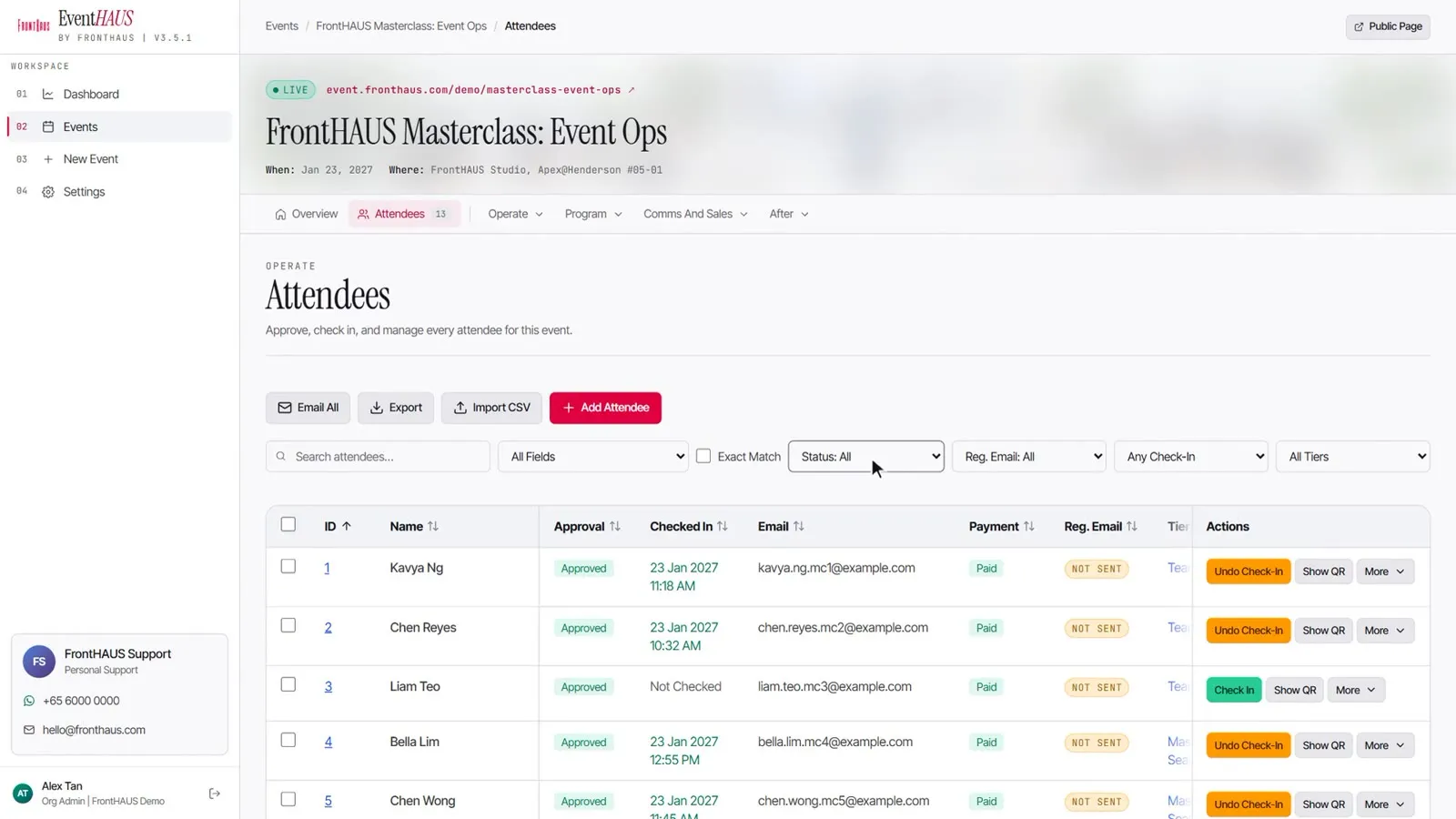
- Open Attendees to see each guest’s ticket, payment and check-in status, and to approve and confirm them. Managing Attendees covers the rest.
Prepare Badges
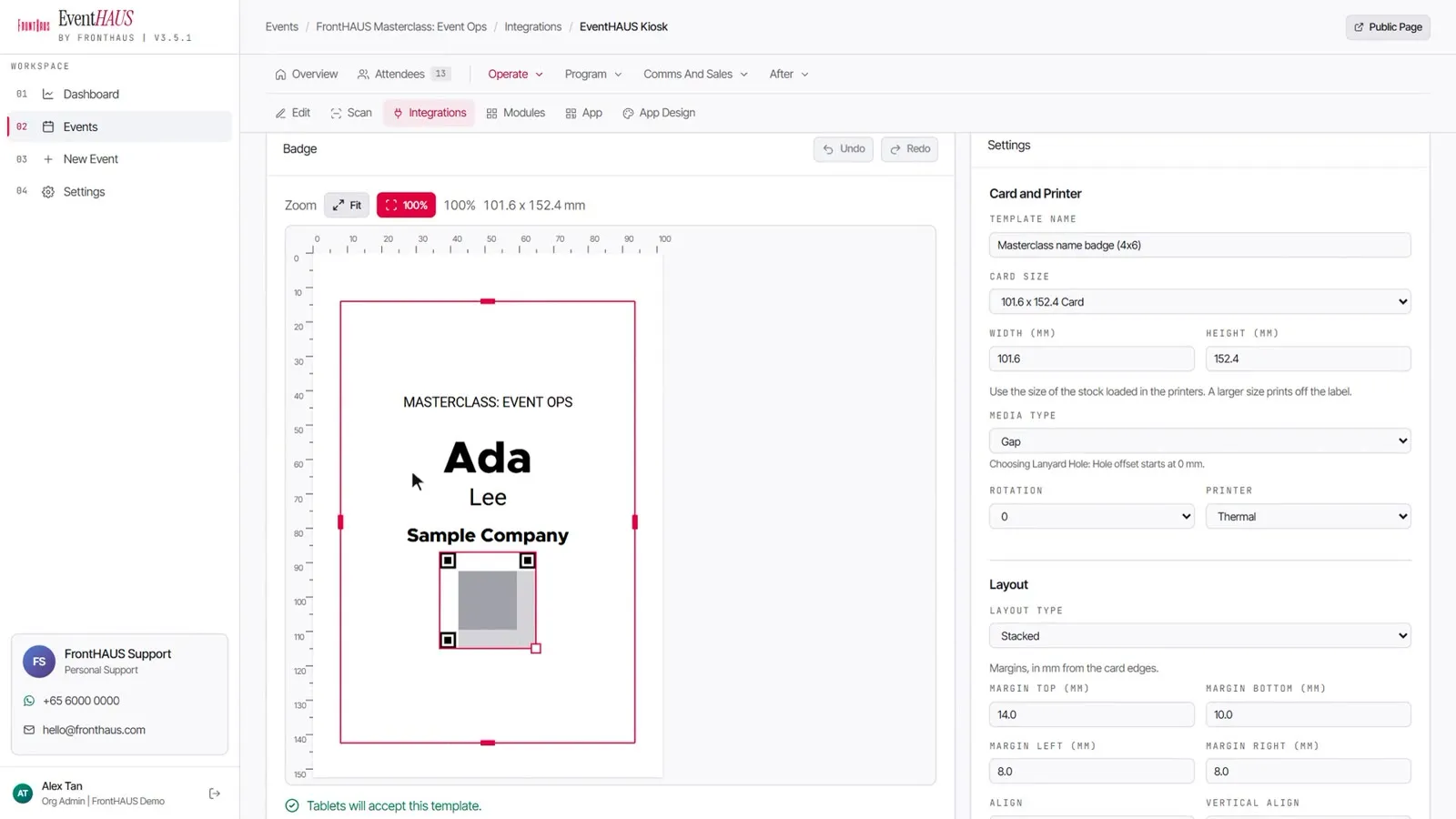
Section titled “Prepare Badges”- Open Operate, then Integrations, and choose Configure under EventHAUS Kiosk.
- Check the badge preview. The 100% button shows the whole badge, and once the template is valid for the check-in tablets, the page confirms Tablets will accept this template.
Check Guests In
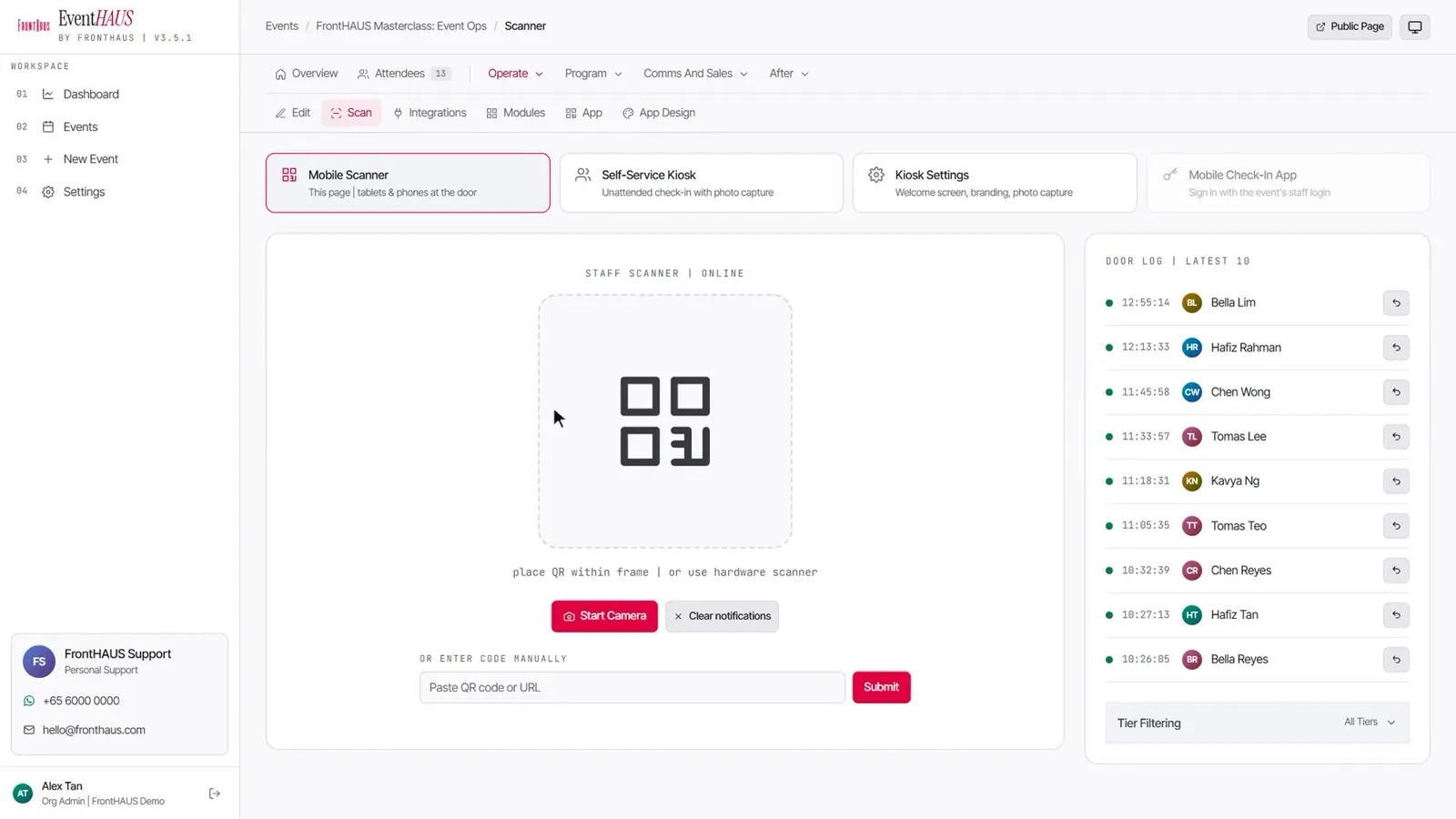
Section titled “Check Guests In”- Open Operate, then Scan.
- Guests show their QR code at the door, and the door log lists each arrival.
- On Overview, watch Expected, Checked In and Still to Arrive. Check-In Day has more.
Issue Certificates
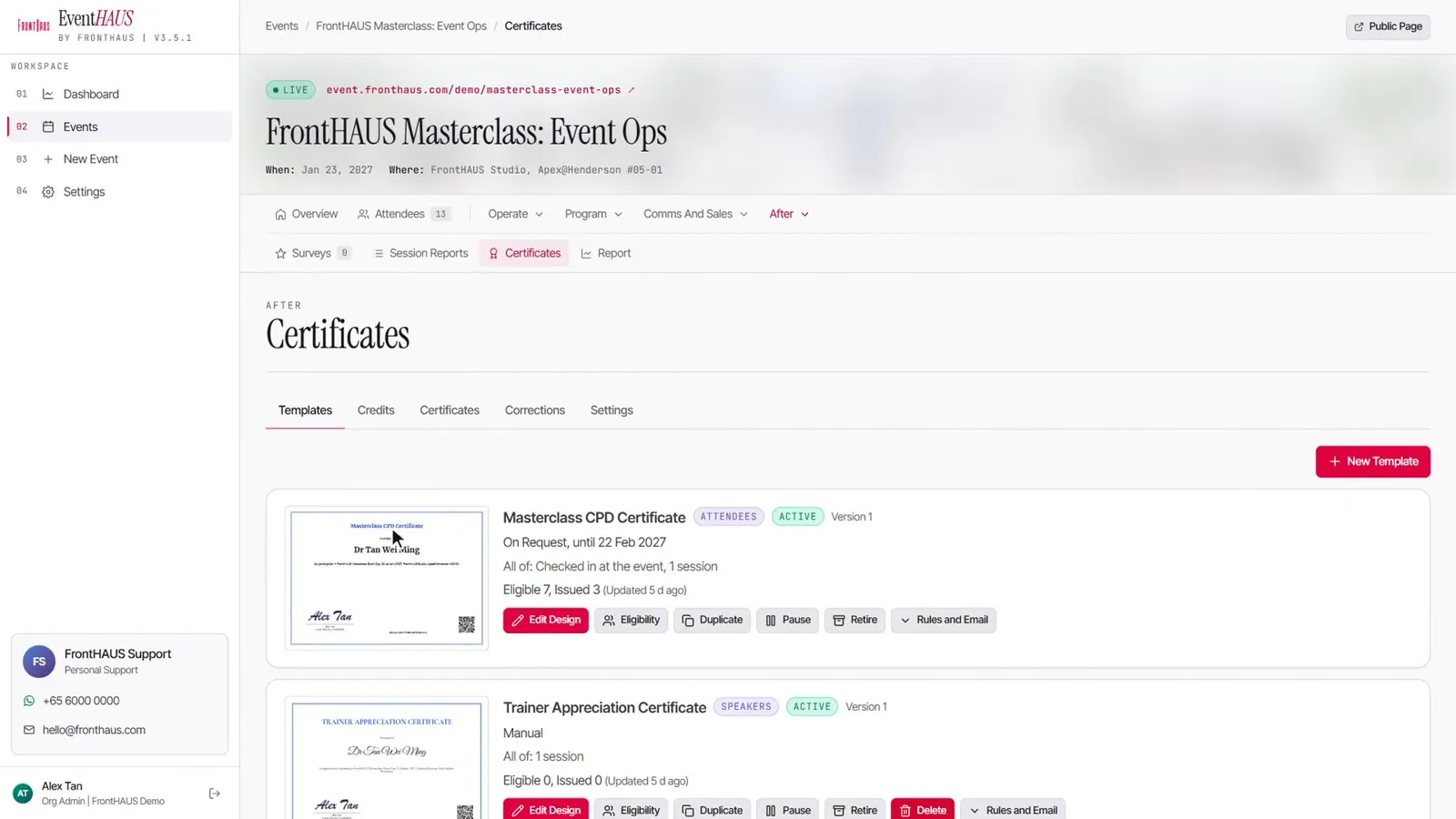
Section titled “Issue Certificates”After the day, open After, then Certificates. On the Templates tab, the masterclass certificate shows as ACTIVE, along with how many guests are eligible and how many certificates have been issued. Certificates takes you through it.
What Guests See
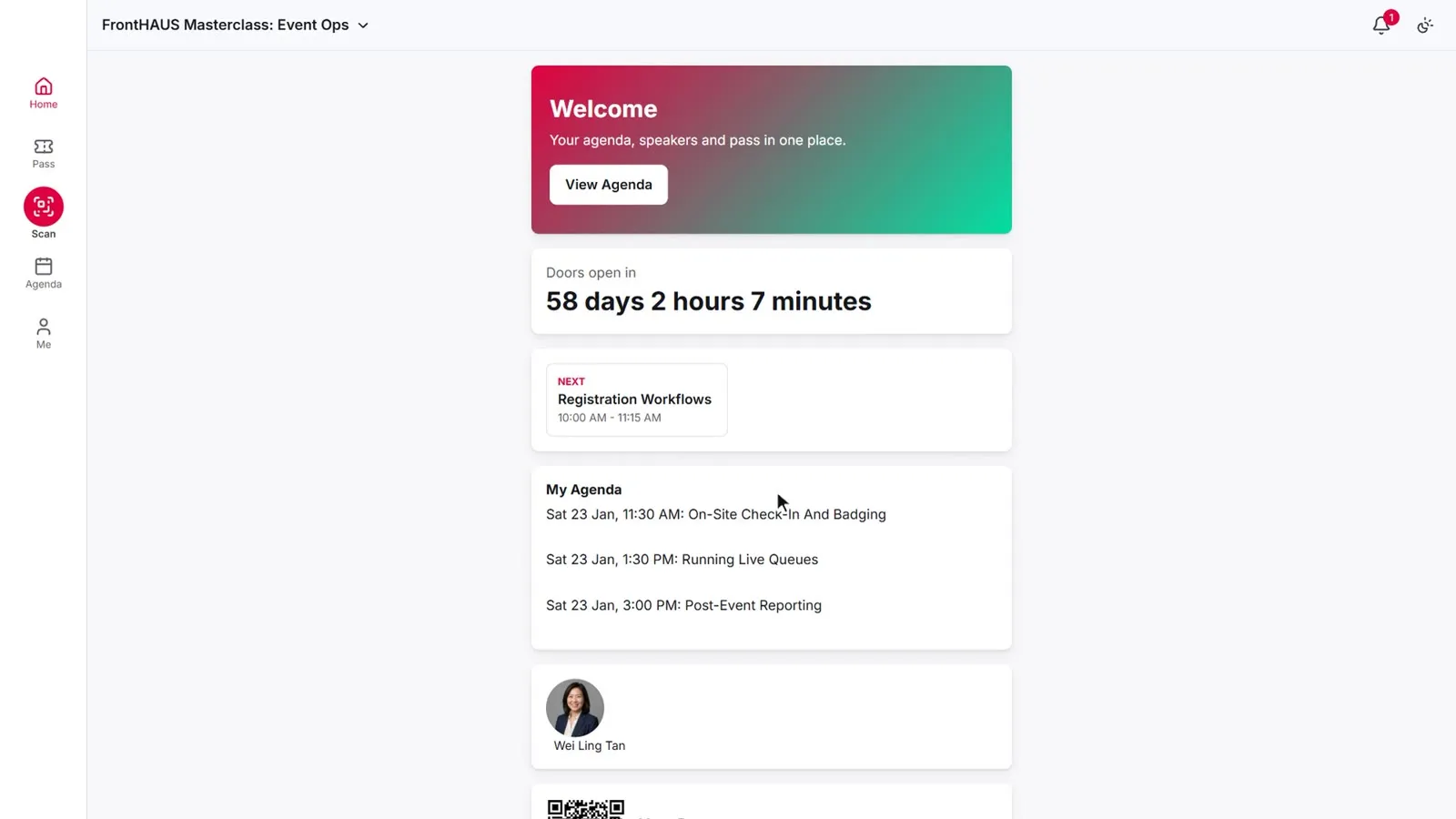
Section titled “What Guests See”- The home screen counts down with Doors open in, shows what’s NEXT and lists My Agenda.
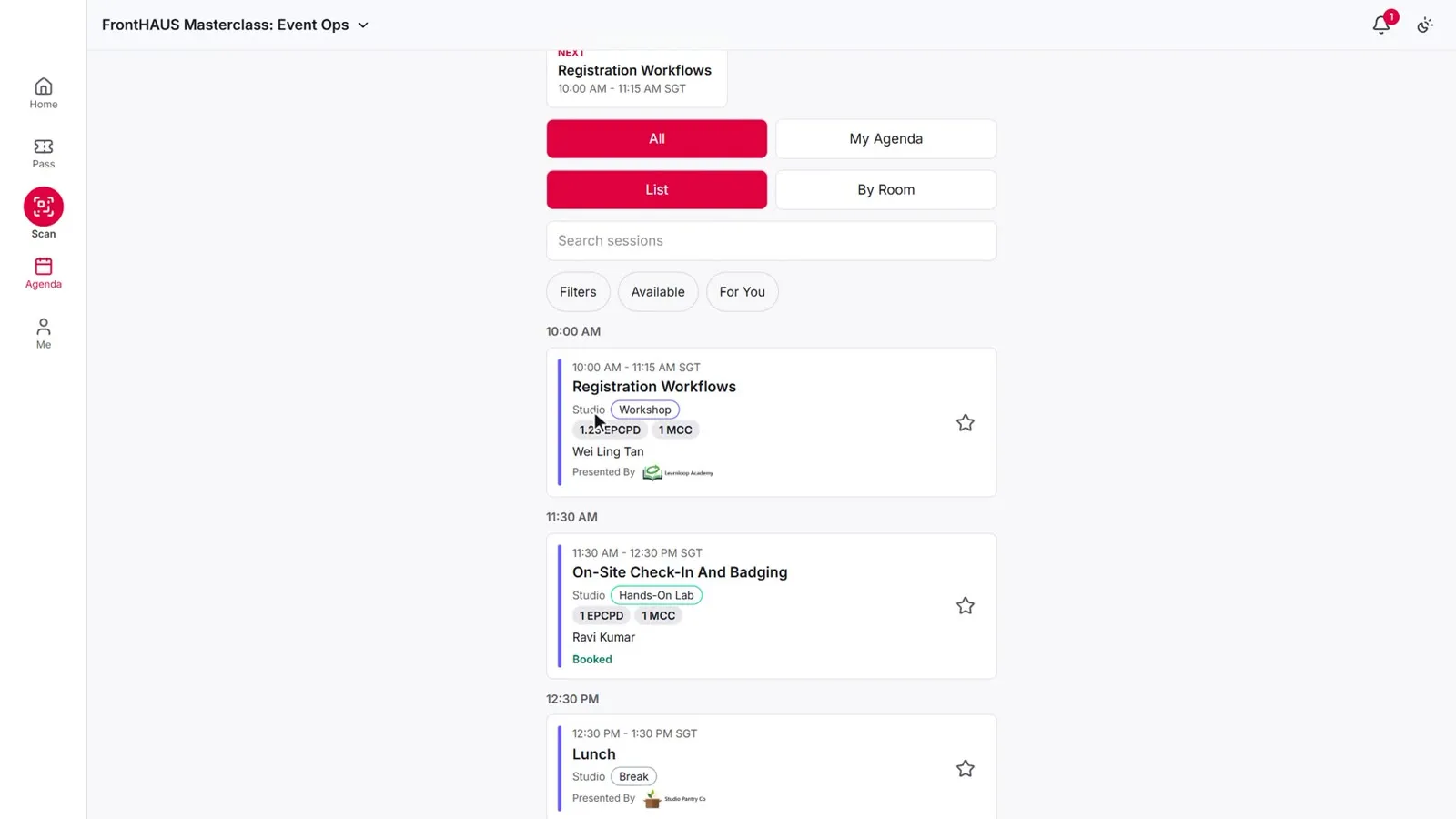
- The Agenda tab lays out the day with trainers, credits and booked sessions. Guests can switch between All and My Agenda, or List and By Room. Sponsors show as Presented By.
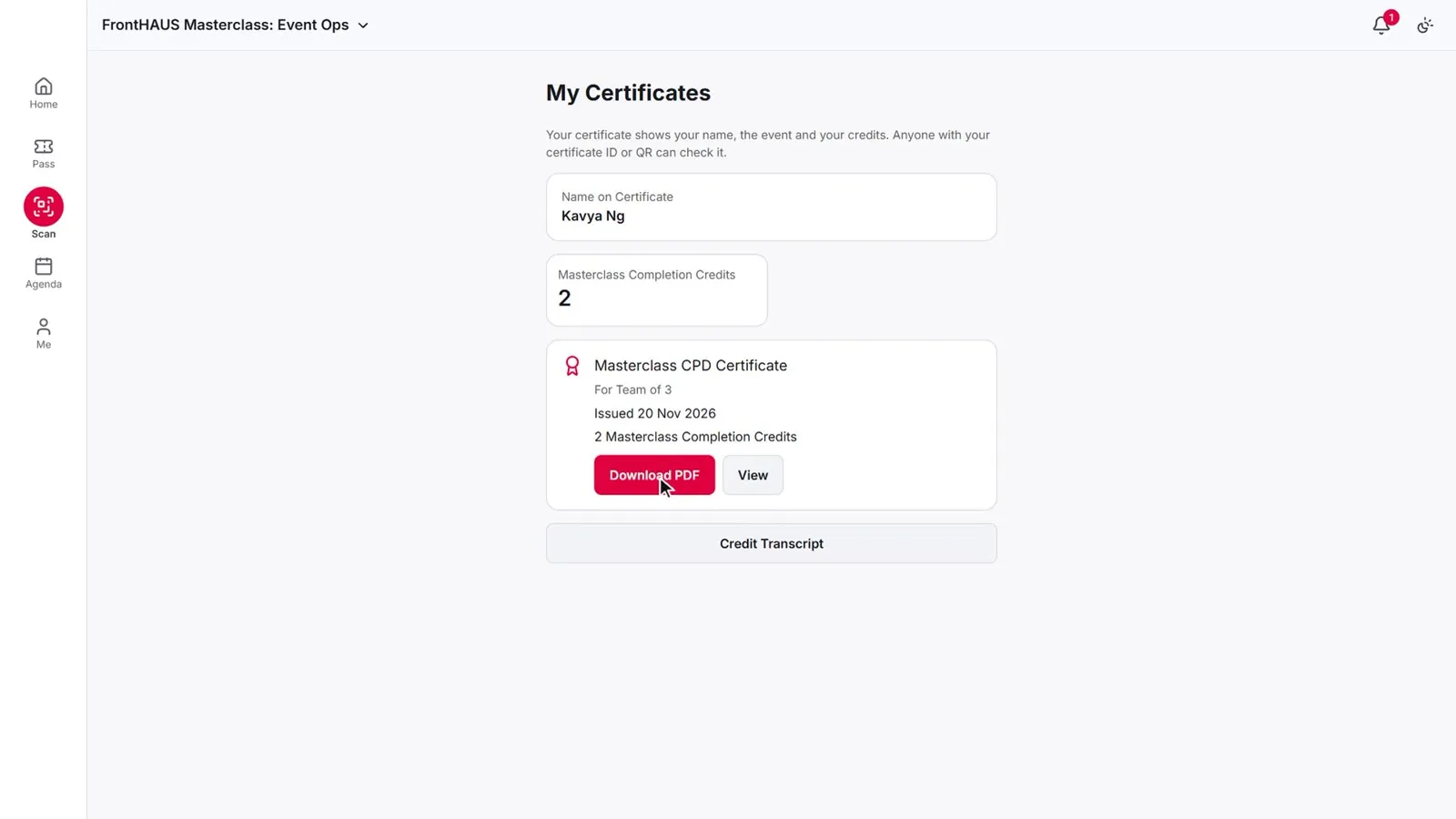
- After the day, My Certificates shows the certificate with the credits earned. Guests select Download PDF or View.
Afterwards
Section titled “Afterwards”Open After, then Report for arrivals over time and who came by ticket type. After The Event has more.