
Run A Gala With Reserved Seating
For a seated dinner where guests pick their own seat as they register, you’ll switch on seating, build the map, watch the reservations come in, and run a prize draw at the end. Here’s how it fits together.
Before You Start
Section titled “Before You Start”You’ll need a published event. If you haven’t made one yet, see Create Your First Event.
Switch On Seating
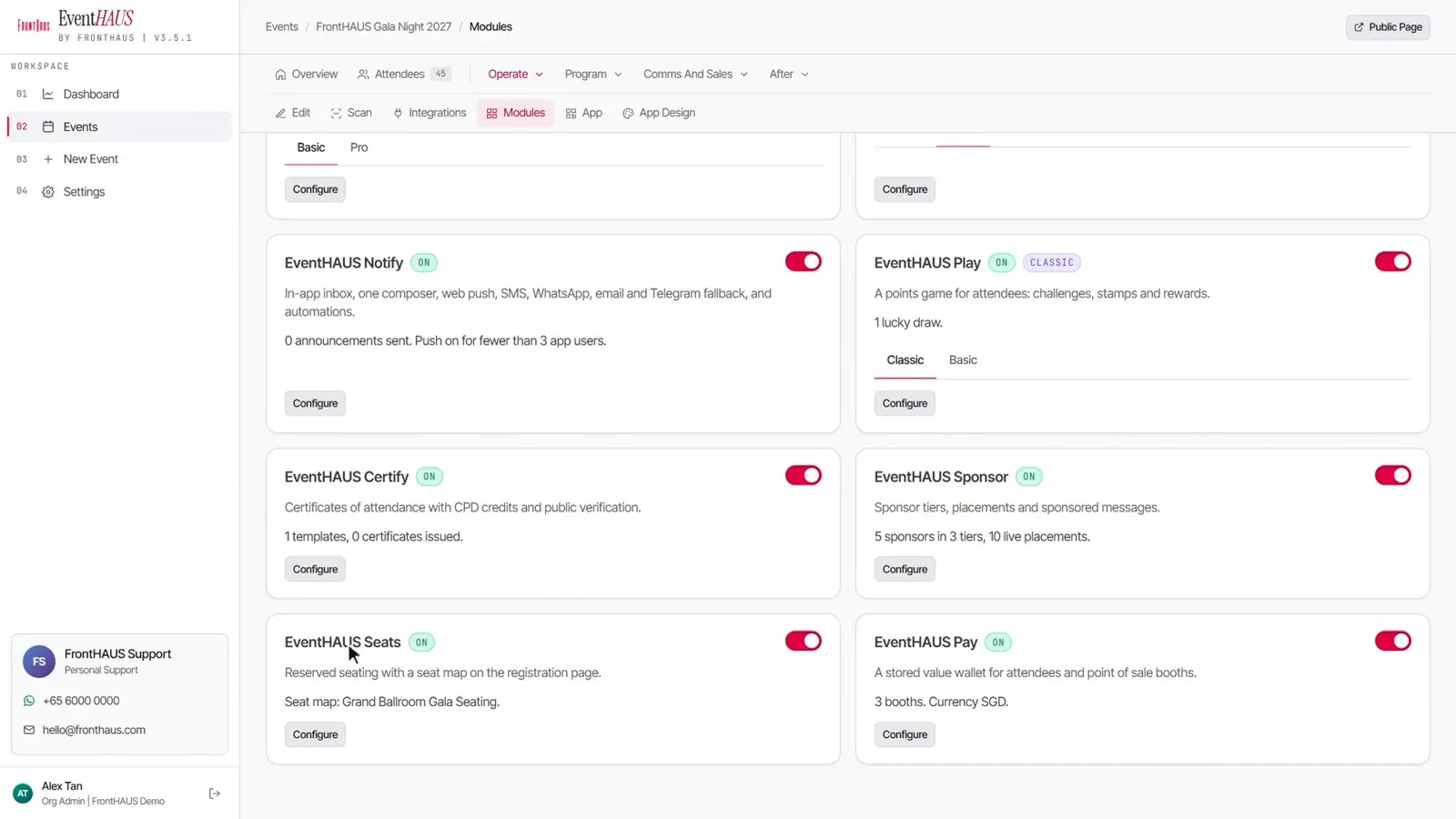
Section titled “Switch On Seating”- Open Operate, then Modules, and filter to On.
- Confirm EventHAUS Seats is on. It’s the module that puts a seat map into registration. If the event includes a draw, switch on EventHAUS Play too.
Set Up Seating In The Editor
Section titled “Set Up Seating In The Editor”- Open the event editor and go to Security & Access. Require Email Verification is on here, because this event uses a seat map. Guests have to verify their email before they can choose a seat, which stops bots from grabbing seats.
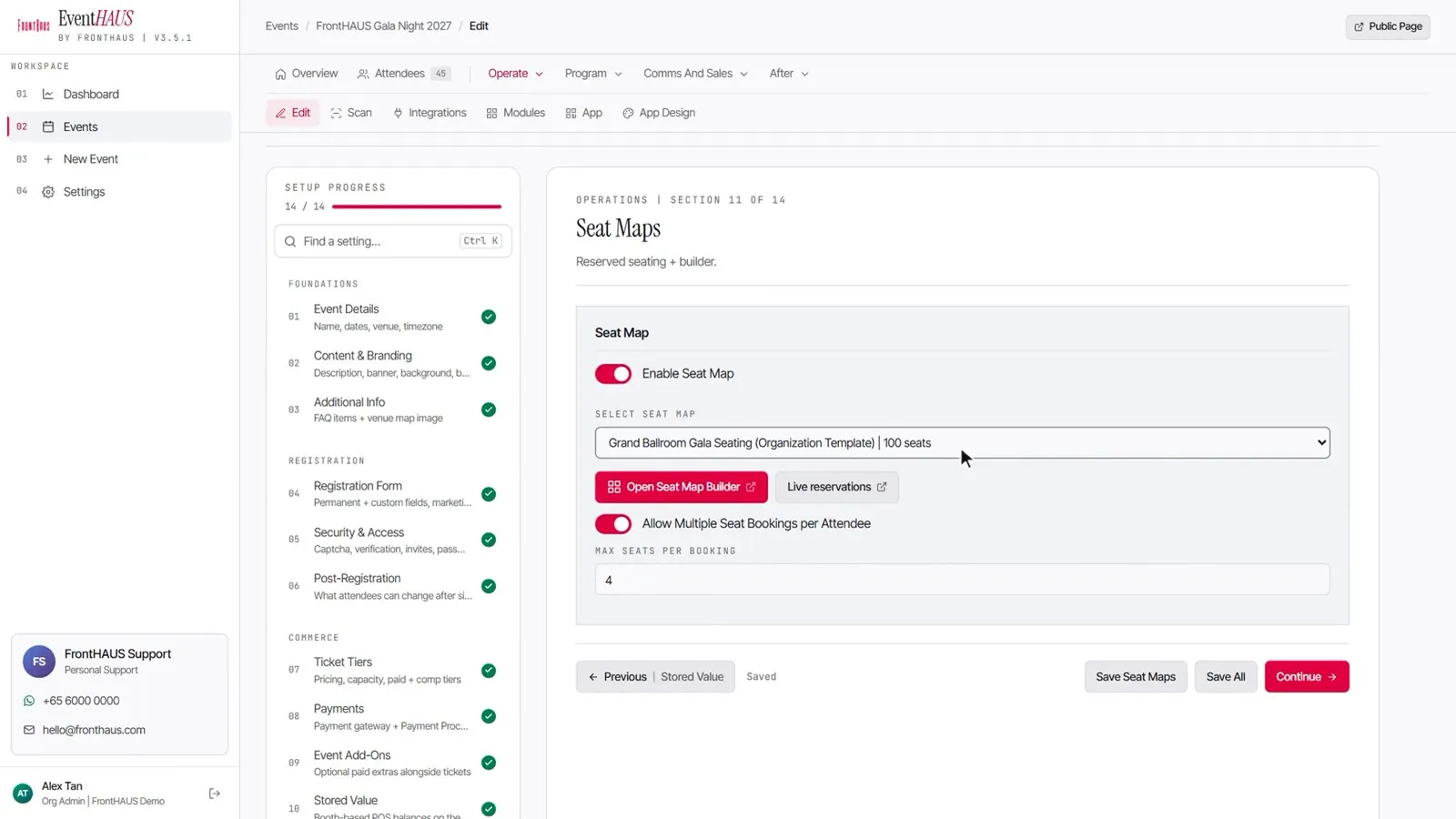
- Go to Seat Maps. Choose the map and switch on Enable Seat Map. Allow Multiple Seat Bookings per Attendee and Max Seats per Booking decide whether one guest can take several seats.
- To change the map itself, select Open Seat Map Builder.
For a closer look at the map, read Reserved Seating.
Check The Map
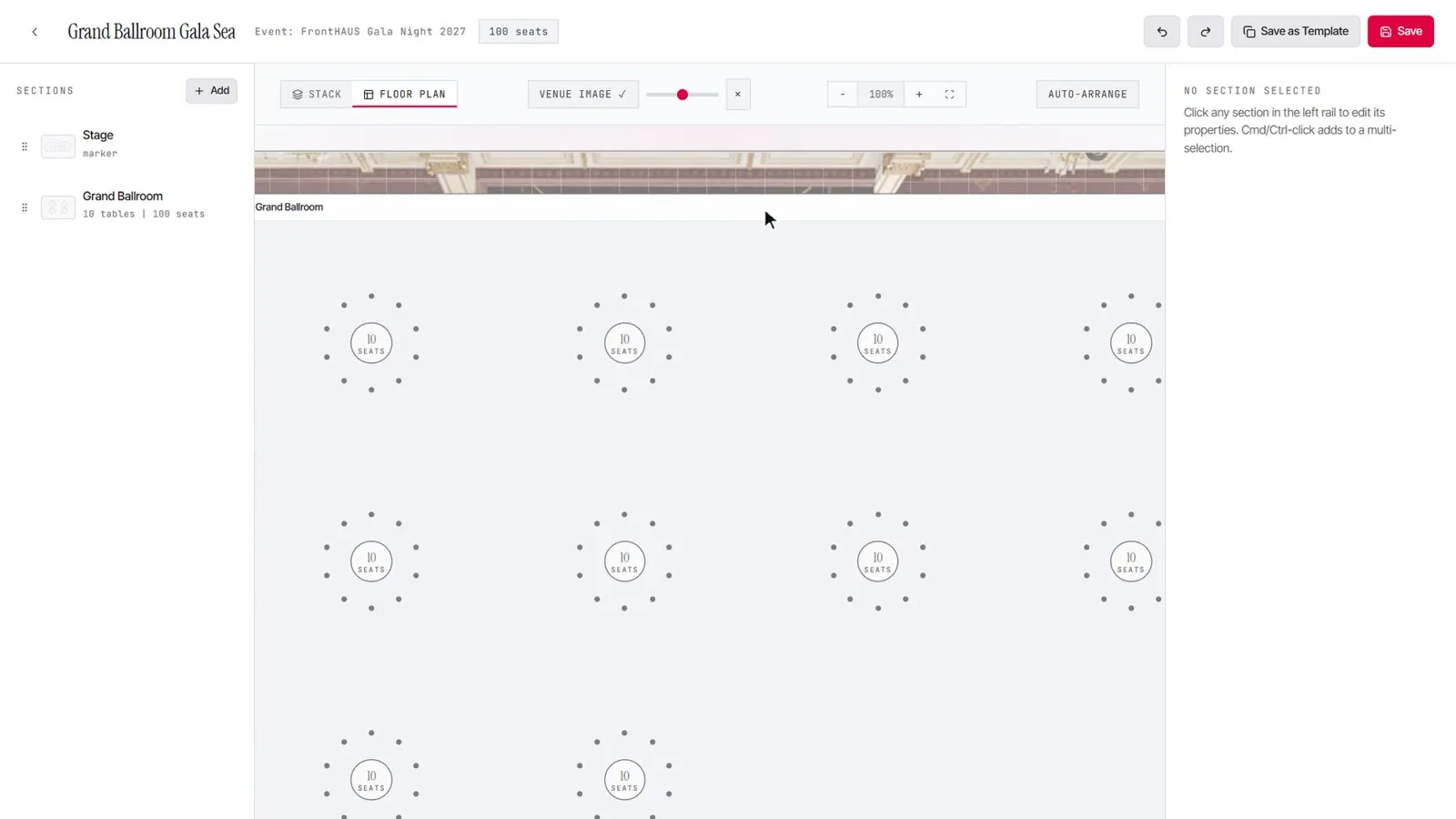
Section titled “Check The Map”In the builder, the Sections rail lists the parts of the map: a stage marker, and a section with its tables and seats. The Floor Plan view shows the room laid over your venue image. Each circle is a table, with its seats around it.
Watch Reservations
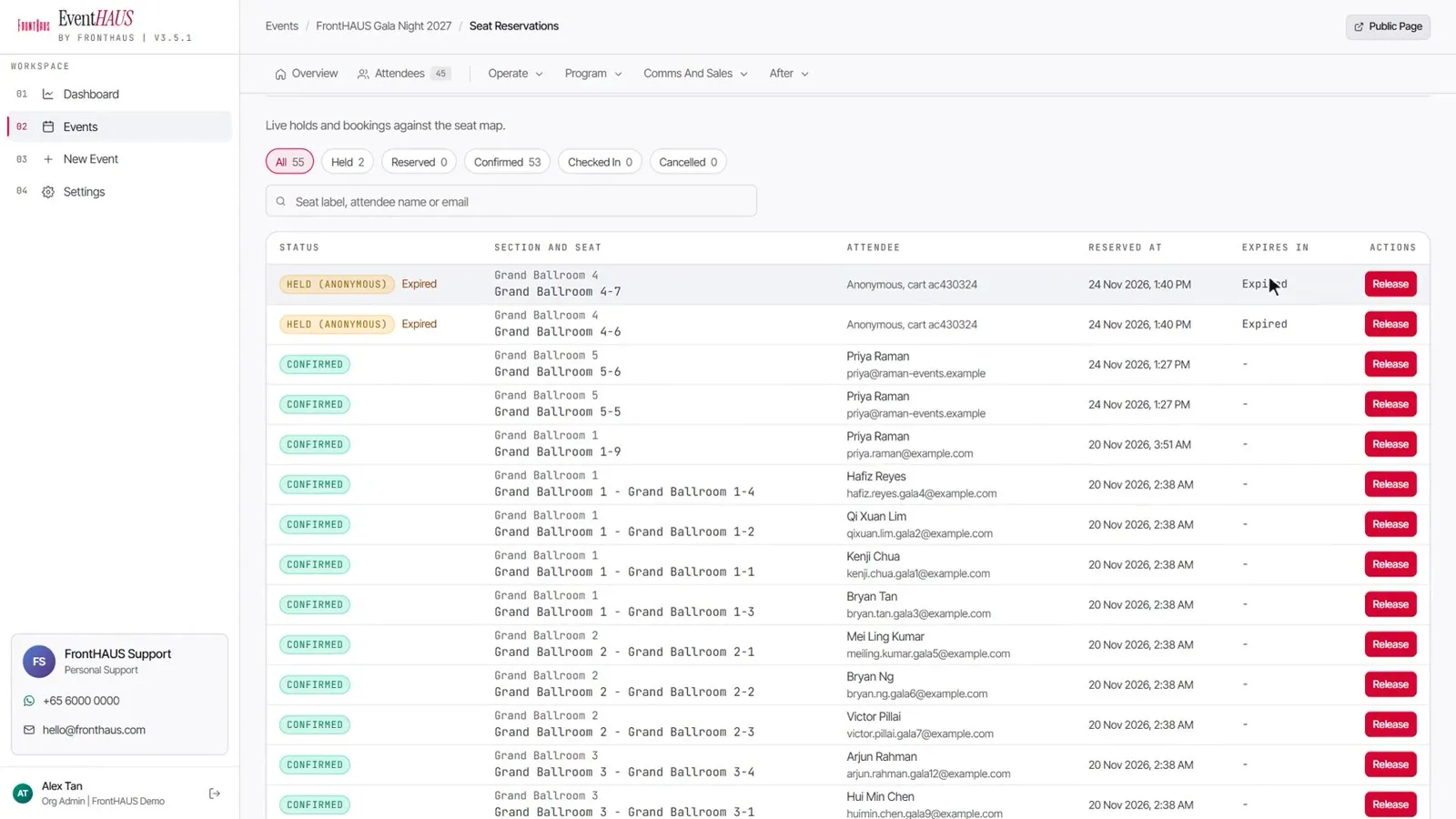
Section titled “Watch Reservations”Once guests start booking, select Live reservations on the Seat Maps section. The page lists live holds and bookings.
- The chips count every state: All, Held, Reserved, Confirmed, Checked In and Cancelled.
- Each row shows the status, the section and seat, the attendee, and when the seat was reserved.
- Release frees a seat. Take care with it, because the guest loses that seat.
Before And On The Night
Section titled “Before And On The Night”- Open Comms And Sales, then Communications. The Registration Email carries each guest’s pass, and the reminder for the night before waits there as a draft. Emails And QR Messages explains both.
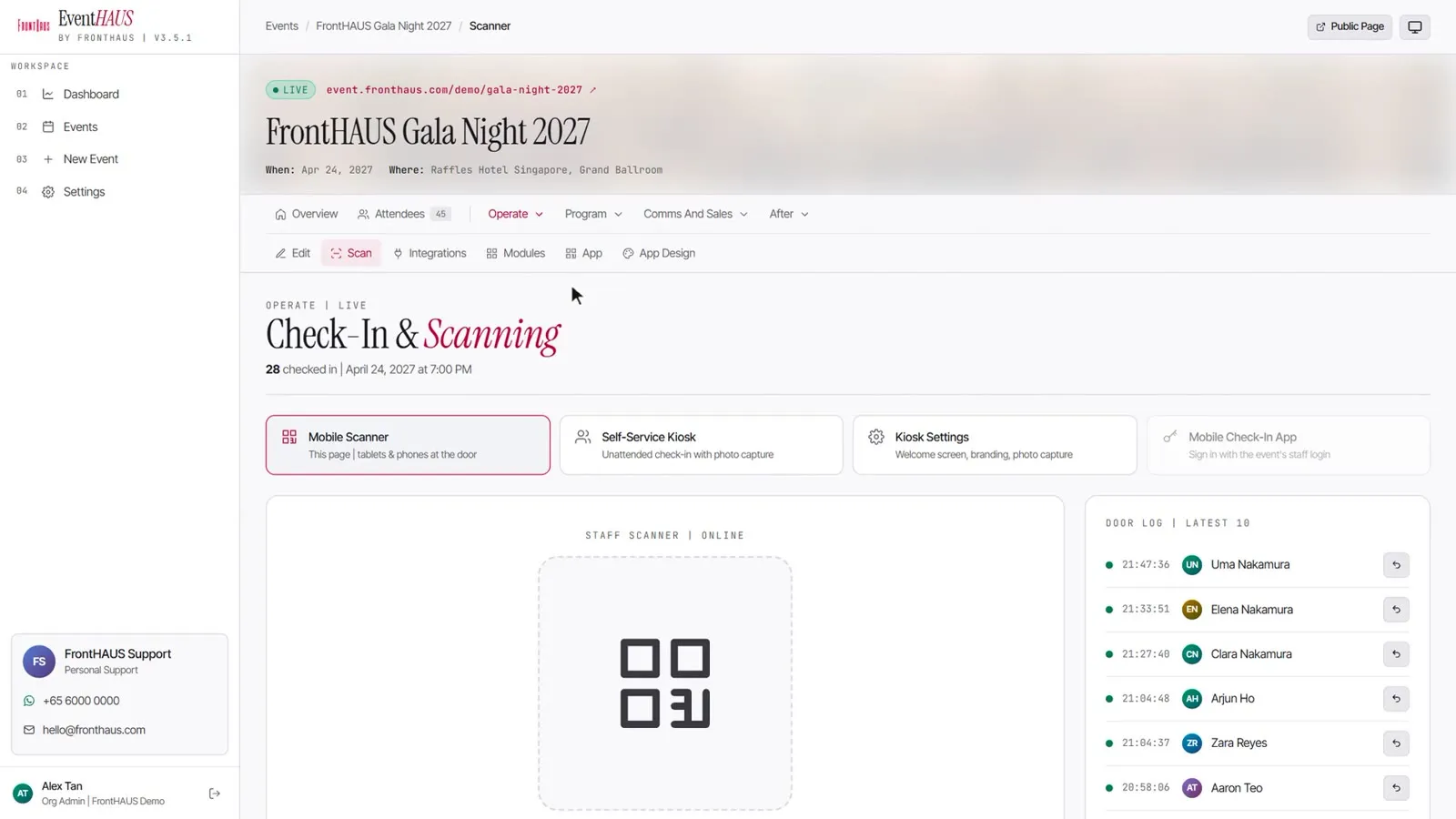
- At the door, open Operate, then Scan. The Mobile Scanner checks guests in, and the door log lists the latest arrivals. Check-In Day has more.
- On Overview, watch guests expected, checked in and still to arrive.
Run The Prize Draw
Section titled “Run The Prize Draw”- Open Program, then Lucky Draw, and open your draw.
- Use Conduct to run it.
- For the big screen, open presentation mode. The wheel spins on one side and the winners are listed beside it.
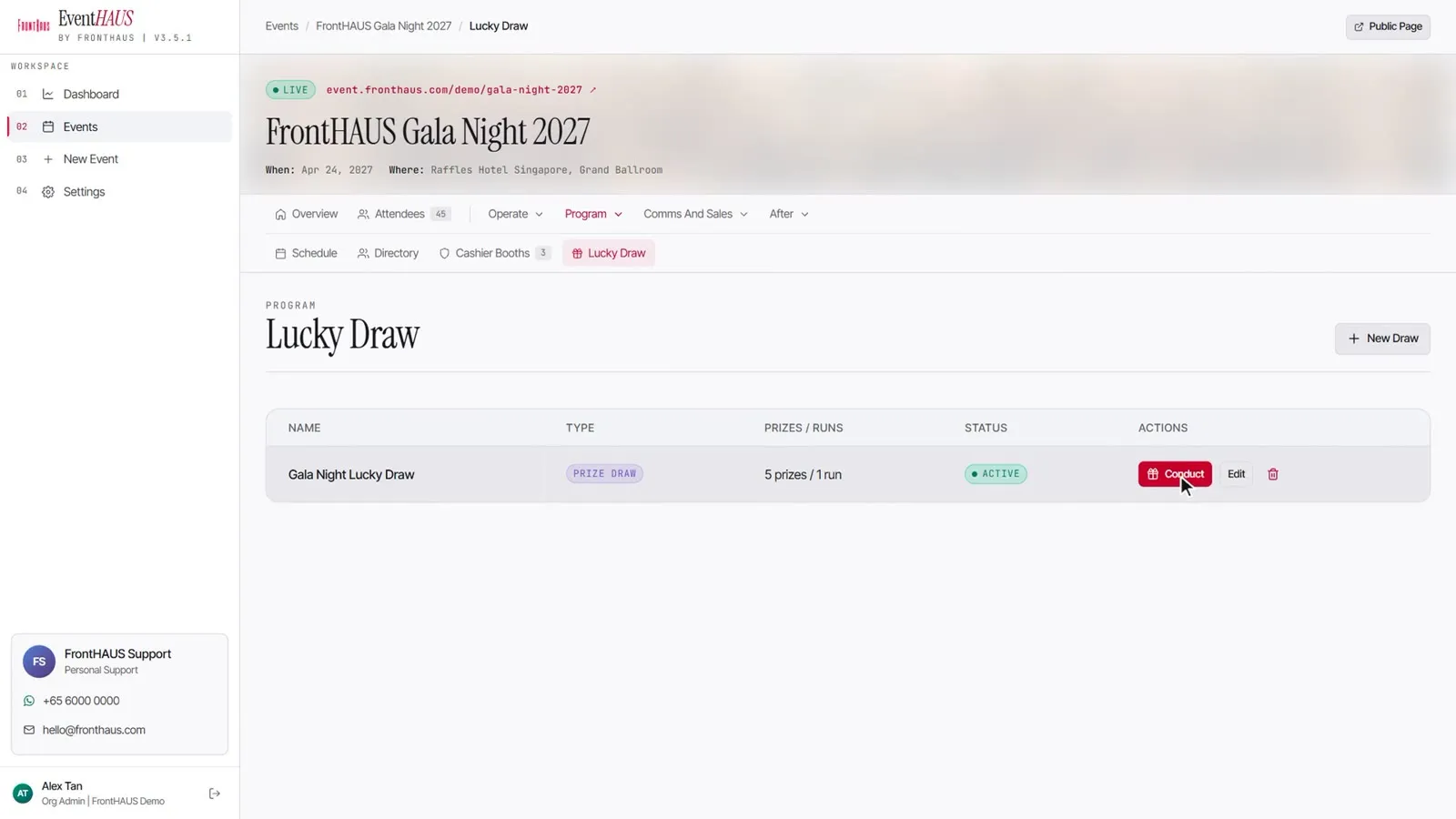
Lucky Draw walks through the full process.
What Guests See
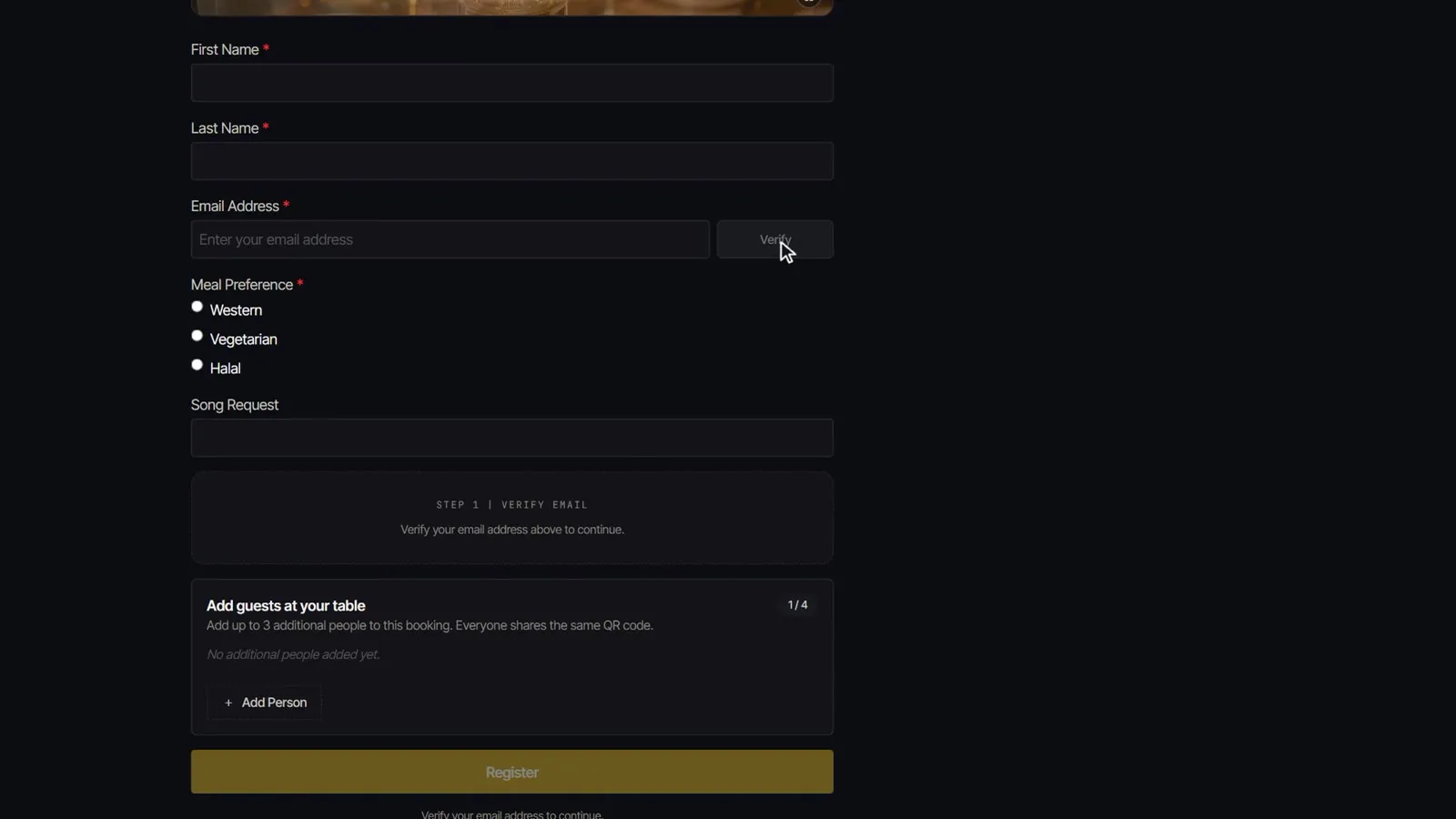
Section titled “What Guests See”- On the event page, guests enter their details and select Verify to confirm their email. Until they do, registration stays locked, and that includes the seat choice.
- Add guests at your table lets one booker bring up to three more people. See Your Event Page And Branding.
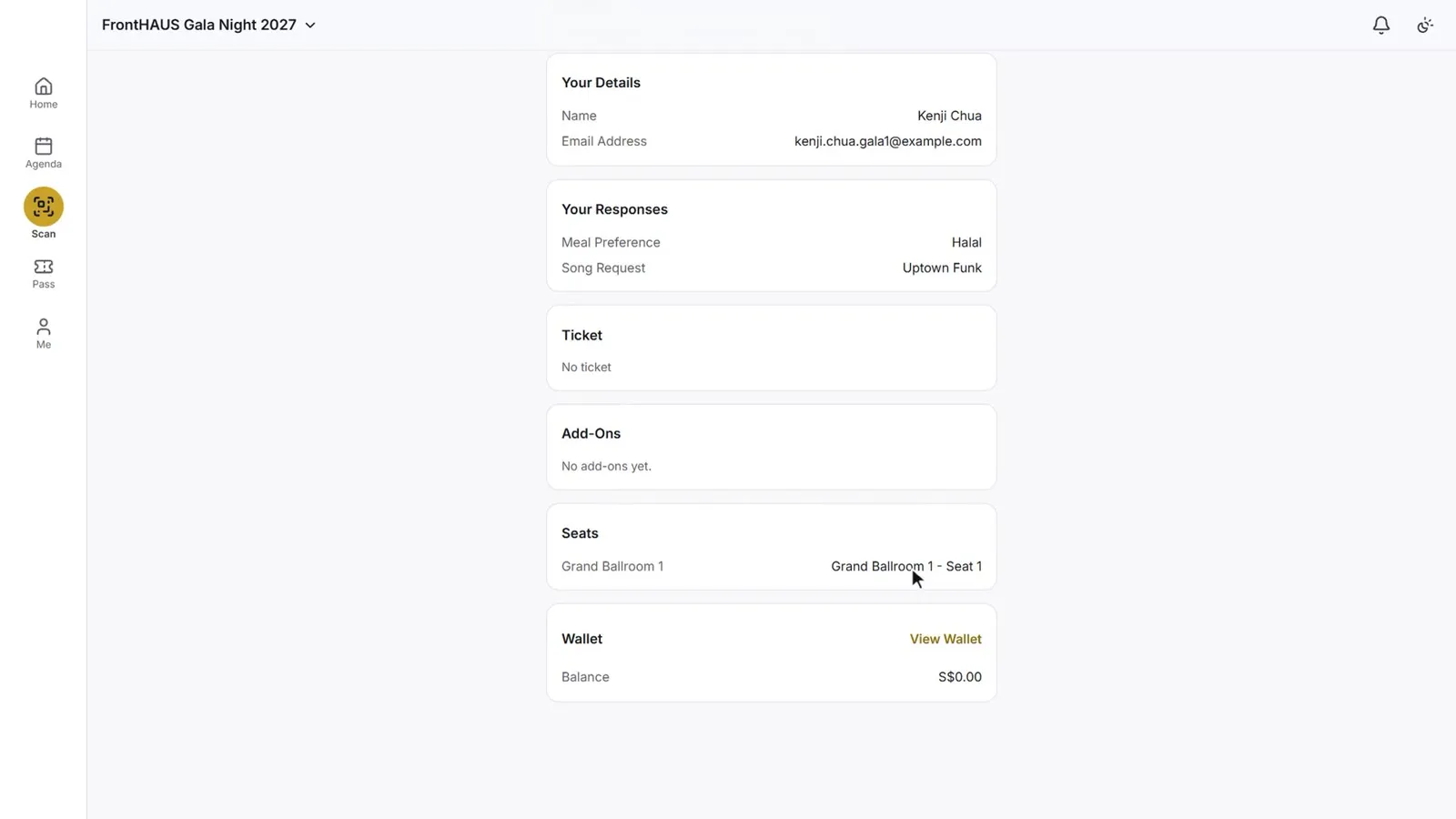
- In the attendee app, the booking shows Your Details and Your Responses, including the meal choice. The Seats card shows where the guest sits, for example Grand Ballroom 1 - Seat 1.
- The agenda tells guests when the reception and speeches begin.
Afterwards
Section titled “Afterwards”Open After, then Report, to see when guests arrived and when the room peaked. After The Event has the rest.
- Reserved Seating: build and manage seat maps.
- Lucky Draw: run the draw.
- Run A Trade Show: the next kind of event.