
Modules And The Attendee App
A module is one feature of EventHAUS. The Modules page lets you turn on the ones an event uses and leave the rest off. The EventHAUS App module gives guests an app for the event, and you share it, check it and style it from its own pages.
Before You Start
Section titled “Before You Start”You’ll need an event. A module that’s switched off has no effect on that event, so there’s no harm in leaving the ones you don’t need off.
Choose Your Modules
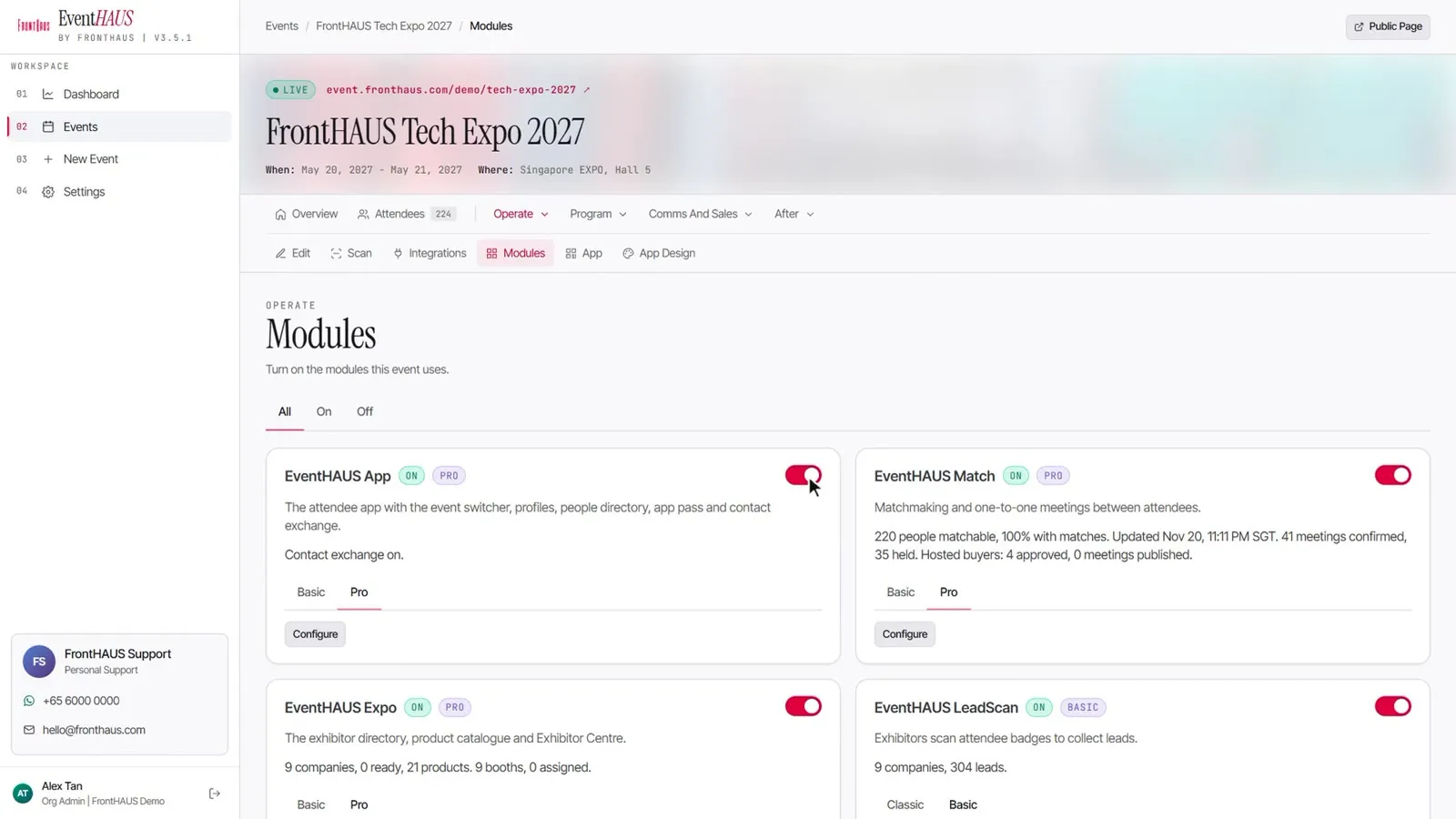
Section titled “Choose Your Modules”- Open the Operate menu on the event and select Modules.
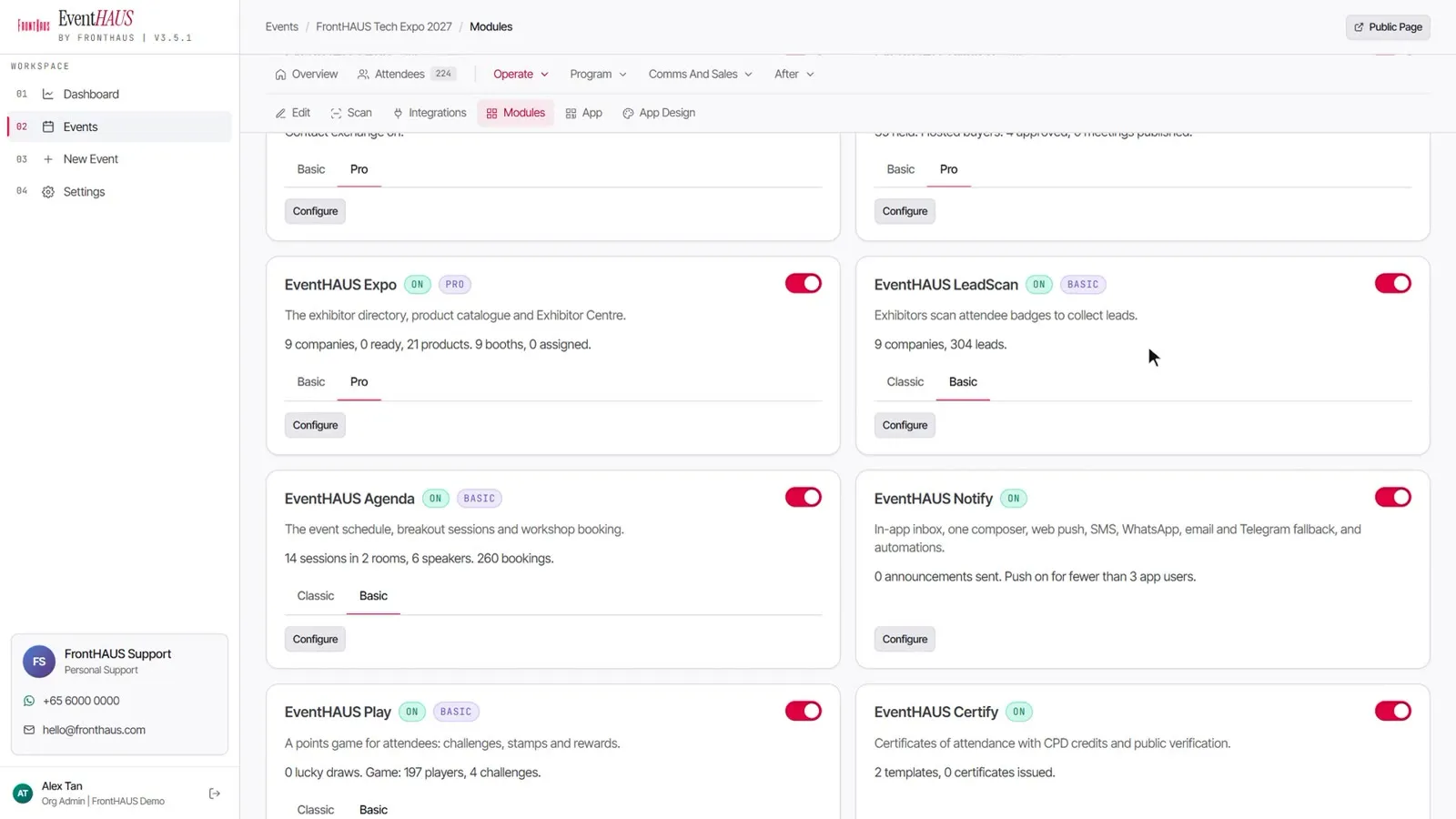
- Each card is one module. A green ON badge and a switch on the right show its state. Switch a module off and that feature disappears for this event.
- Some modules come in levels, like Basic and Pro, or Classic and Basic. The level you’re on is underlined.
- Read the status line on each card for a quick health check. On EventHAUS LeadScan, for example, it shows how many companies and leads there are.
- Use the All, On and Off tabs to filter the cards.
- Select Configure on any module that’s on to open its own settings.
What Each Module Does
Section titled “What Each Module Does”- EventHAUS App is the attendee app.
- EventHAUS Match does matchmaking and one-to-one meetings.
- EventHAUS Expo gives you the exhibitor directory and product catalogue.
- EventHAUS LeadScan lets exhibitors scan badges to collect leads.
- EventHAUS Agenda holds your schedule and workshop booking.
- EventHAUS Notify is how you reach people, with push, text and email messages.
- EventHAUS Play is a points game with challenges and rewards.
- EventHAUS Certify hands out certificates of attendance.
- EventHAUS Sponsor looks after sponsor tiers and placements.
- EventHAUS Seats is reserved seating.
- EventHAUS Pay is a stored value wallet for attendees and booths.
- EventHAUS Queue gives you virtual queues that guests join by scanning a QR code.
- EventHAUS Kiosk is badge printing, on tablets and laptops.
Share And Check The App
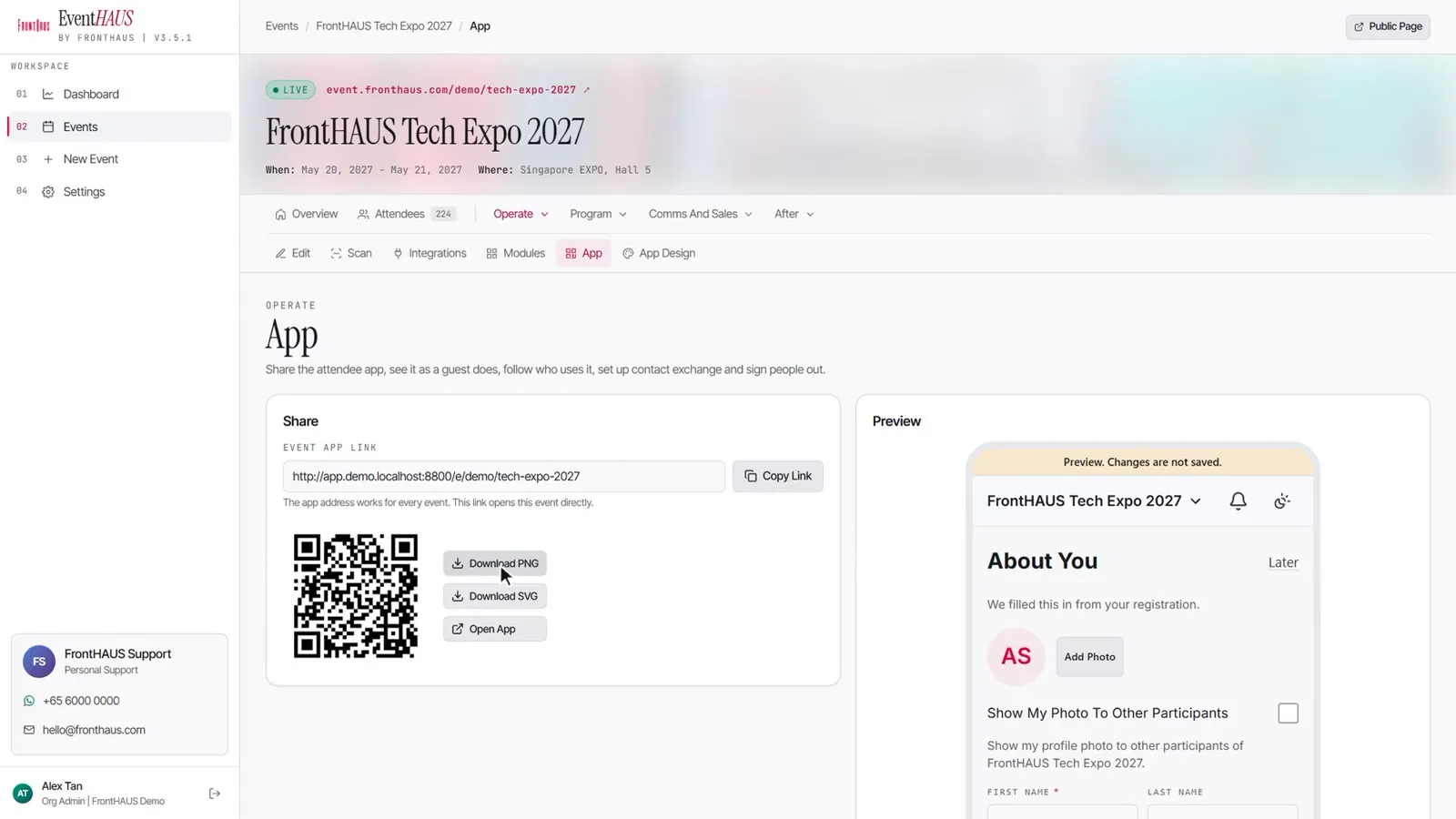
Section titled “Share And Check The App”Select Configure on EventHAUS App to open the App page.
- Share has the event app link with a Copy Link button, and a QR code you can download as an image with Download PNG.
- Preview shows the app as a guest sees it. Nothing you do here is saved, so feel free to click around. Use Refresh Preview, or Open in New Tab.
- People In The App shows how many people opened the app, who is active today, and how many sign-in codes were sent this week.
- Let People Exchange Contact Cards lets guests swap contact cards, and you choose which card fields to suggest.
- Sign Out Everyone, under Access, signs every guest out of the app. Use it with care.
Style The App
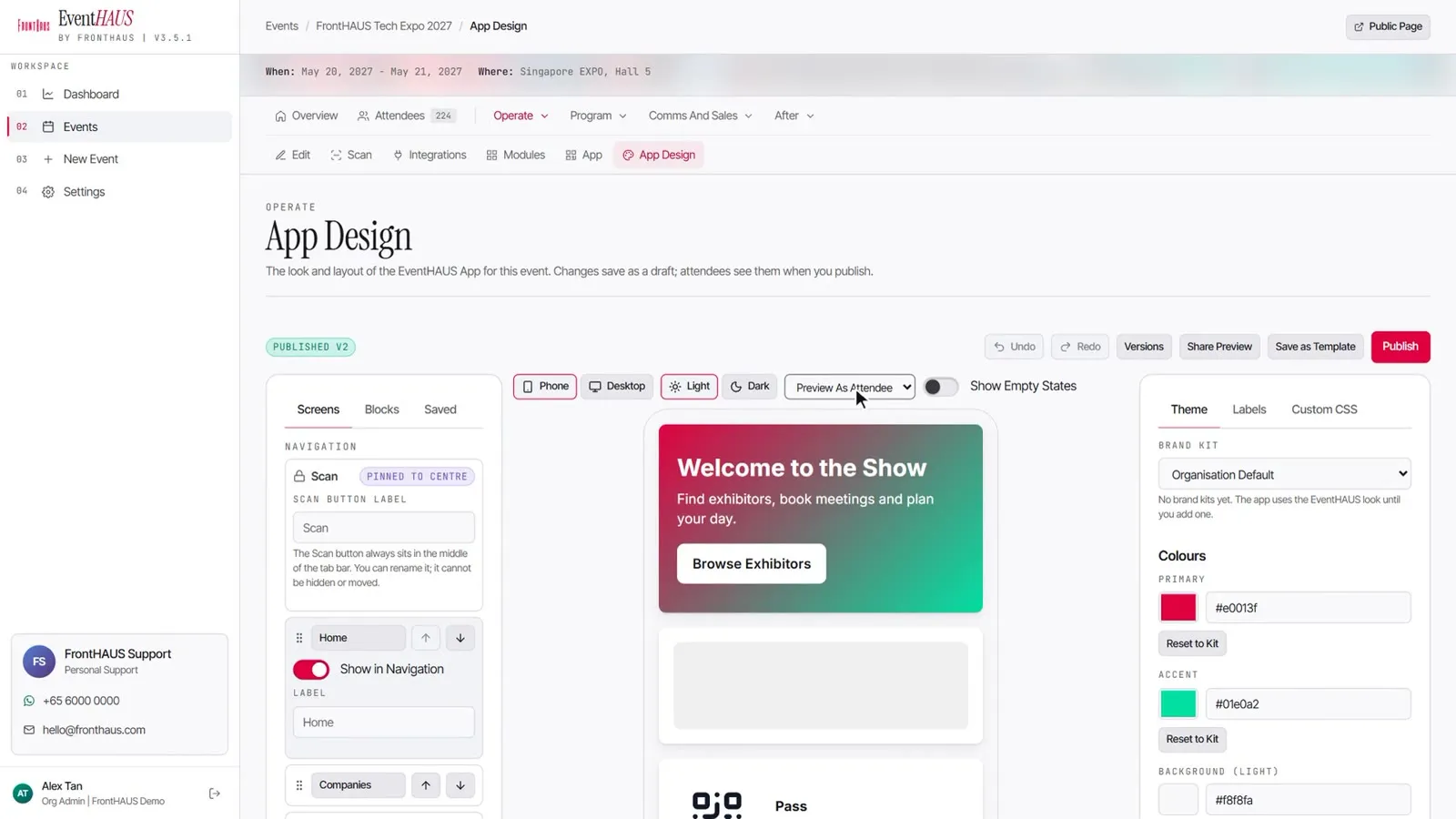
Section titled “Style The App”Open App Design from the same menu. Changes save as a draft, and guests only see them after you select Publish.
- Use Undo, Redo, Versions and Save as Template along the top.
- On the left, Screens is the tab bar, with Scan pinned in the centre. Blocks are the pieces you stack on a screen, like a Hero, Text or Top Matches.
- The middle is a live preview. Switch between Phone and Desktop, Light and Dark, or preview as an attendee, an exhibitor or a speaker.
- On the right, Theme sets your colours, fonts, corner radius, and card and button styles. Labels and Custom CSS sit beside it.
- Readability checks your colours as you go and marks each pair with a pass.
- Select Publish when you want the draft live.
What Guests See
Section titled “What Guests See”Guests sign in with their email. EventHAUS sends them a code, so there are no passwords to forget.
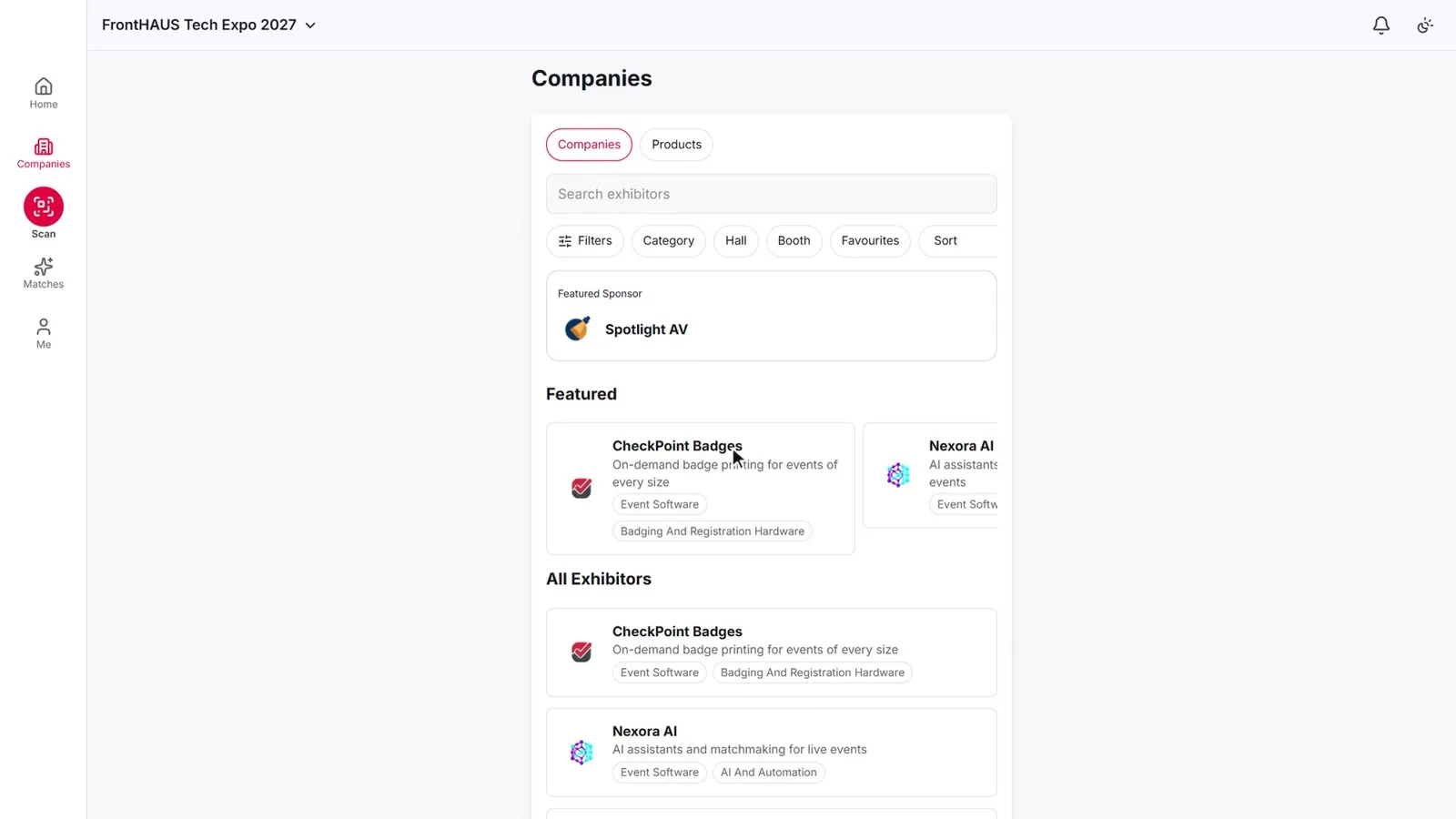
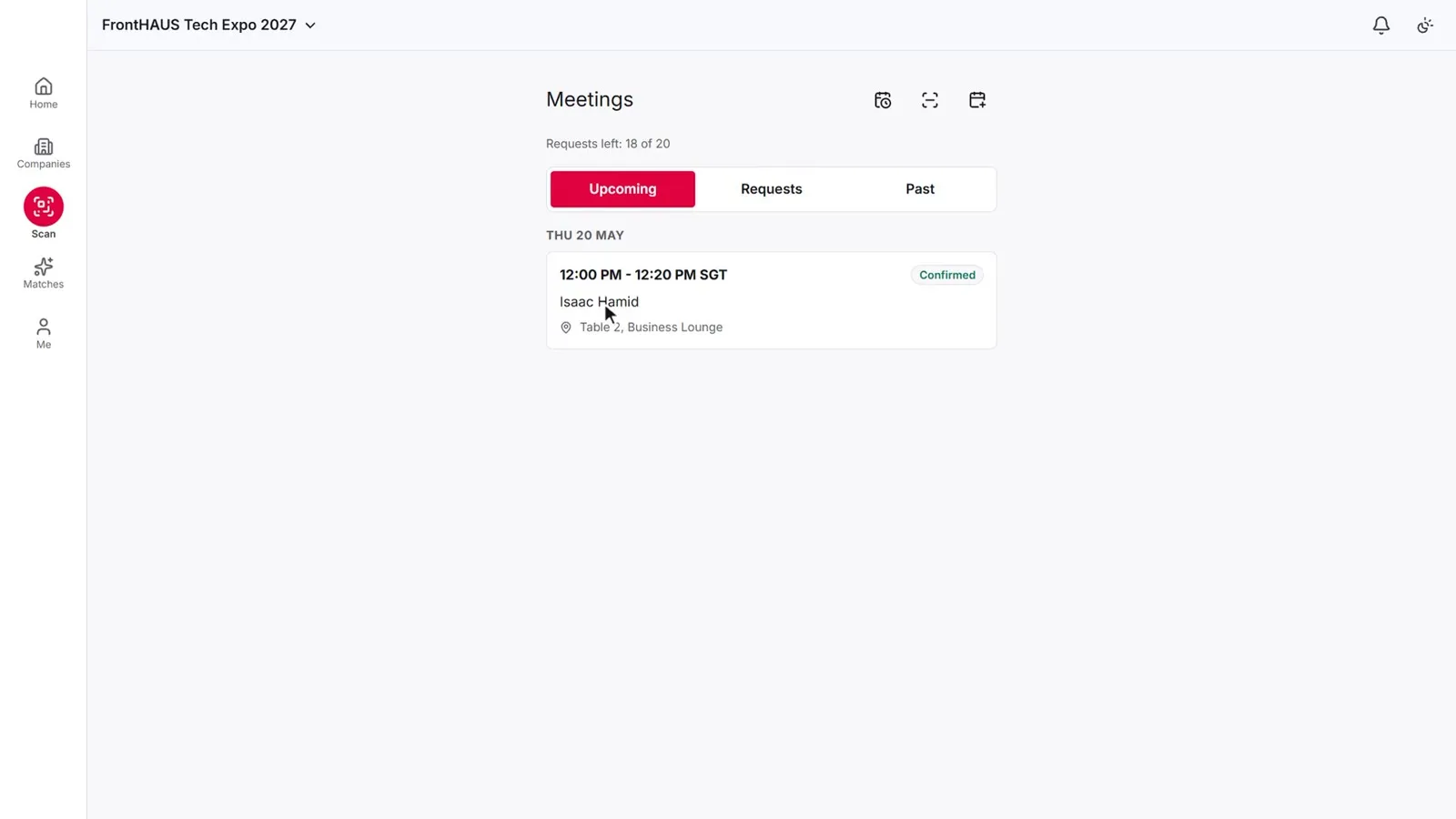
The tabs they see depend on your modules. With EventHAUS Expo on, a Companies tab lists every exhibitor, with filters for category, hall and booth, and favourites. With EventHAUS Agenda on, guests open the schedule, pick a day, and see each session with its room and speaker. With EventHAUS Match on, guests see their confirmed meetings and how many requests they have left.
- Emails And QR Messages: send guests their pass.
- Managing Attendees: check people in and manage the list.