
After The Event
The After menu holds what you’ll need once the doors close: surveys, session reports, certificates and the event report.
Before You Start
Section titled “Before You Start”- The event has run, or at least has some check-ins to report on.
Create A Survey
Section titled “Create A Survey”Open the After menu and select Surveys. Each survey shows whether it’s active, how many responses it has, and buttons for Edit, Stats, Open (the page guests see), Deactivate and Send Emails. Send Emails invites guests to answer. It emails real people, so use it when you’re ready.
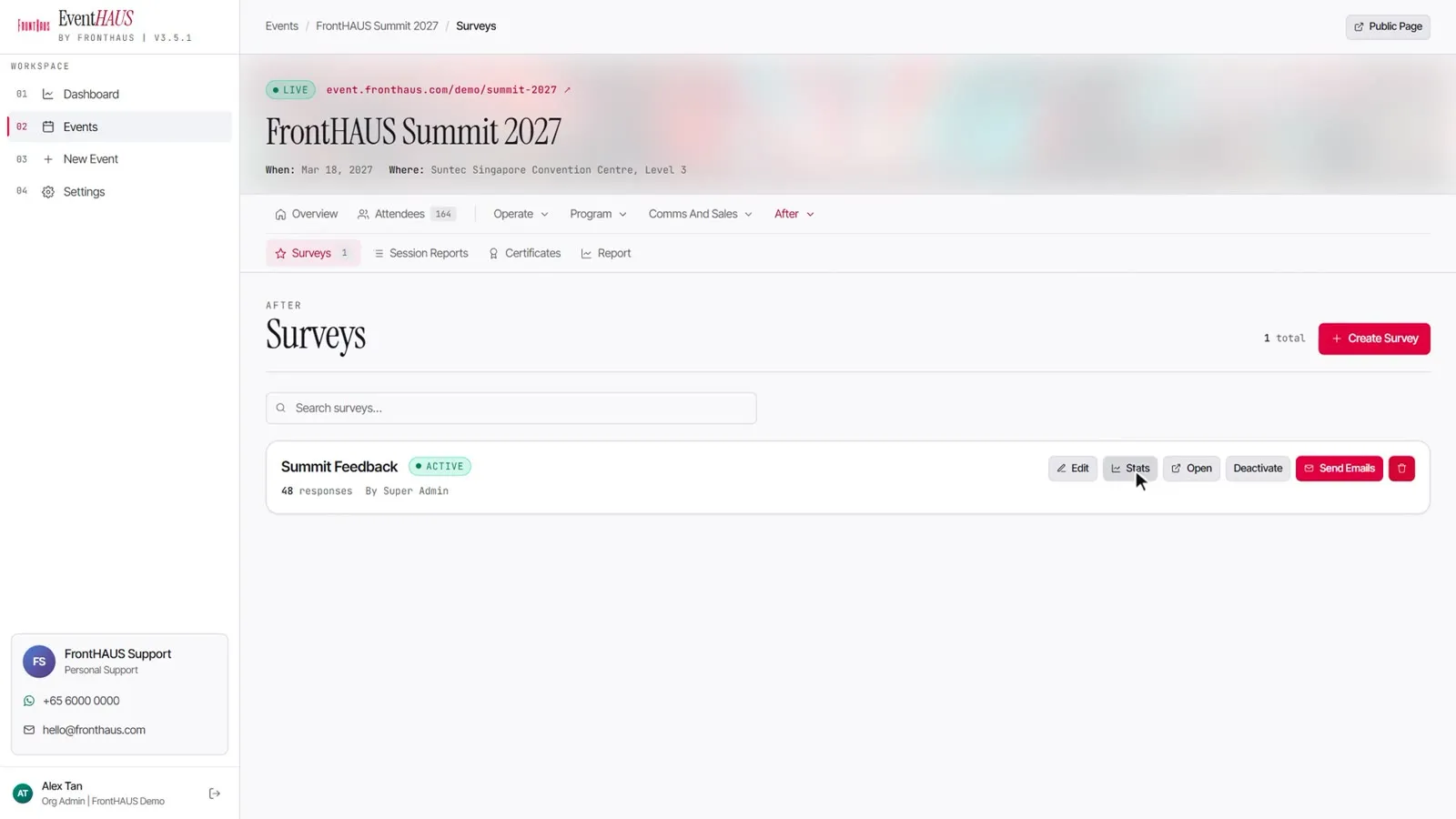
- Select Create Survey.
- Give it a name and a short line about its purpose.
- If you like, write the email introduction and the thank you message. Leave a field blank and it uses sensible default wording.
- Under Form Fields, review the questions and select Add Field for more.
- Select Create Survey.
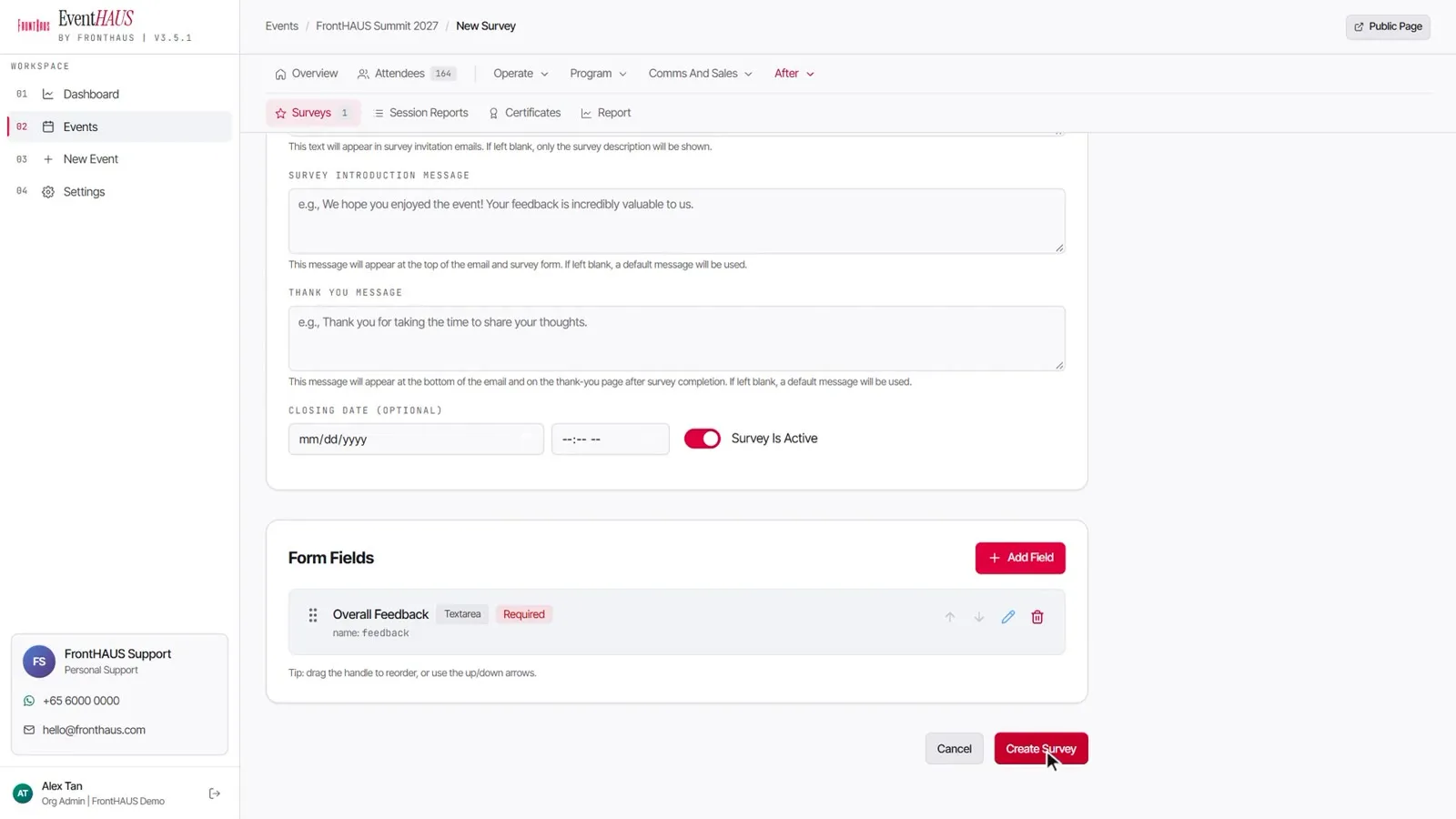
The Survey Is Active switch turns answers on or off, and the closing date is optional. Every question has a type, such as a one to five rating, checkboxes, a dropdown or a text box. Mark the important ones Required.
What Guests See
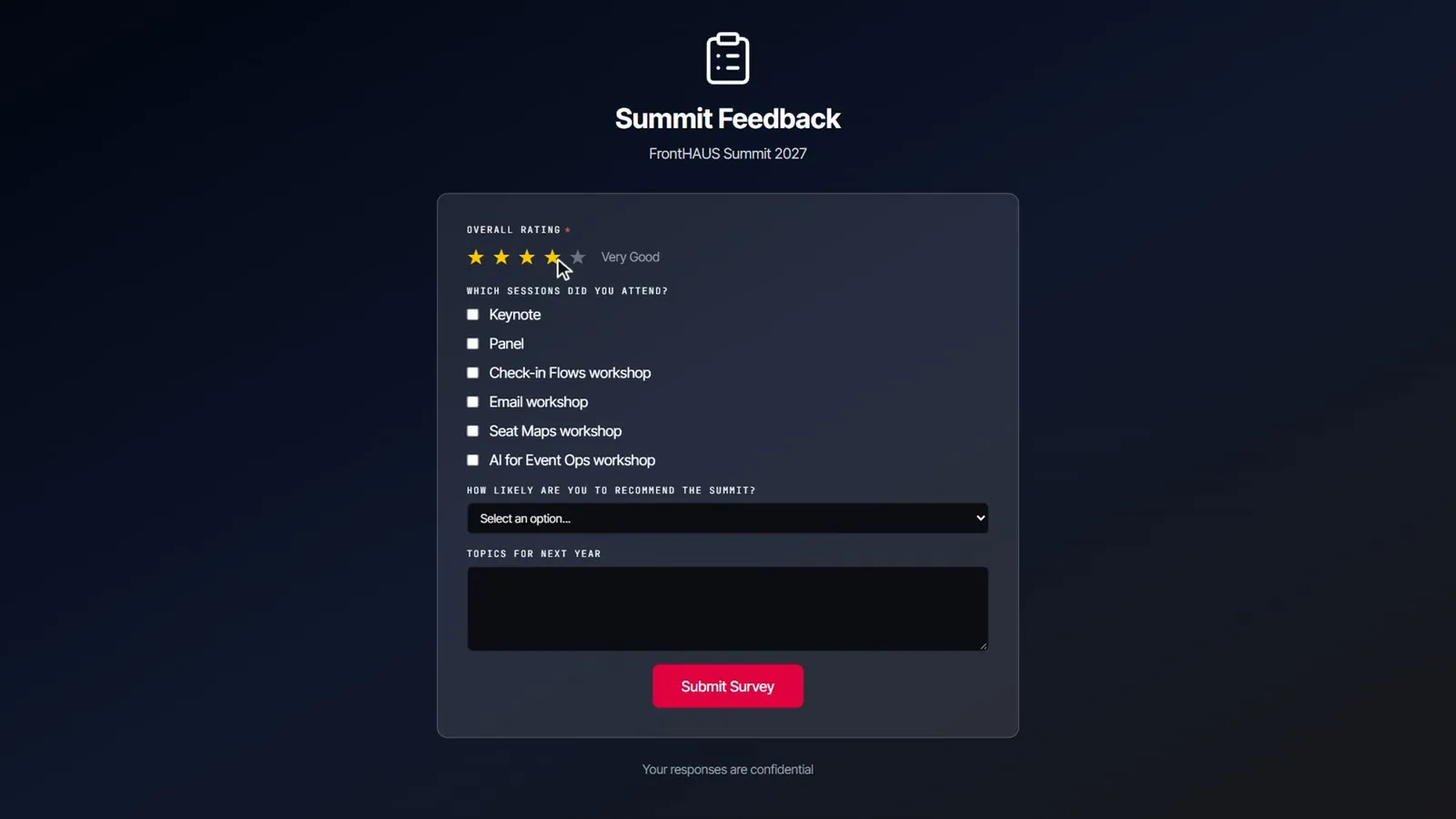
Section titled “What Guests See”Each guest gets a personal link by email. It opens a clean page with the survey title and your event name. Guests answer, select Submit Survey, and their answers land in your stats.
Read The Results
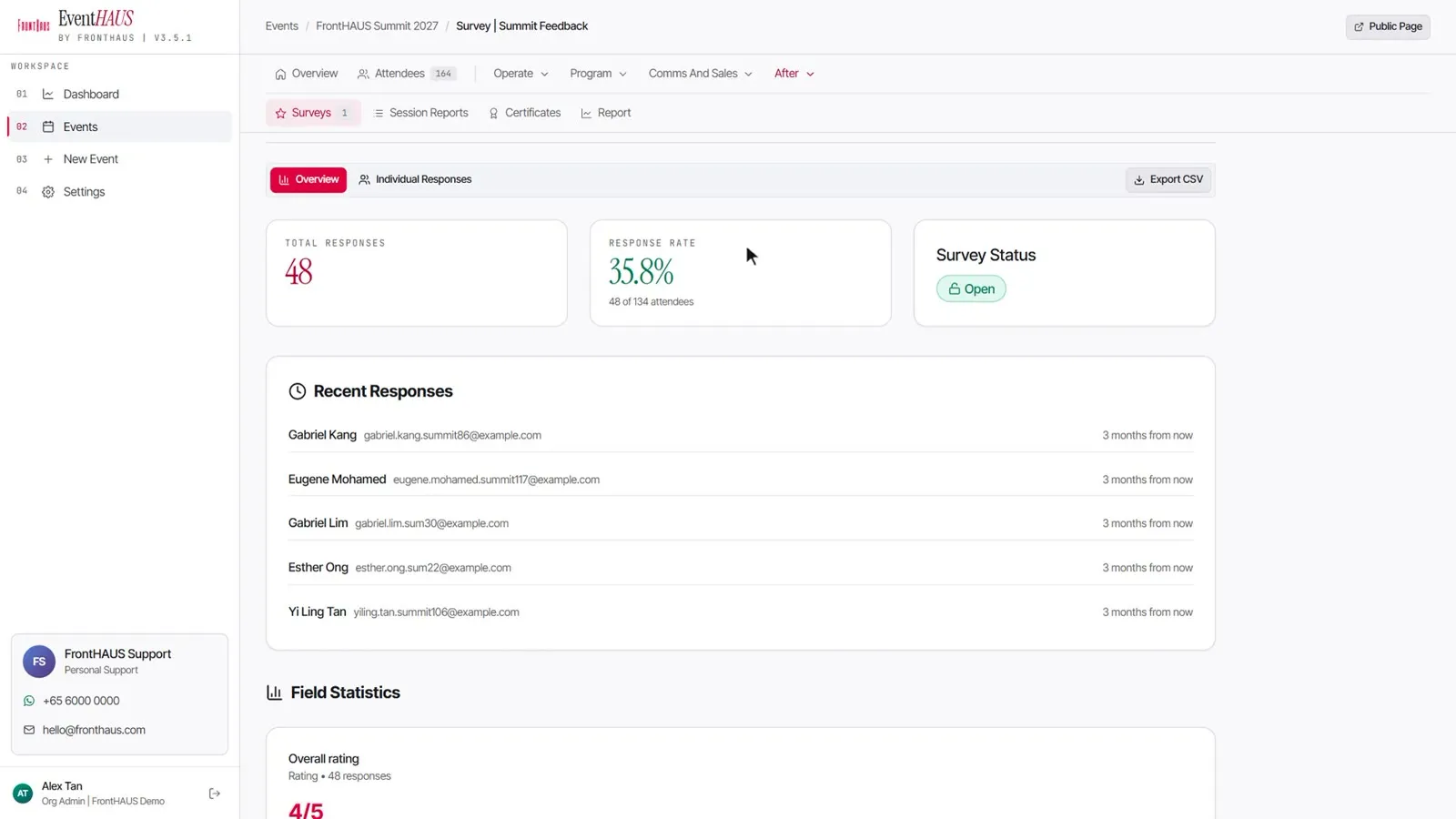
Section titled “Read The Results”Select Stats on a survey. The Overview tab shows Total Responses, Response Rate and Survey Status, followed by results for every question under Field Statistics. The Individual Responses tab lists each person’s answers, and Export CSV downloads the lot.
Session Reports
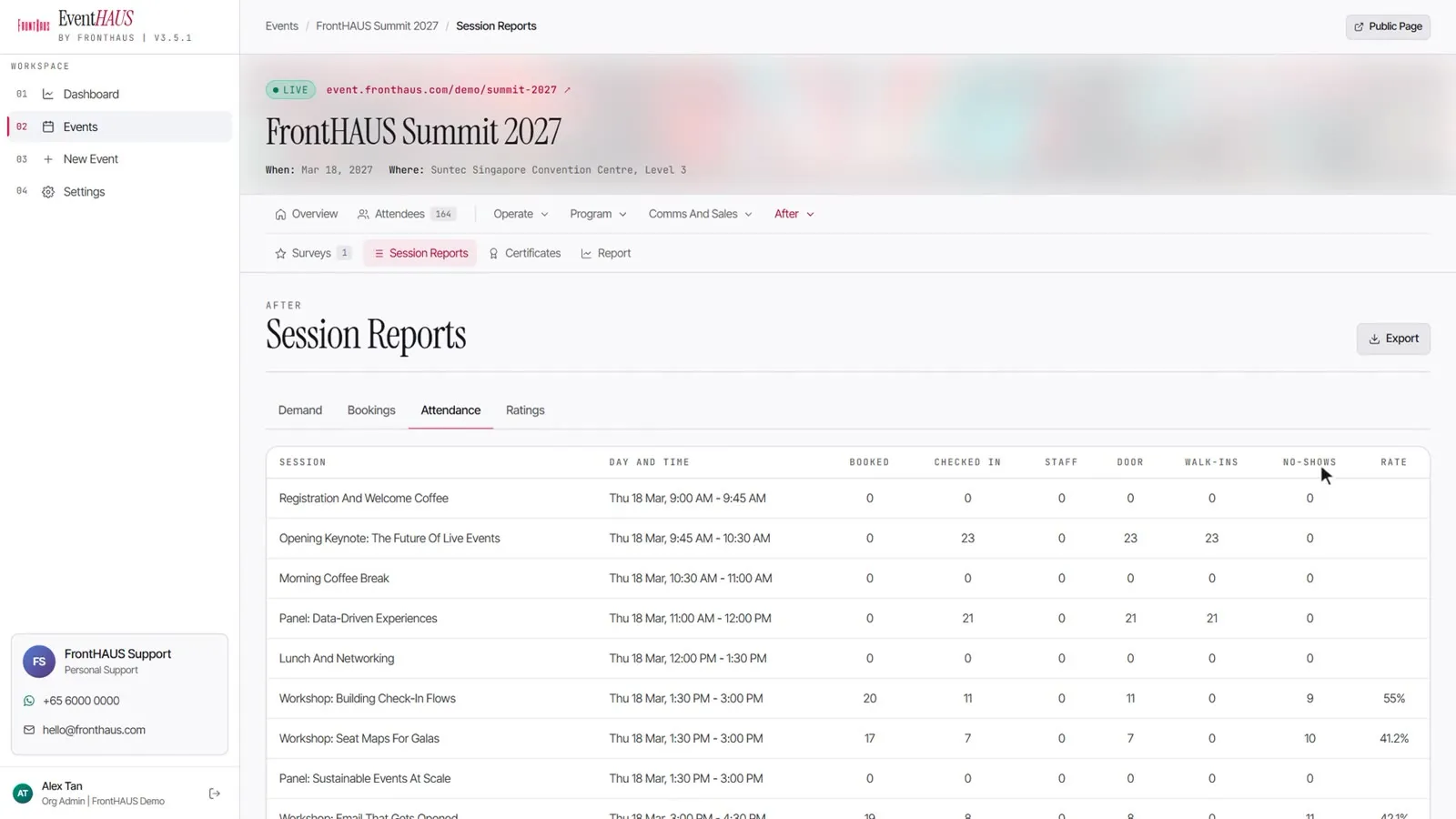
Section titled “Session Reports”Open Session Reports. It has four tabs: Demand, Bookings, Attendance and Ratings. Attendance lists each session with the columns Booked, Checked In, Staff, Door, Walk-Ins, No-Shows and Rate. Ratings gathers the stars and comments, and if a comment shouldn’t reach the speaker, select Hide From Speaker on it.
Certificates
Section titled “Certificates”Certificates is where guests get proof of attendance. Each template shows who’s eligible.
The Event Report
Section titled “The Event Report”Select Report. The top shows Expected, Checked In, Still to Arrive, Invited and Pending (guests awaiting approval). A switch lets you count People or Registrations. Arrivals charts check-ins over time, with the peak interval and the first and last arrival. Who arrived splits guests by tier, group or solo, and custom fields. To get the list of approved guests who never checked in, select Export still to arrive.
- Integrations: connect other tools to your event.
- Dashboard And Reports: find your numbers across all events.