
Organisation Settings
Organisation settings apply to every event you run, so you only need to set them once. Select Settings in the sidebar to open them. Each area has its own tab across the top.
Before You Start
Section titled “Before You Start”You’ll need an organisation admin account. You don’t have to finish every tab before you create an event, but do set up Payments before you publish a paid event.
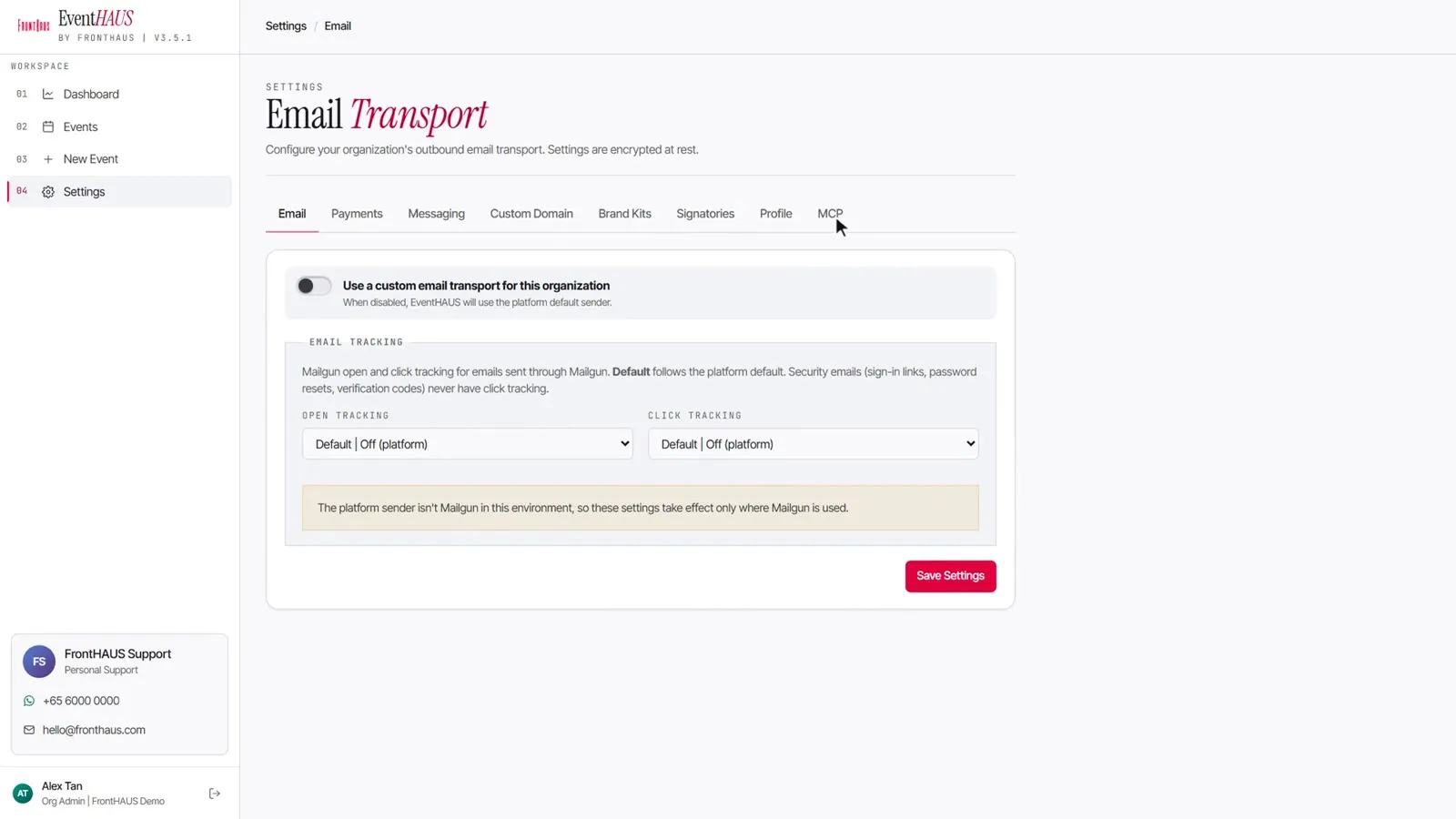
The tabs are Email, Payments, Messaging, Custom Domain, Brand Kits, Signatories and Profile, plus MCP, the tab for connecting an assistant.
The Email tab decides who your organisation’s emails come from.
- The Use a custom email transport for this organization switch is off by default, and EventHAUS then sends from its own platform sender. Turn it on only if you want emails to go out through your own email setup.
- Email Tracking has Open Tracking and Click Tracking. Both follow the platform default until you change them. Security emails never get click tracking.
Payments
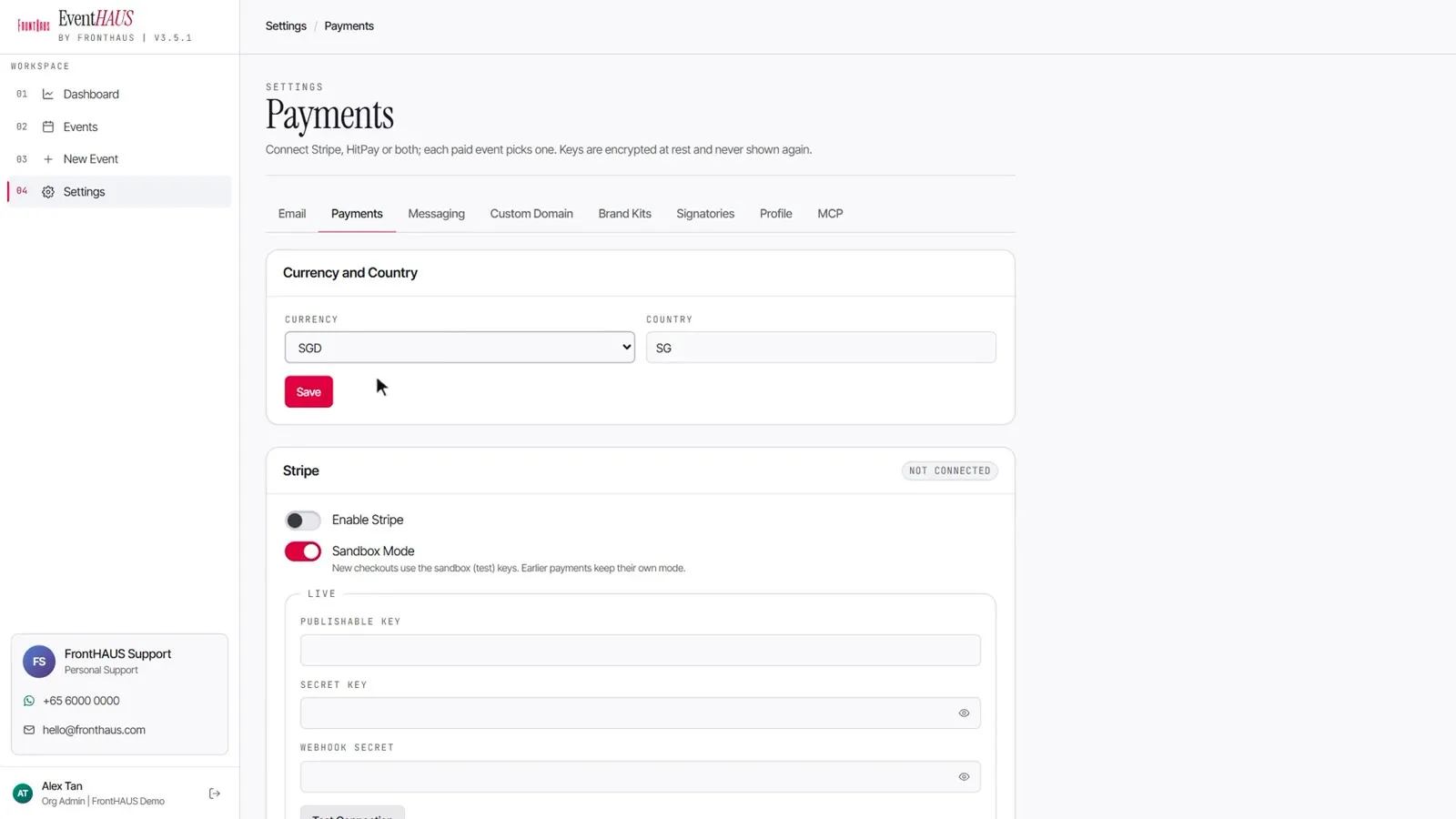
Section titled “Payments”The Payments tab is where you set up how you get paid for tickets.
- Under Currency and Country, pick the currency your organisation charges in, then select Save.
- Connect a payment provider. Stripe comes first. You can add HitPay as well, or use both, and each paid event picks the one it wants.
- To switch Stripe on, turn on Enable Stripe and add your keys. Use Sandbox Mode to test with practice keys first.
Your keys are stored encrypted and are never shown again after you save them.
Messaging
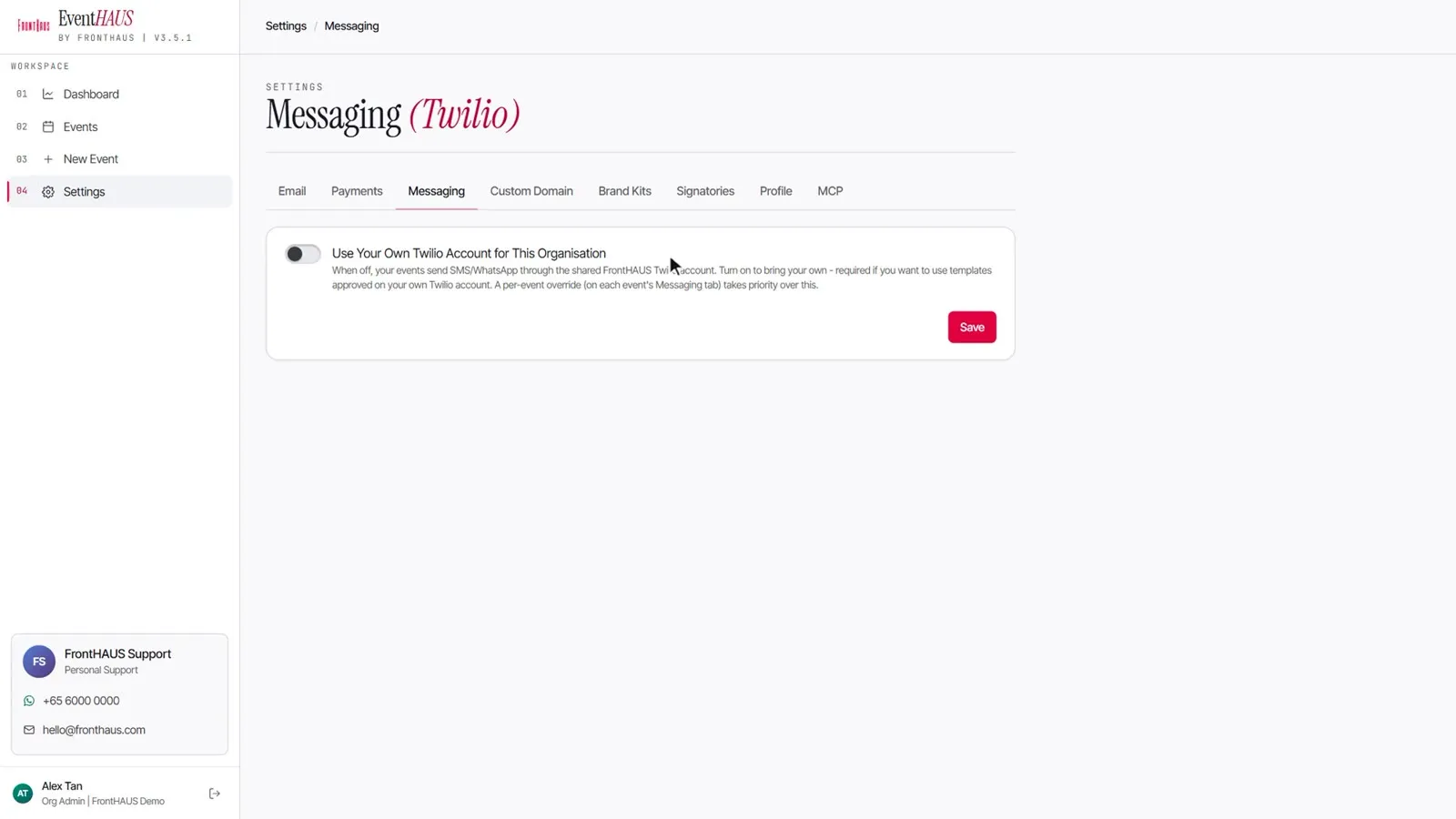
Section titled “Messaging”On the Messaging tab, text and WhatsApp messages go out through the shared FrontHAUS Twilio account by default. That means there’s nothing for you to set up.
If you’d rather use your own Twilio account, switch on Use Your Own Twilio Account for This Organisation. It’s the one to pick if your message templates are approved on your own account.
Custom Domain
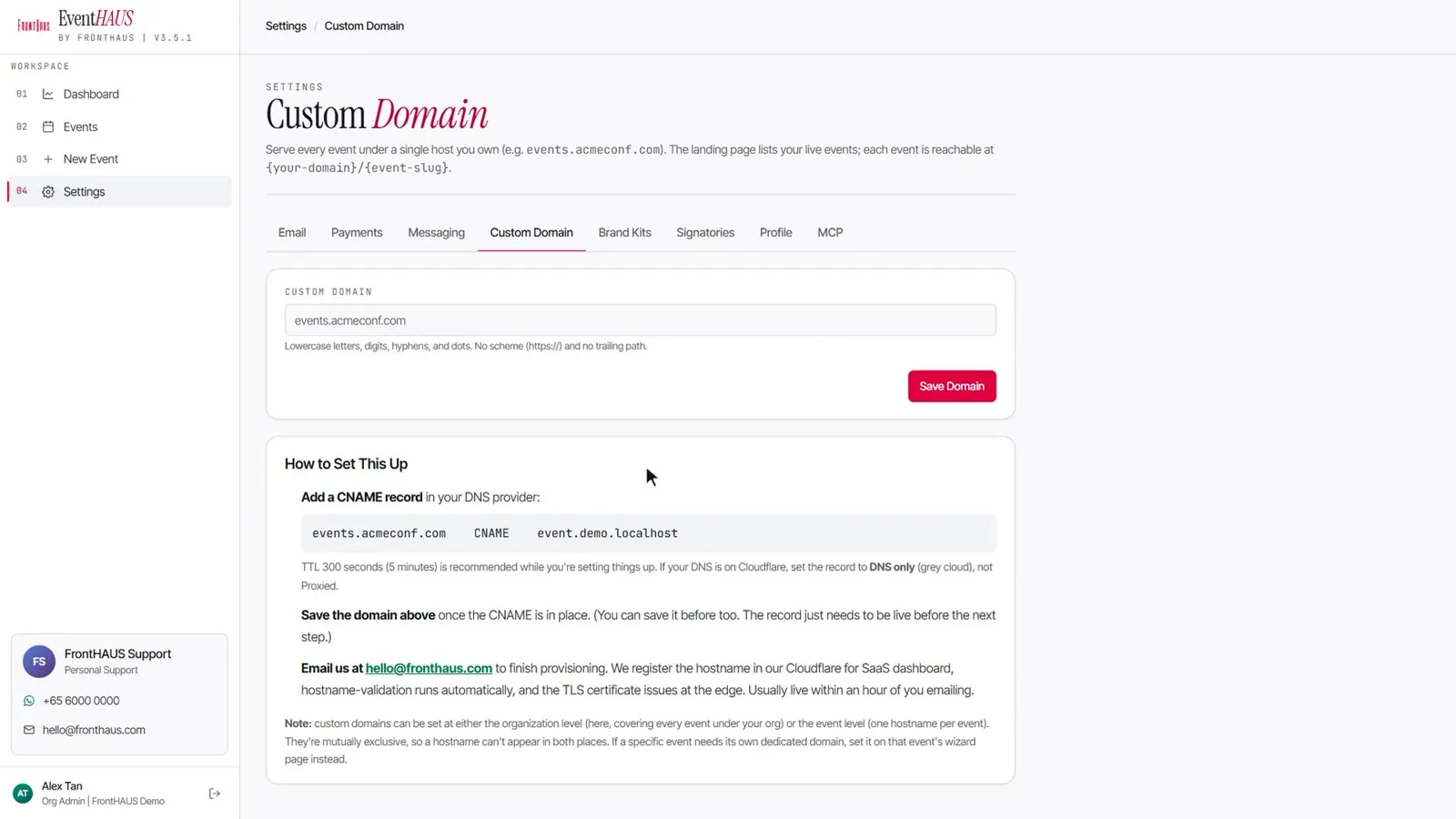
Section titled “Custom Domain”Custom Domain lets you serve all your events from one web address that you own, like events.yourcompany.com.
- Type your domain.
- Select Save Domain.
- Follow the How to Set This Up card. It walks you through adding a record with your domain provider, then emailing us to finish.
Brand Kits
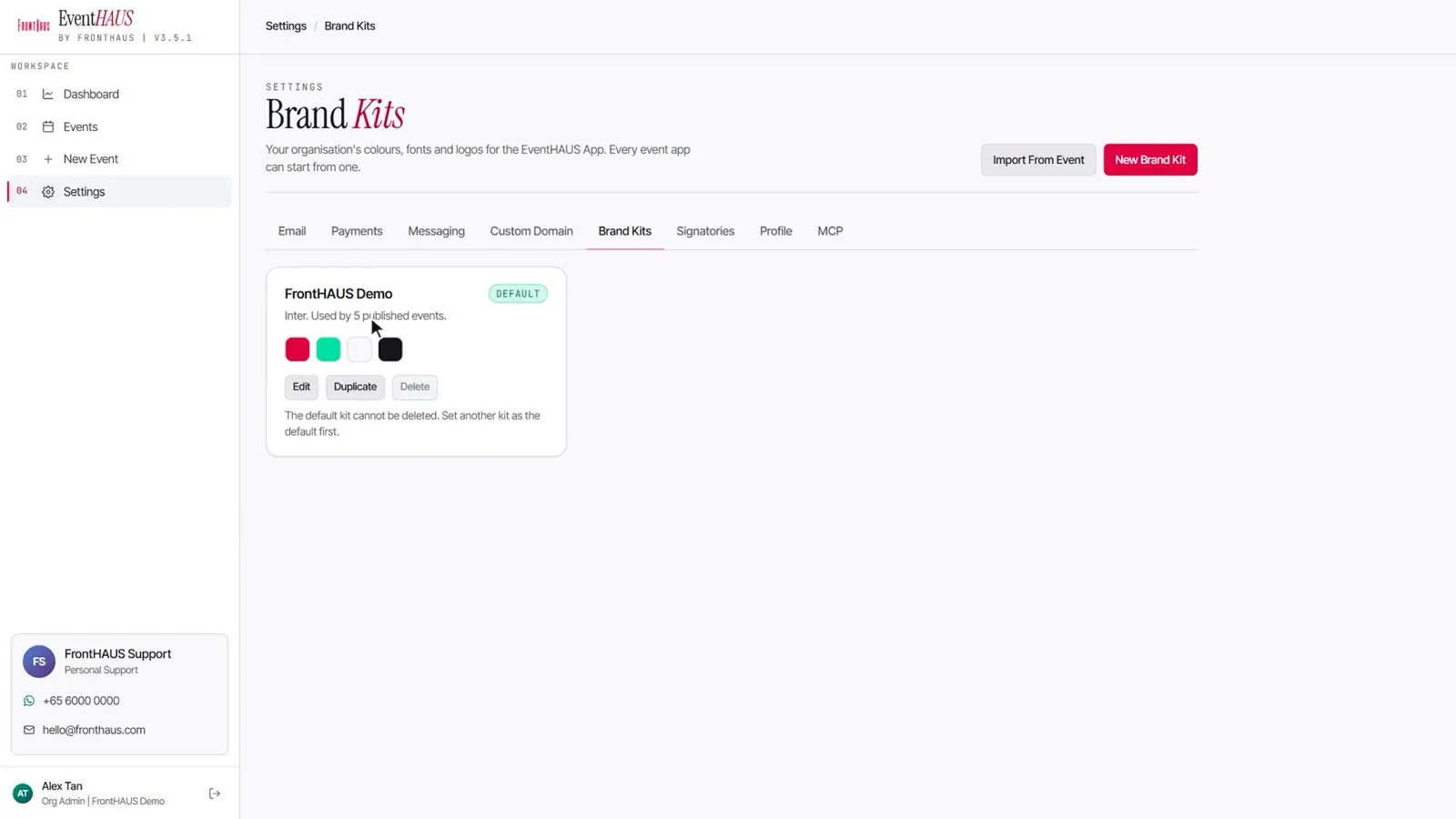
Section titled “Brand Kits”A brand kit holds your organisation’s colours, fonts and logos for the EventHAUS App. The kit your organisation already has is marked as the default.
- Each kit has Edit, Duplicate and Delete buttons. The default kit can’t be deleted until you set another kit as the default.
- Select New Brand Kit to add another.
- Select Import From Event to copy a look you’ve already built, so every event app can start from a kit.
Signatories
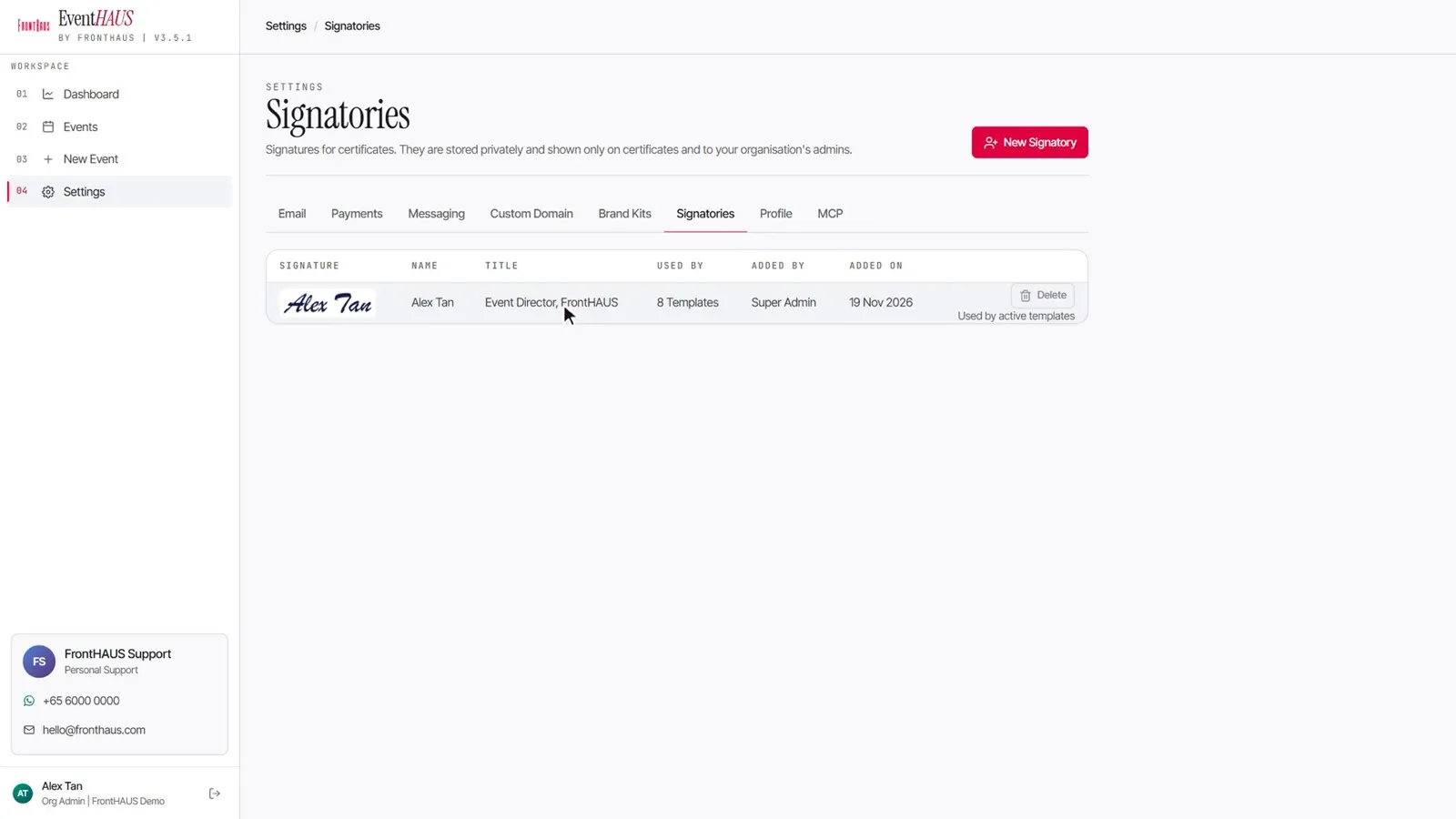
Section titled “Signatories”Signatories are the people whose signatures go on your certificates. Each one shows a name, a title and how many templates use it. Select New Signatory to add another. They’re stored privately, and only appear on certificates and to your organisation’s admins.
Profile
Section titled “Profile”The Profile tab is about you. It’s where you set your own display mode, name, email, password and two-step sign in.
- Emails And QR Messages: control what guests receive for each event.
- Modules And The Attendee App: switch on the features each event needs.