
Run A Conference
This guide walks you through a whole conference, start to finish: a one day event with ticket tiers, three rooms, speakers, bookable workshops, matchmaking and certificates. Each stage links to the guide that covers it in full, so treat this page as your checklist and follow the links when you want the detail.
Before You Start
Section titled “Before You Start”Create the event as a draft. See Create Your First Event. Then work through the stages below in order. They follow the way a conference tends to come together: modules, tickets and form, schedule, communications, check-in, then surveys, certificates and the report.
Switch On The Modules
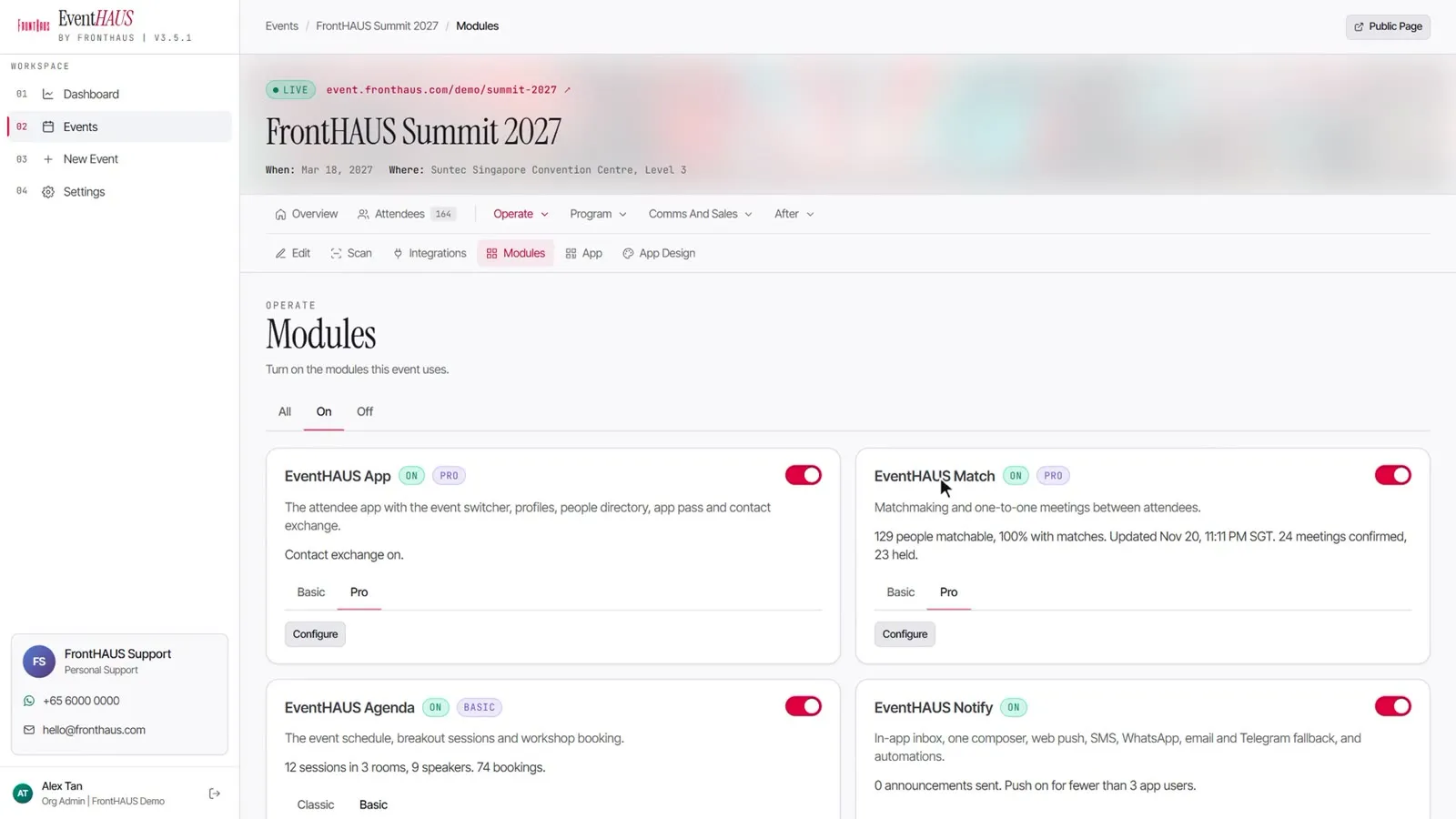
Section titled “Switch On The Modules”- Open Operate, then Modules.
- Select the On filter to see what the event uses.
A conference typically uses EventHAUS App, EventHAUS Match, EventHAUS Agenda, EventHAUS Notify, Play, Certify and Sponsor. Each card has a switch, and some have Configure for more settings. See Modules And The Attendee App.
Set Up Tickets And The Registration Form
Section titled “Set Up Tickets And The Registration Form”Your event page shows the date, the venue, how many seats are left and a Register button. See Your Event Page And Branding for how to make it look the way you want.
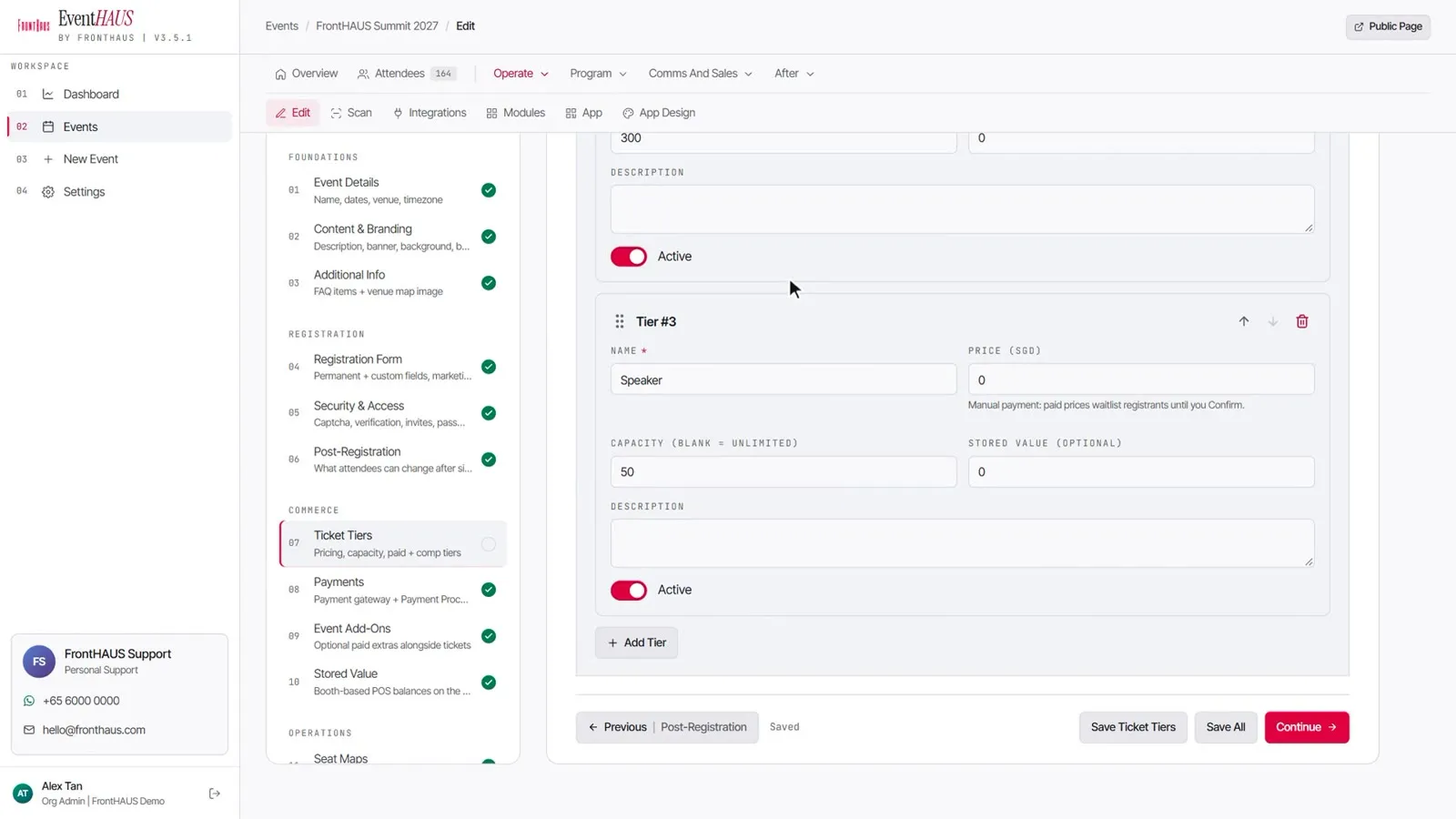
- In the editor, open Ticket Tiers. The event has one total capacity, and each tier has its own price and capacity.
- Add a tier for each ticket type. A conference might have Early Bird, Standard and Speaker. Speakers register on their own free tier, so they never pay.
- Select Save Ticket Tiers.
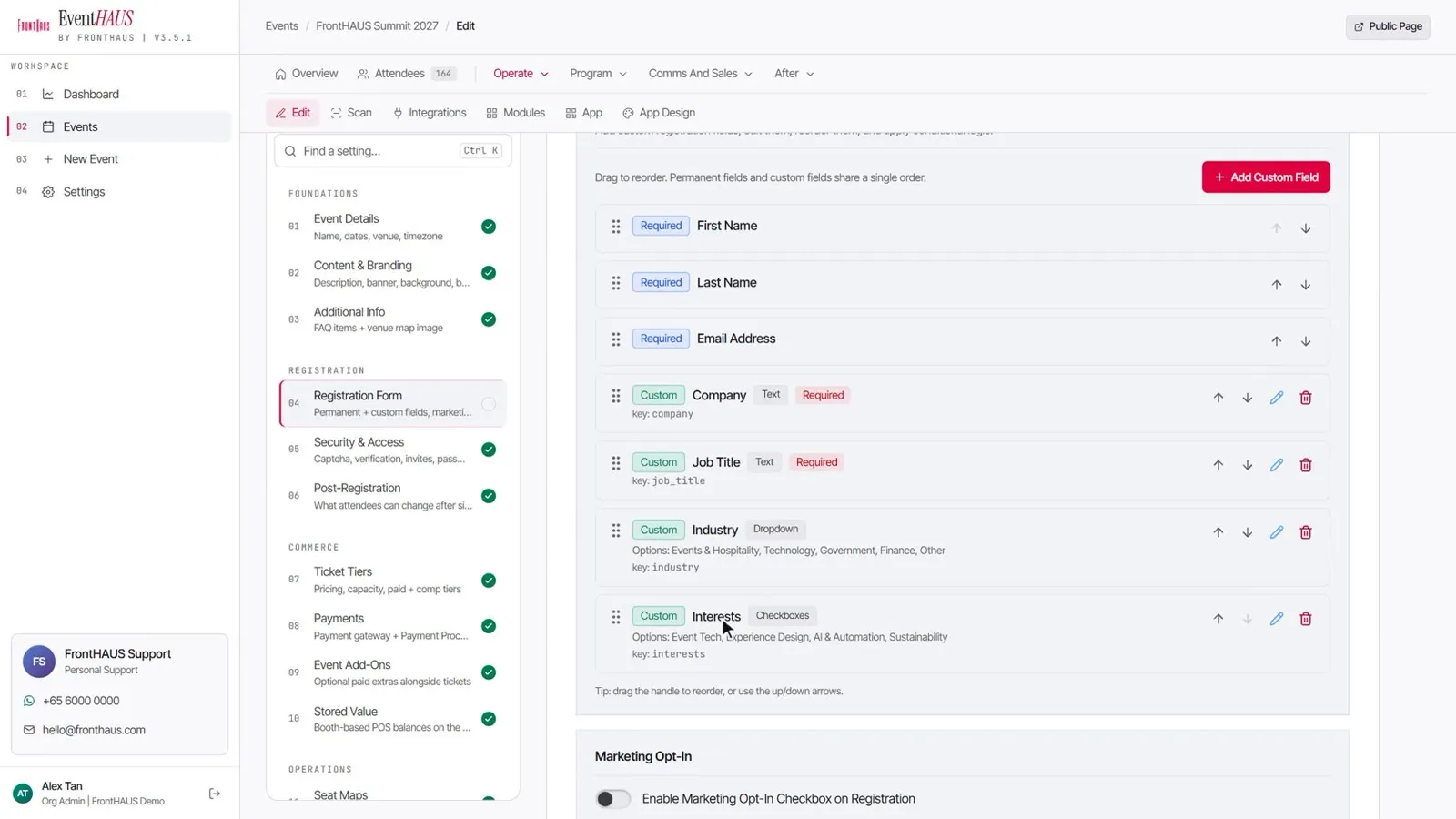
Then open the Registration Form. It asks for first name, last name and email, plus custom fields such as Company and Job Title. Add Industry and Interests too, because they feed matchmaking later. See Tickets And The Registration Form.
Build The Programme
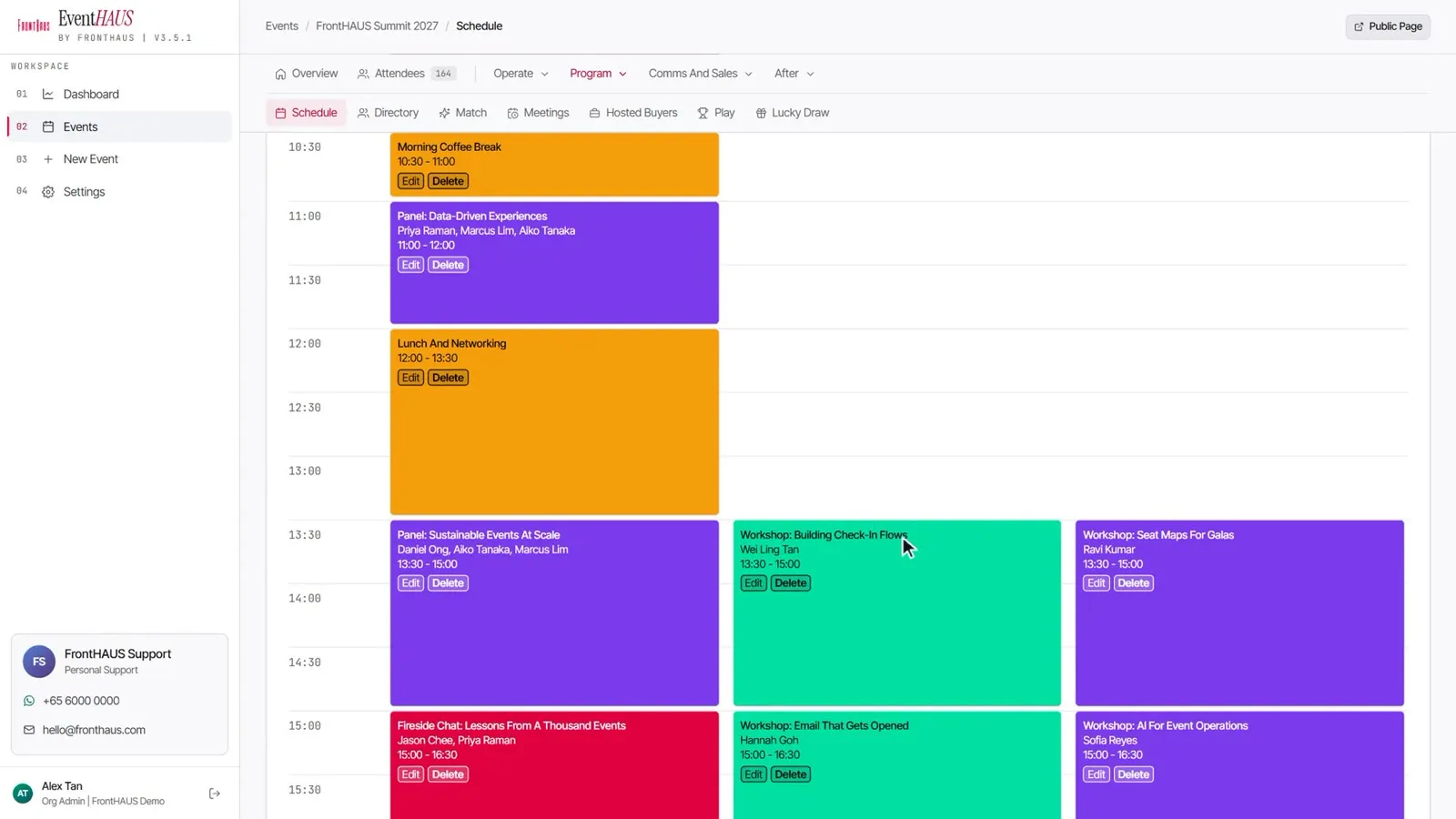
Section titled “Build The Programme”Open Program, then Schedule. See Schedule And Sessions.
- Set up your rooms, for example a main stage and two workshop rooms.
- Add your sessions. The grid lays every session across the rooms by time, with the speakers on each one. Keynotes open and close the day, and workshops run side by side.
- Add each speaker on the Speakers tab, with a profile.
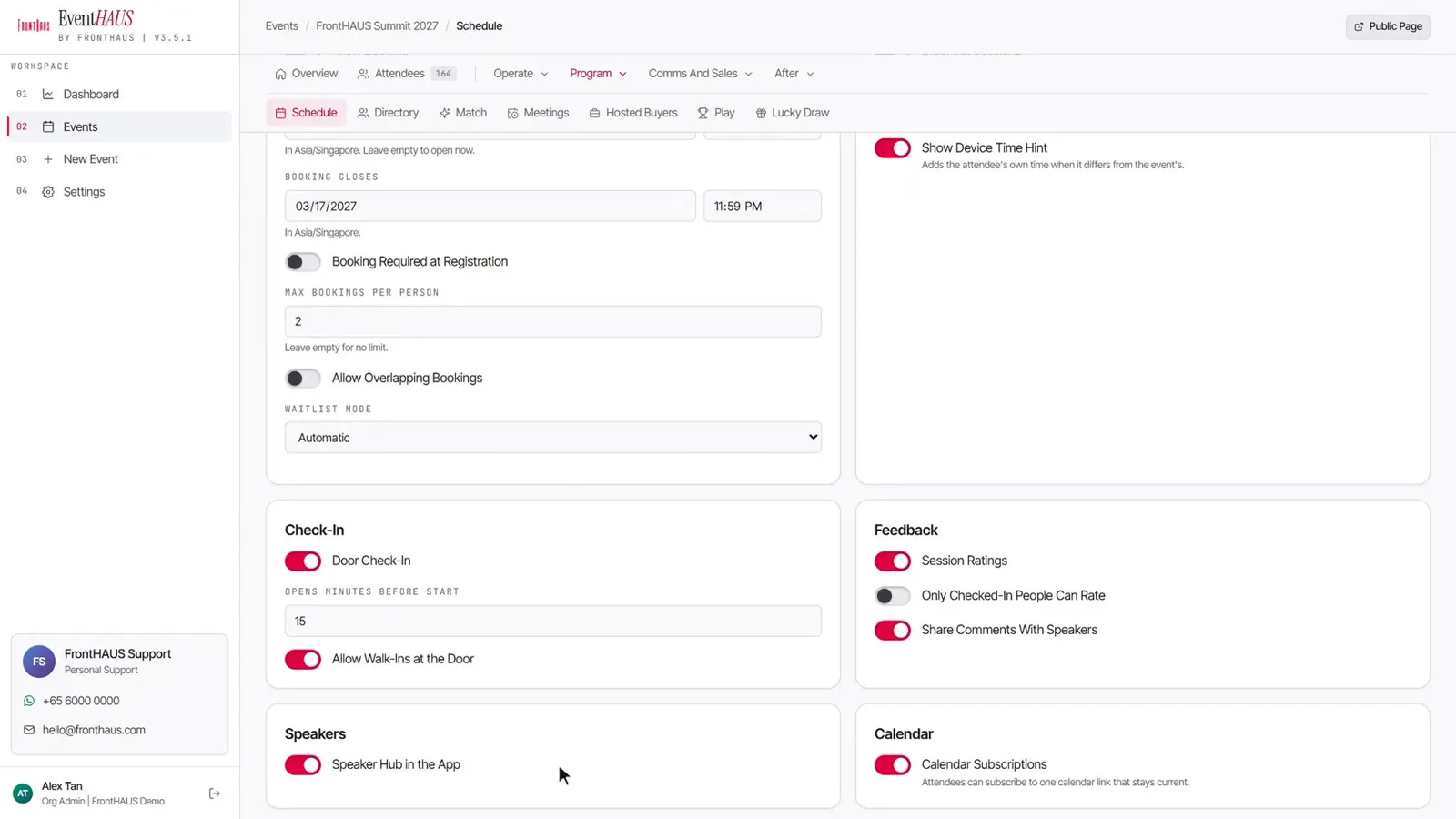
- Open Settings to decide whether sessions can be booked. You choose when booking opens and closes, Max Bookings per Person, whether to Allow Overlapping Bookings, and the Waitlist Mode for when a room fills up.
Share The App And Check Matching
Section titled “Share The App And Check Matching”Open Operate, then App. This page holds the app link you share with guests, and a preview of what they’ll see.
Matchmaking lives under Program, in Match. It scores people against each other, so it can suggest who should meet whom. Its Overview shows how many people are matchable and how well covered they are, and it’s worth a look before doors open. See Match And Meetings.
Plan Your Messages
Section titled “Plan Your Messages”Open Comms And Sales, then Communications. See Communications.
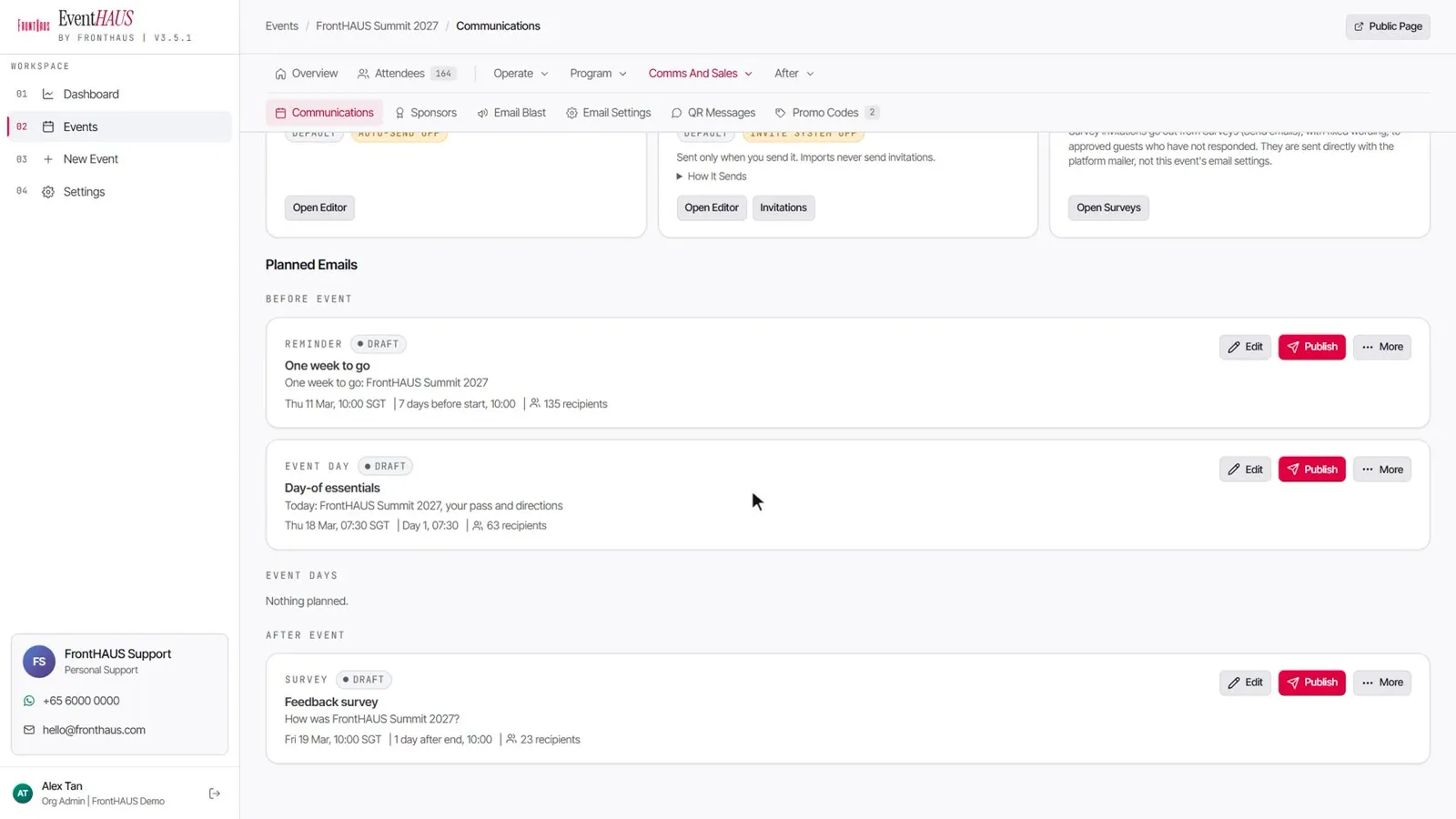
- The Registration Email carries each guest’s pass. Where it says Auto-Send Off, you choose when it goes. See Emails And QR Messages.
- The Timeline plans the rest: a reminder a week before, then a day-of email early on the morning, then a feedback survey after.
- These are drafts, so nothing goes out until you select Publish.
Check Guests In
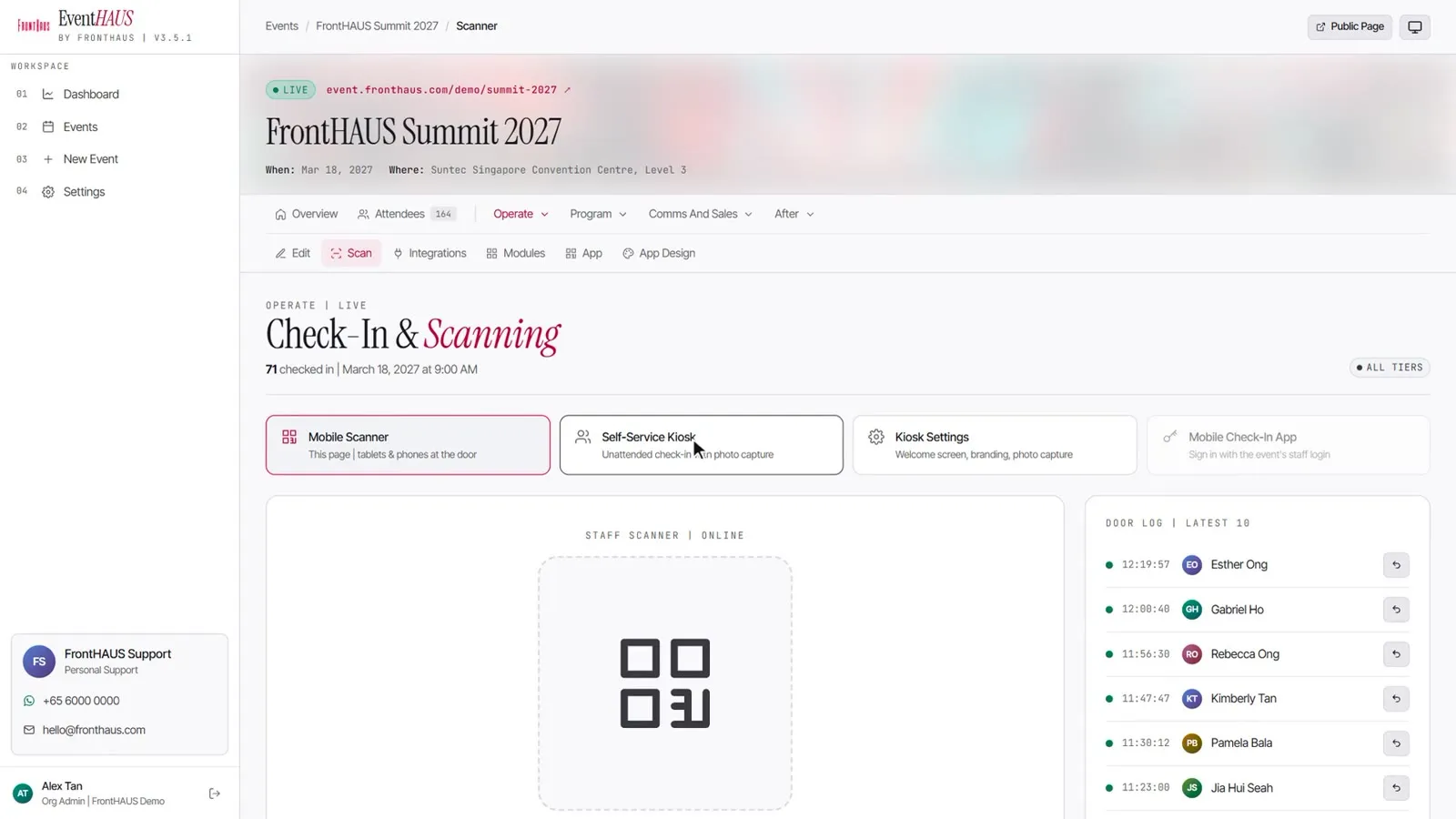
Section titled “Check Guests In”On the day, open Operate, then Scan. The Mobile Scanner works on phones and tablets at the door. You can also run a Self-Service Kiosk. See Check-In Day.
Keep an eye on the event Overview as people arrive. Expected, Checked In and Still to Arrive give you a live count.
After The Event
Section titled “After The Event”Open the After menu.
- Session Reports has an Attendance tab that shows who actually attended each session, next to how many had booked.
- Surveys holds your feedback survey. Select Send Emails to invite the guests who haven’t answered yet.
- Certificates holds an attendance certificate, a record of professional development points and a speaker appreciation. See Certificates.
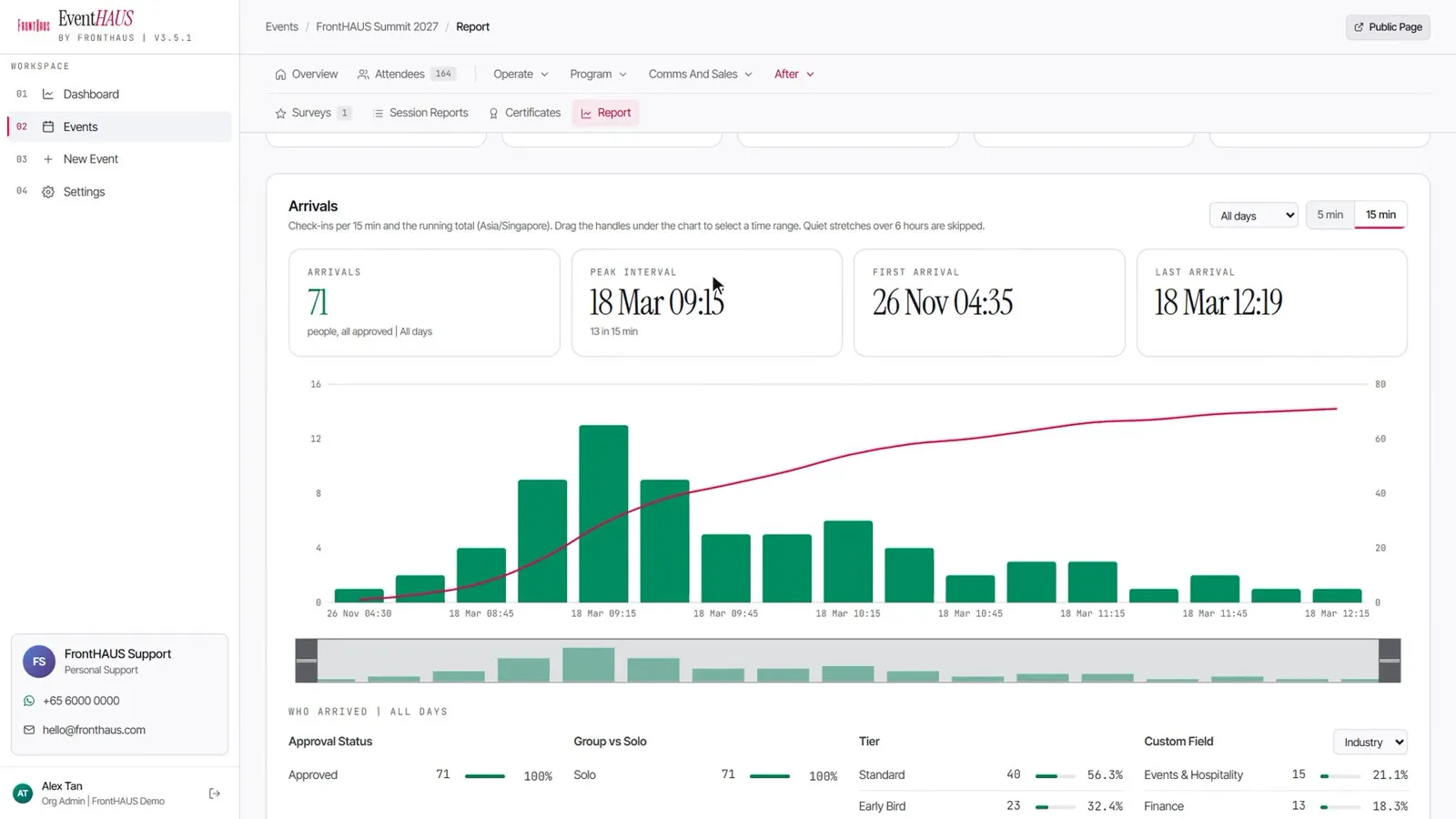
- Report charts arrivals over time and who came, by tier, and points out the busiest interval. See Dashboard And Reports.
What Guests See
Section titled “What Guests See”Guests use the attendee app.
- Home shows a countdown to the doors, what’s next, their own agenda and their pass.
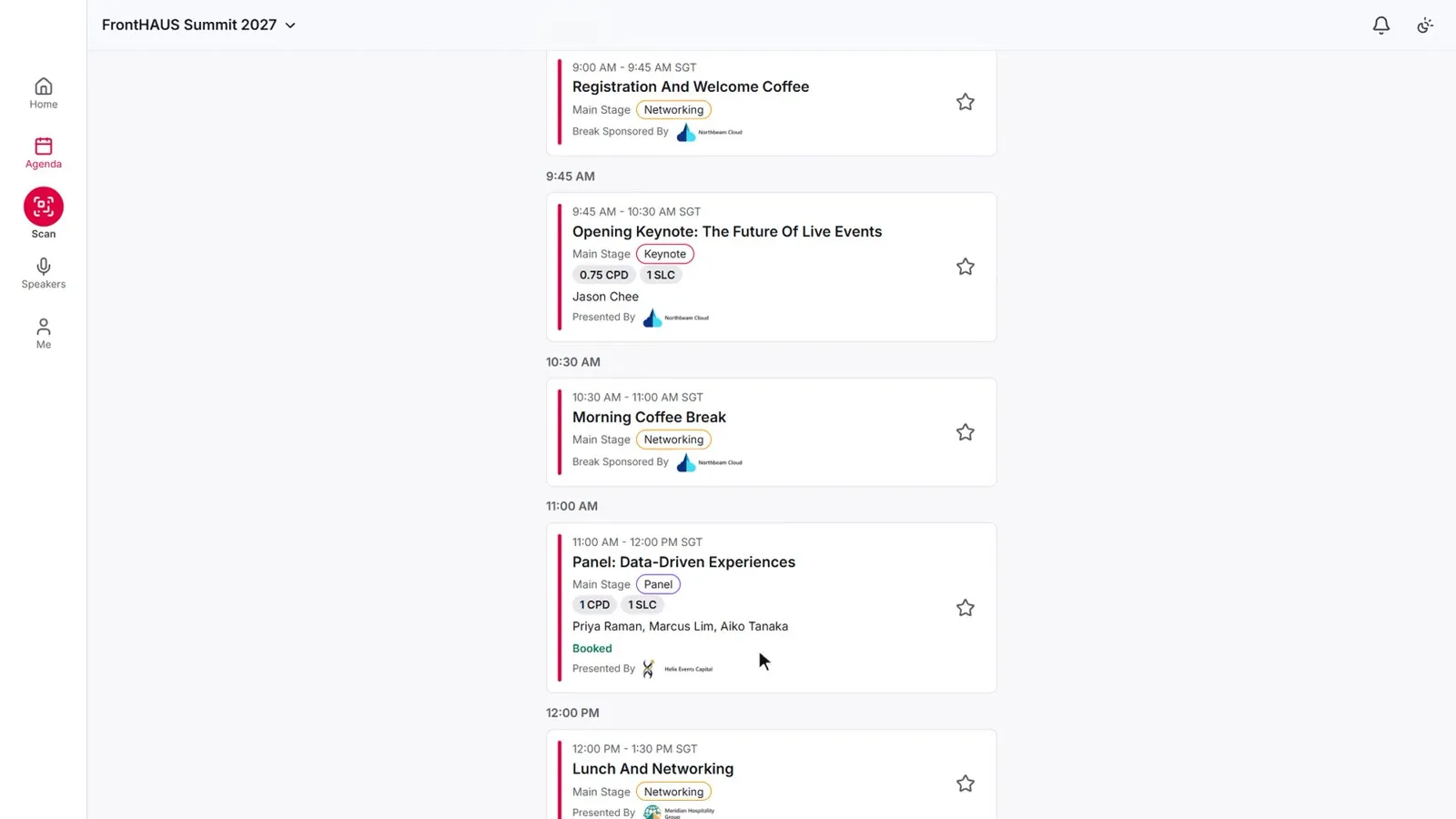
- The Agenda tab lays out the whole day. Each card shows the room, the type, the speakers and any credits. Workshops the guest has booked are marked Booked.
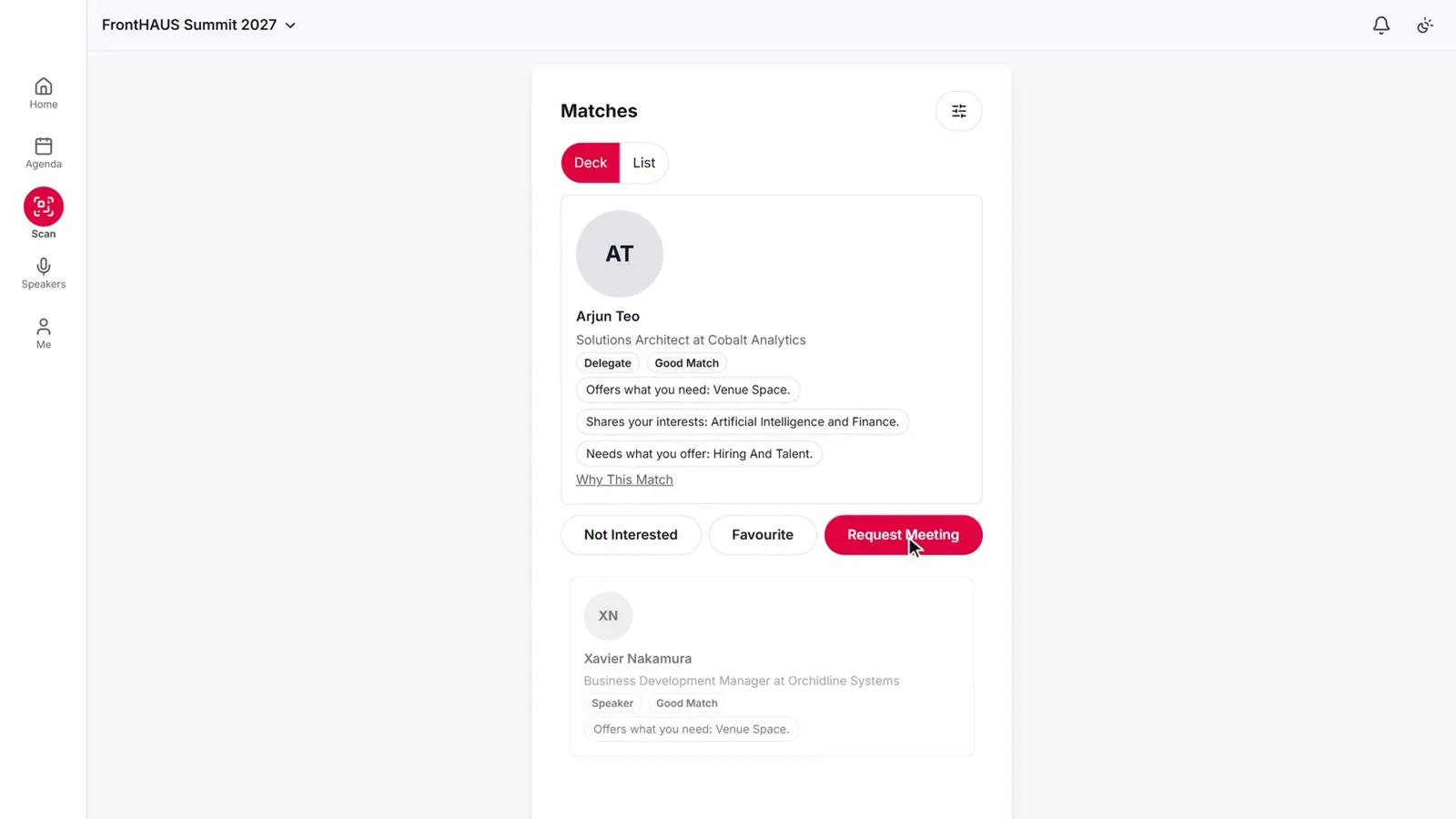
- Matches suggests people worth meeting, with the reasons why. A guest can select Favourite or Request Meeting.
- Run A Dinner And Dance: the next event in this series.
- Managing Attendees: approve, edit and look after your guest list.