
Reserved Seating
Reserved seating lets guests choose their own seat, or a whole table, as they register. You design the room once as a seat map, attach it to the event and set the booking rules. After that you can watch the seats fill on the reservations page.
Before You Start
Section titled “Before You Start”Create the event and add its ticket types first. See Create Your First Event and Tickets And The Registration Form. If you’d like the plan laid over a picture of the room, have your venue image ready.
Open The Seat Maps Section
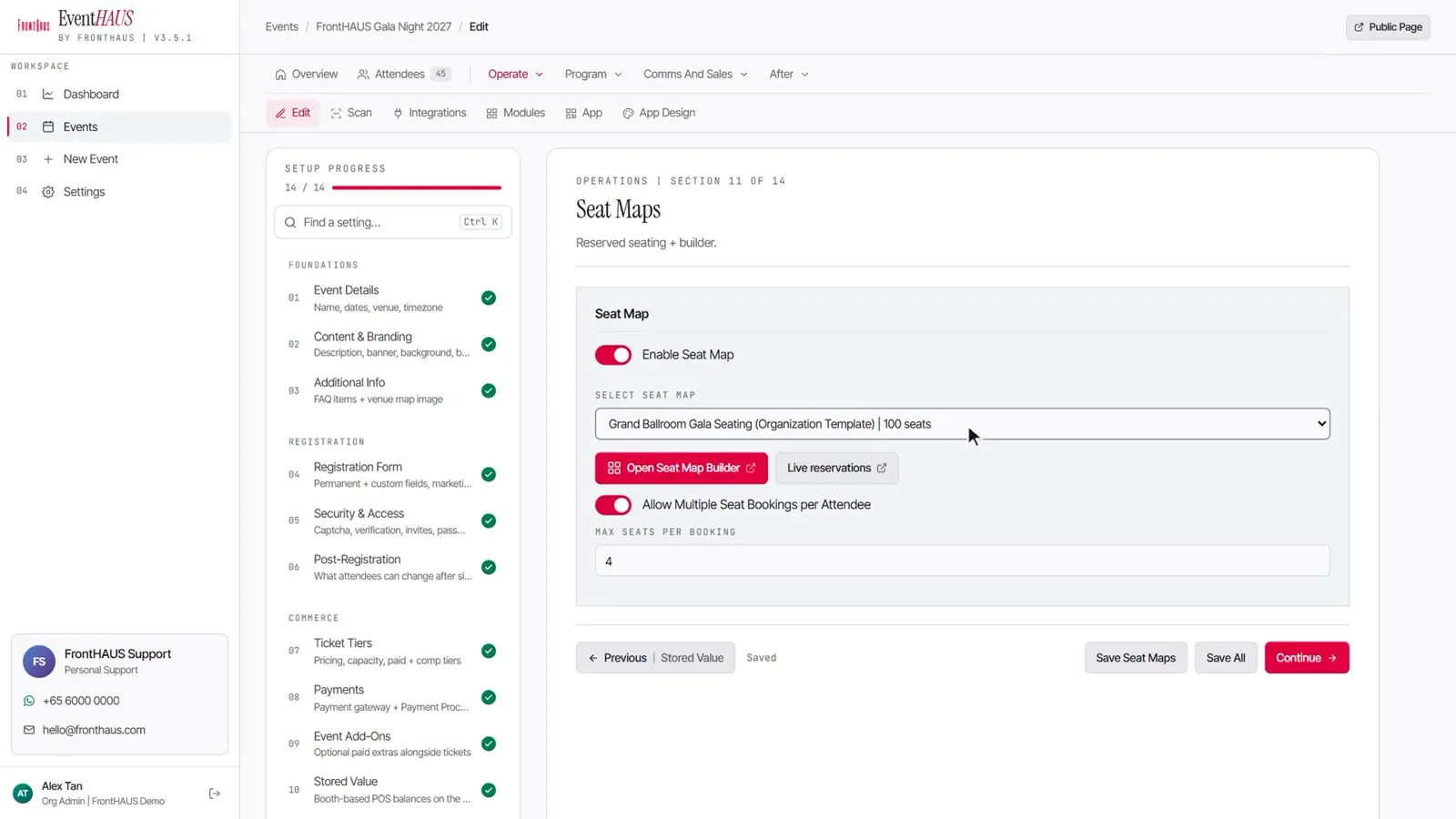
Section titled “Open The Seat Maps Section”In the event editor, open Seat Maps. This is where you choose a seat map, switch seating on and set the rules. The map itself is built as a template and then attached to the event.
Select Open Seat Map Builder to see or change the map.
Build The Map
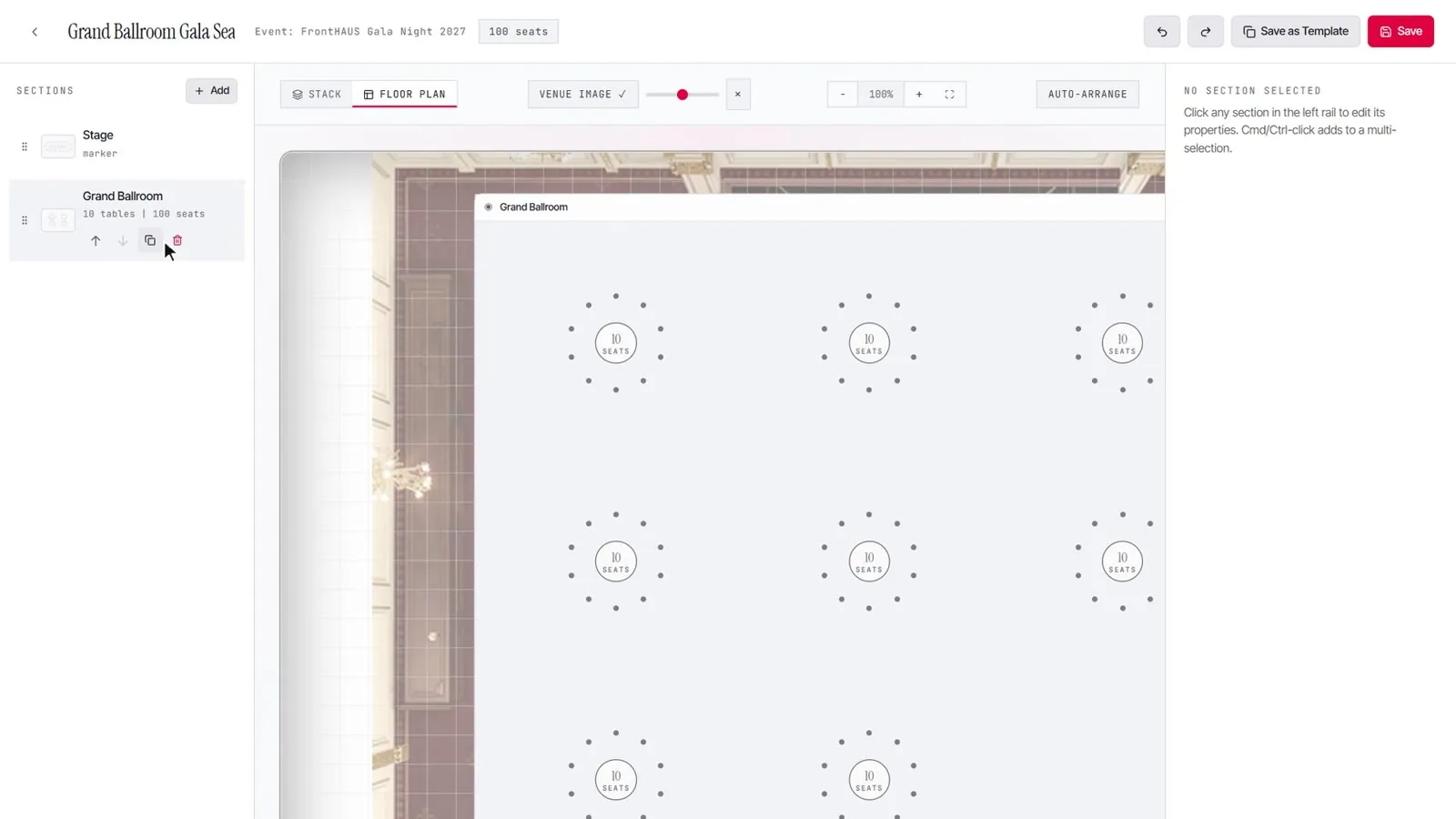
Section titled “Build The Map”The builder has a list of sections on the left. A section is a block of tables or seats, and a Stage marker shows where the stage is. In the example here, the room is one section, Grand Ballroom, with ten tables and a hundred seats.
The Floor Plan view shows the room the way guests will sit in it, laid over the venue image. Every dot is a seat and every circle is a table.
Select a section to open its settings on the right:
- Type a Section Name.
- Set Tables and Seats Per Table.
- Choose the Shape, a circle or a rectangle. The capacity adds itself up below.
- Choose a Tier to tie the section to a ticket type, or leave it as No tier (open to all).
- Set the position and rotation. Select Auto-Arrange to tidy the sections into a grid, or drag and resize them on the plan.
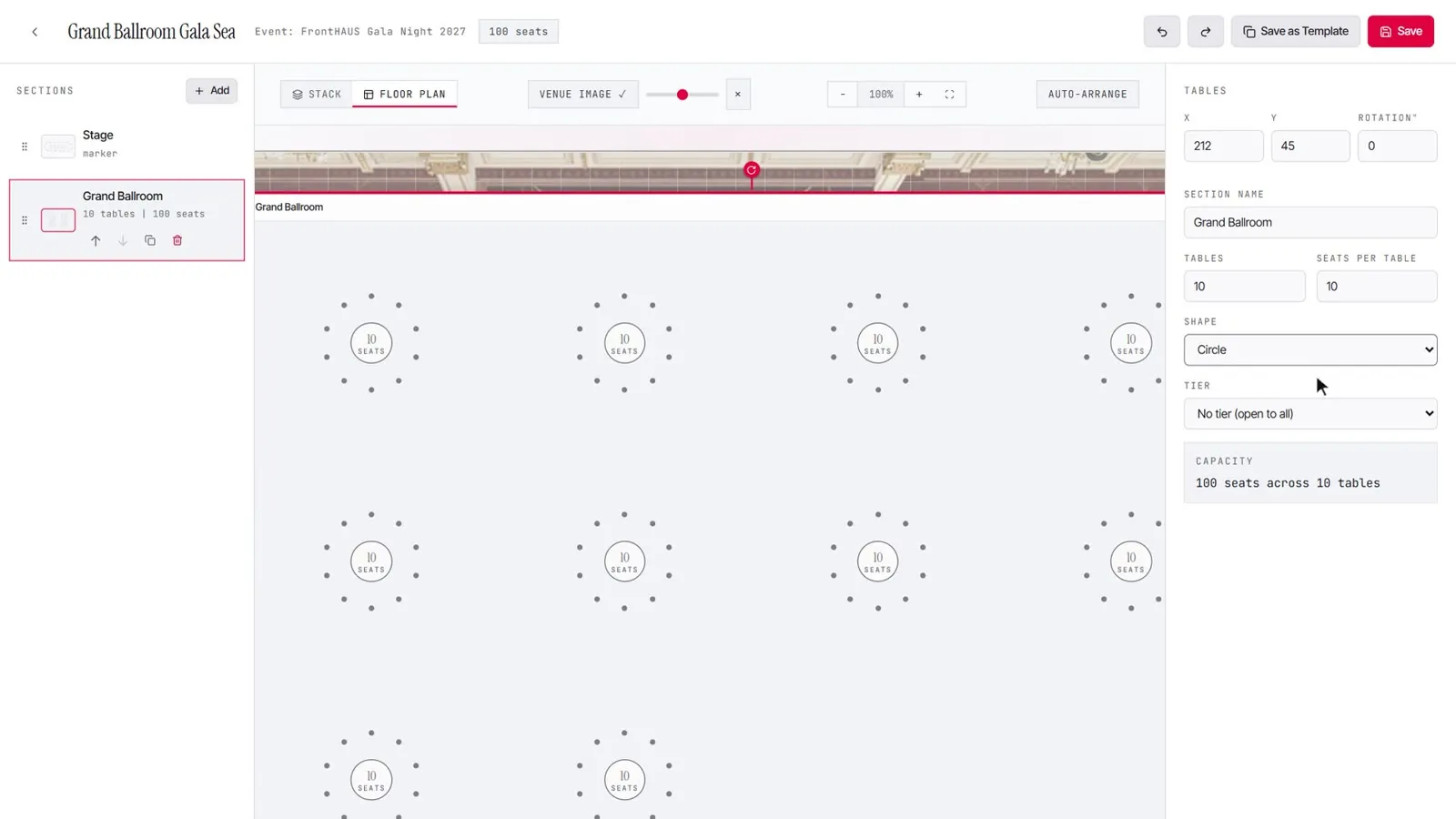
Select Save as Template to keep the map for your organisation, and Save to store your changes.
Check The Guest Picker
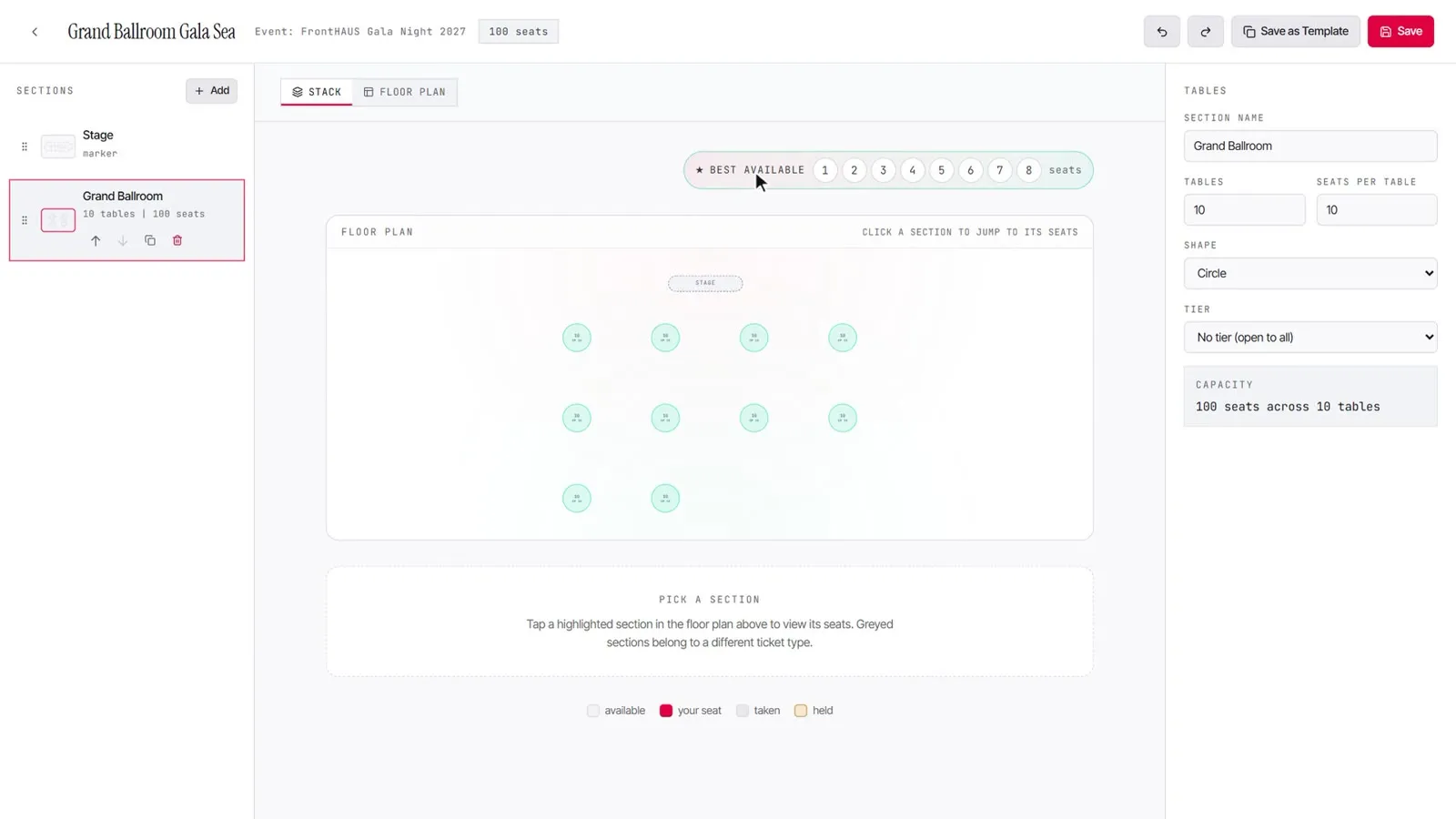
Section titled “Check The Guest Picker”Switch to the Stack view. This is the picker guests will use, so it’s worth a quick look before you go live. It has a Best Available option that chooses seats for them. The key at the bottom shows what each colour means: available, your seat, taken and held.
Attach The Map And Switch It On
Section titled “Attach The Map And Switch It On”Back in the Seat Maps section of the editor:
- Choose your template under Select Seat Map.
- Switch on Enable Seat Map. This puts the seat picker on your registration page.
- Switch on Allow Multiple Seat Bookings per Attendee to let one person reserve several seats. Then set Max Seats per Booking to cap it.
- Select Save Seat Maps.
Watch Reservations
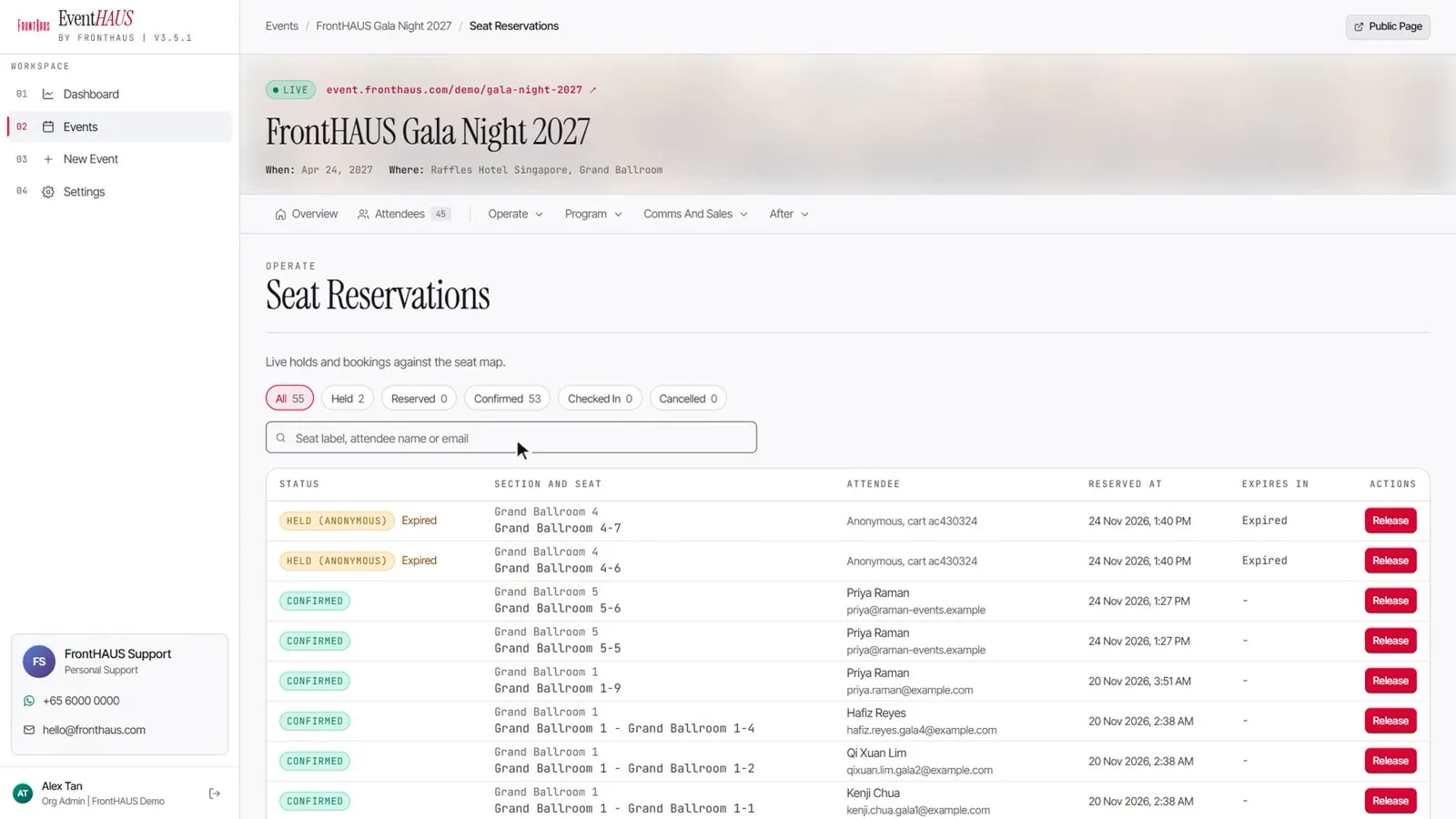
Section titled “Watch Reservations”Select Live reservations to open Seat Reservations.
- The chips along the top count each state: Held, Reserved, Confirmed, Checked In and Cancelled. Select one to filter, or search by seat label, name or email.
- Each row shows the status, section and seat, the attendee, when it was reserved and when it expires.
- While a guest is checking out, their seats show as Held and Expires In counts down. An anonymous hold that has run out says Expired.
- Select Release to free a seat for someone else.
What Guests See
Section titled “What Guests See”On the public registration page, guests fill in their details and verify their email with a short code sent to their inbox. Once the email is verified, the seat picker opens on the page.
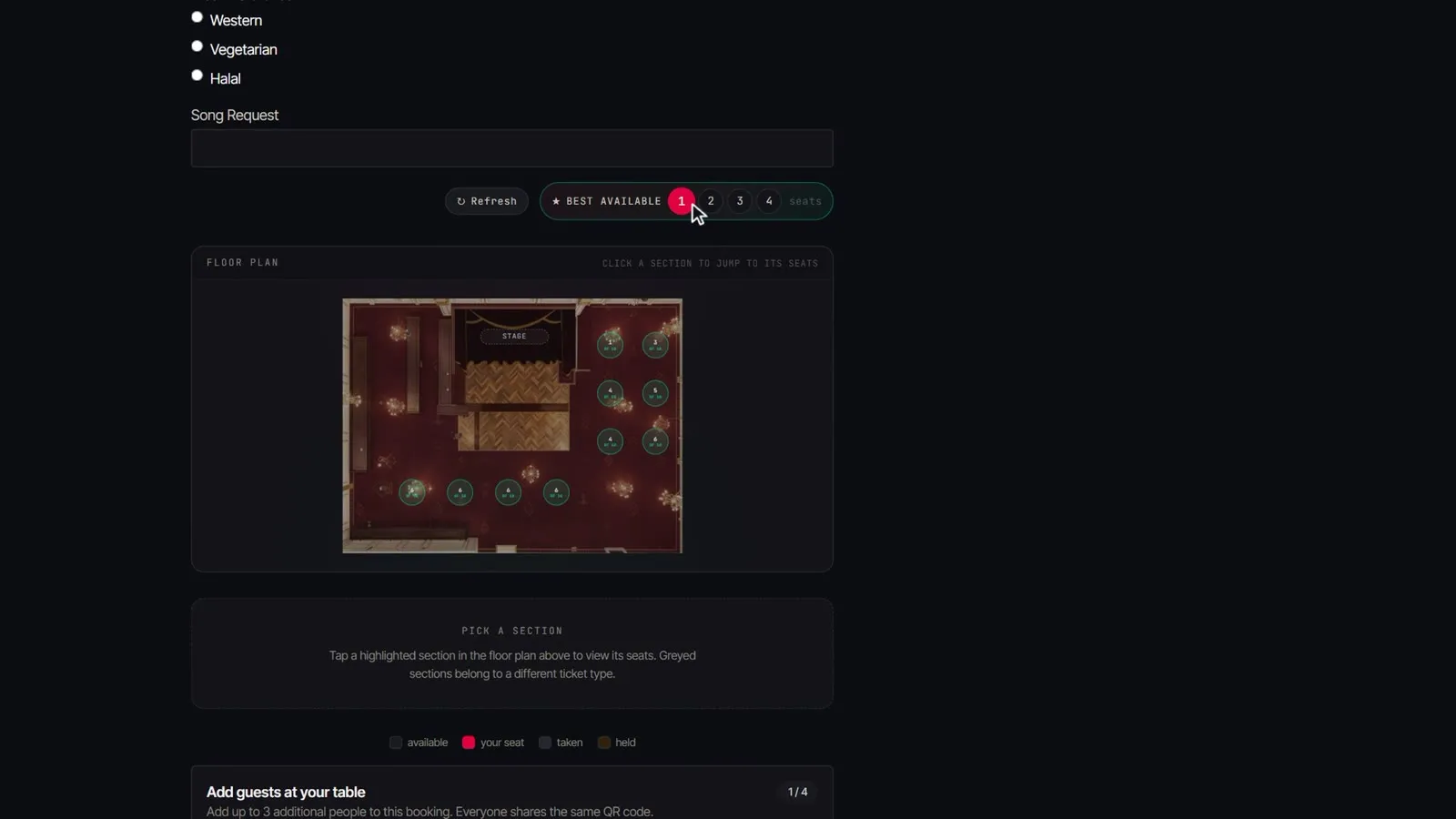
- The picker shows the floor plan and Best Available. Choose how many seats you need, or click a table on the plan.
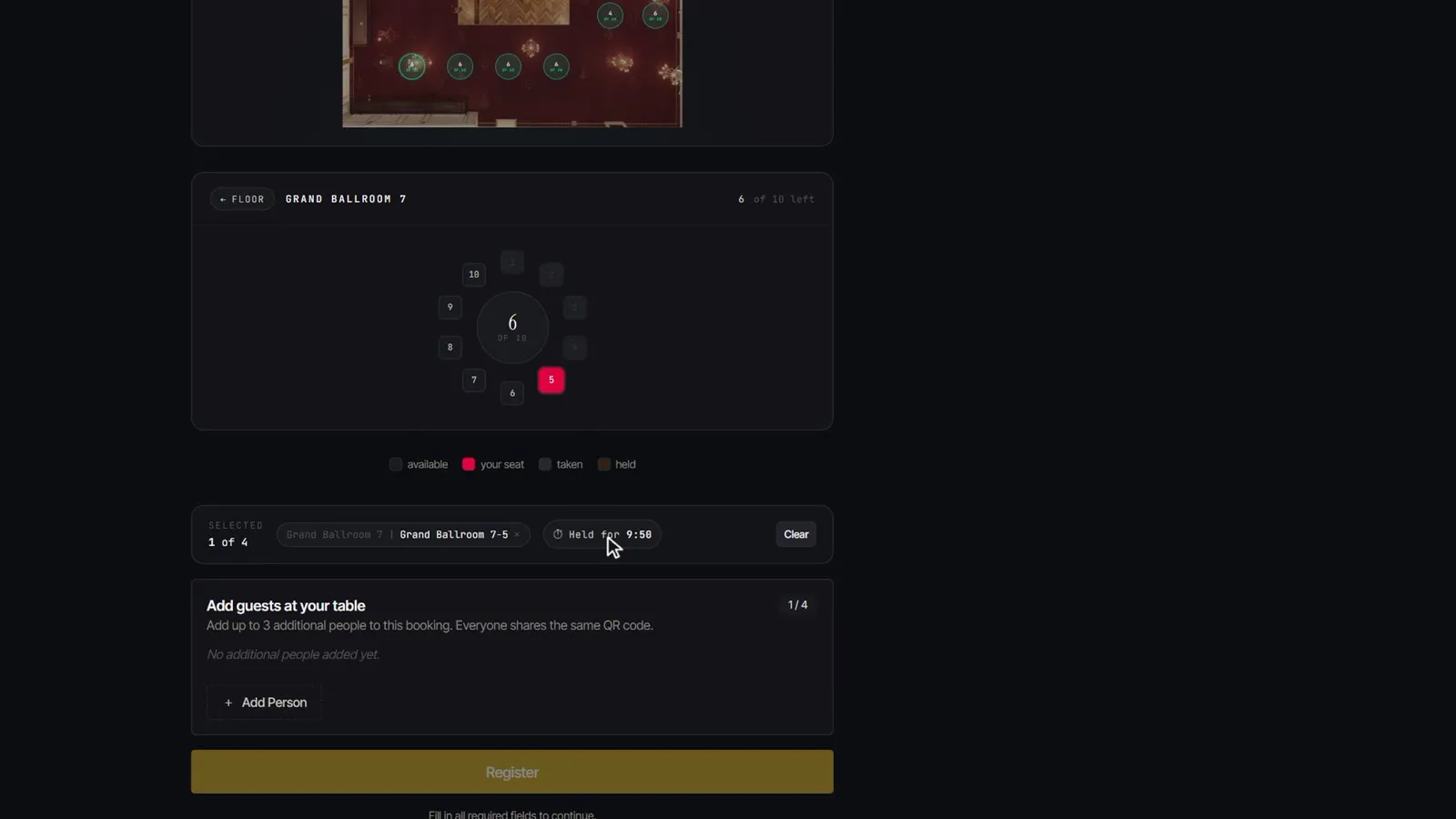
- The seats at that table open below. Click a free seat. It turns red because it’s yours.
- A timer shows how long the seat is held while the guest finishes registering.
- If your rules allow it, the guest can add more people to the booking, up to the maximum.
- The guest selects Register.
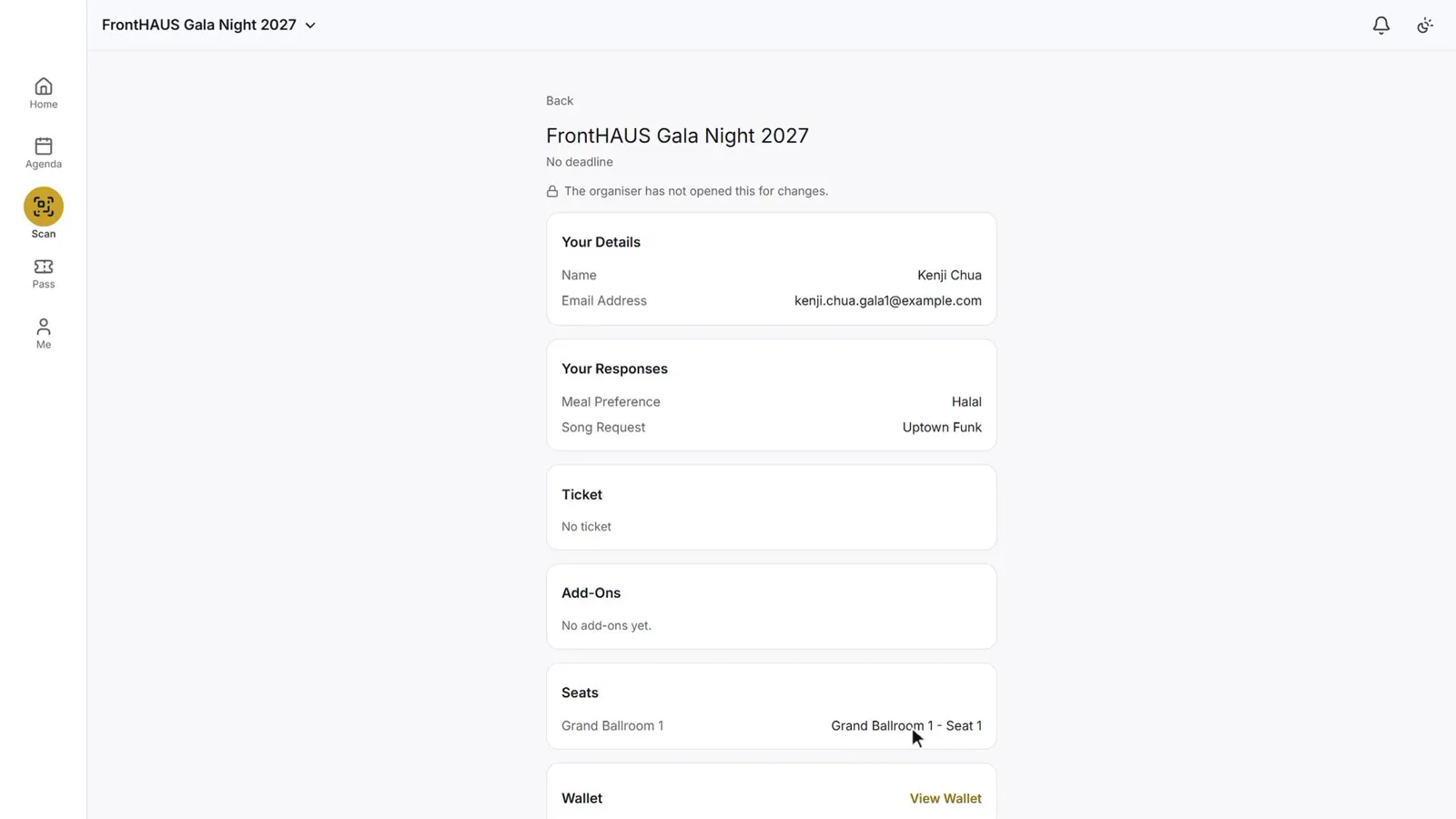
After they register, the seat is part of their booking. In the attendee app, the booking page shows it under Seats.
- Sponsors: sell and deliver sponsor visibility.
- Certificates: issue certificates after the event.