
Cashier Booths And Stored Value
Stored Value puts a balance on each guest’s pass. Guests load money onto the pass and spend it at your booths, so nobody has to handle cash. Cashier Booths are the places where that balance is charged or topped up.
Before You Start
Section titled “Before You Start”You’ll need an event with guests who have passes. Stored Value is switched on in the event editor, and the booths are set up from the Program menu.
Turn On Stored Value
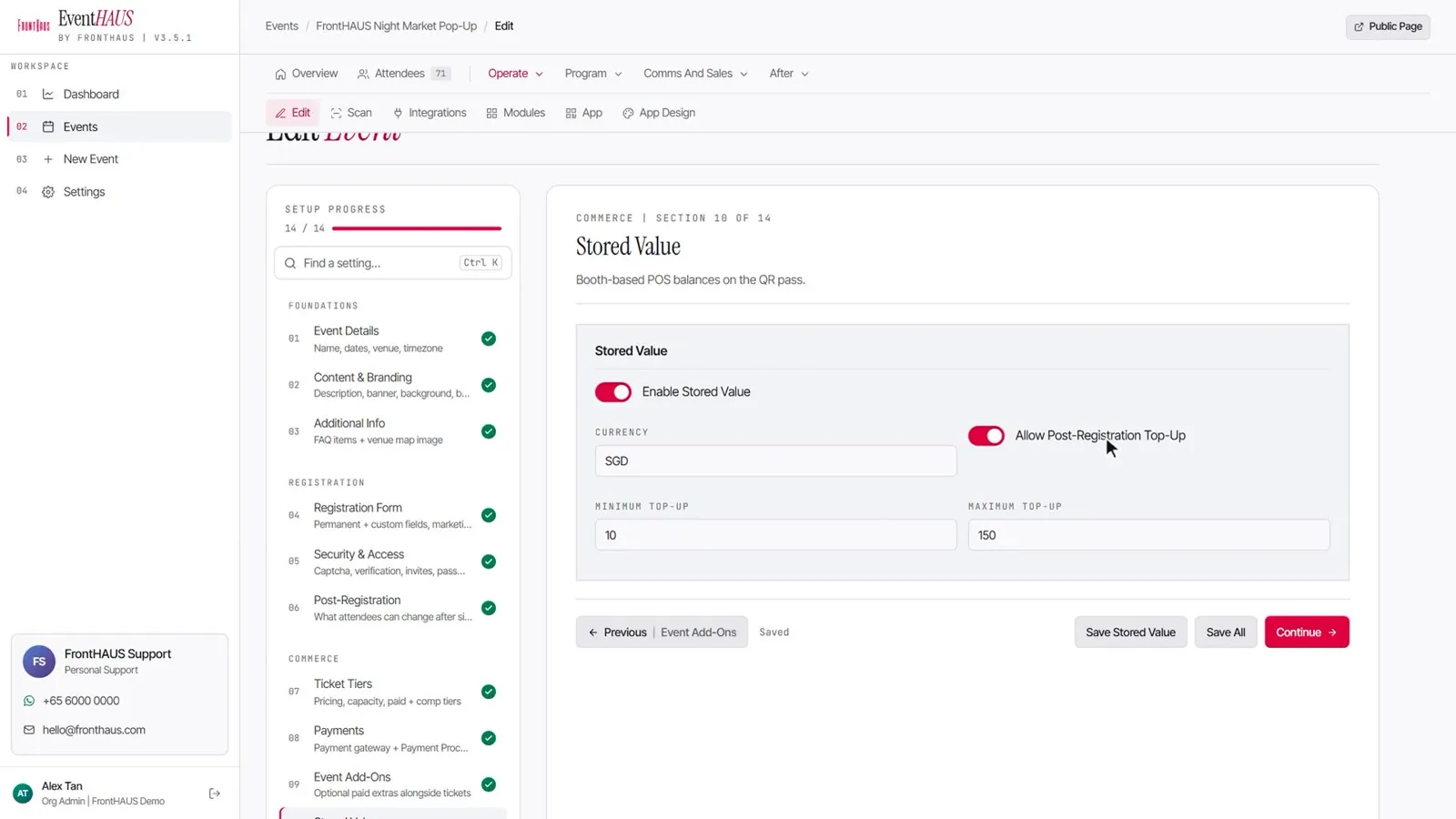
Section titled “Turn On Stored Value”- Open your event in the full editor and open the Stored Value section.
- Switch on Enable Stored Value.
- Choose the Currency.
- Decide whether to switch on Allow Post-Registration Top-Up. It lets guests add more money after they’ve registered.
- Set a Minimum Top-Up and a Maximum Top-Up, so nobody loads too little or too much in one go.
Review Your Booths
Section titled “Review Your Booths”- Open the Program menu and choose Cashier Booths.
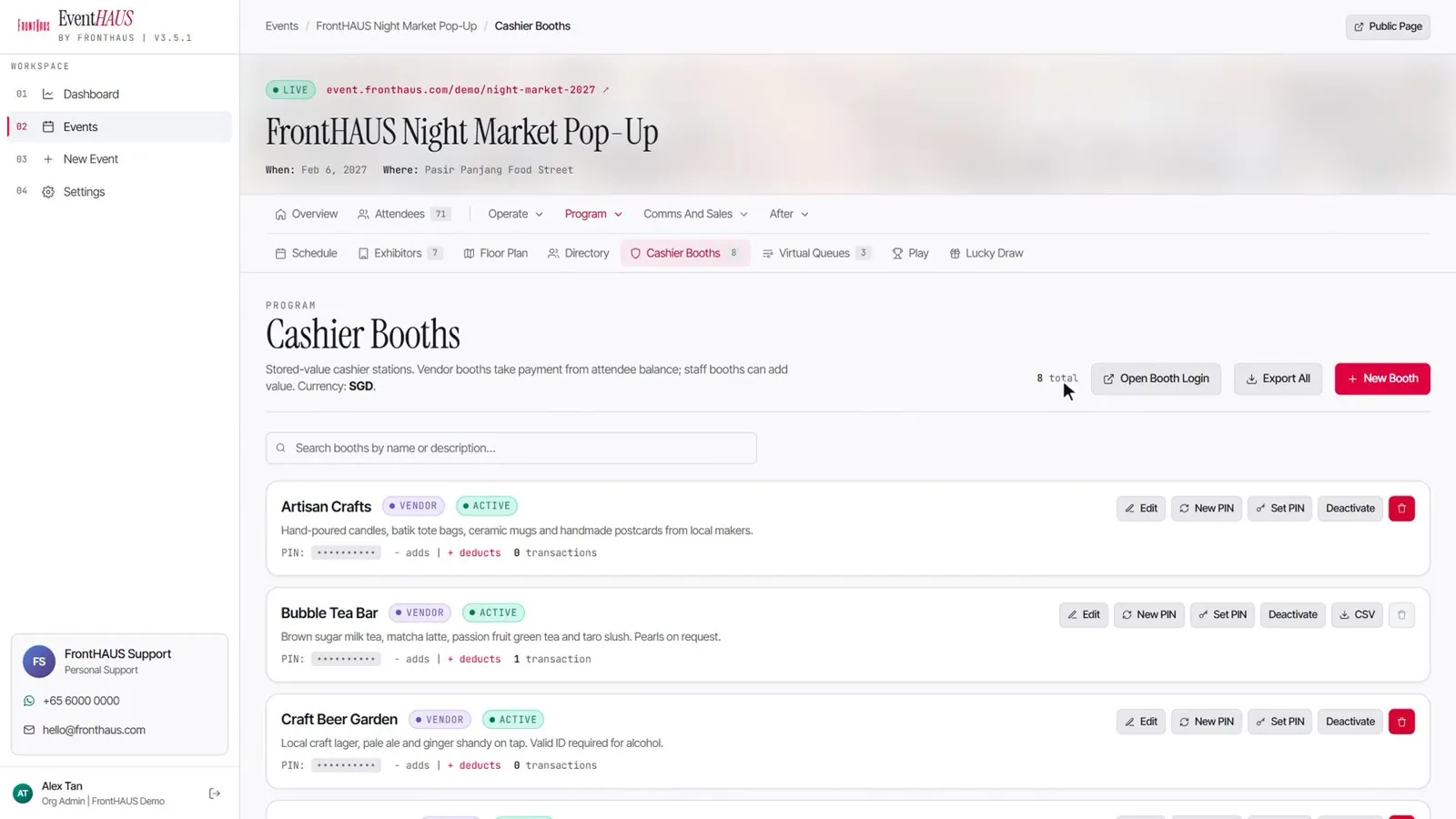
- Have a look at the page. It counts your booths, and each card says what that booth can do.
- Use the search box to find a booth by name or description.
There are two kinds of booth:
- Vendor booths charge a guest’s balance. Artisan Crafts and Bubble Tea Bar are examples.
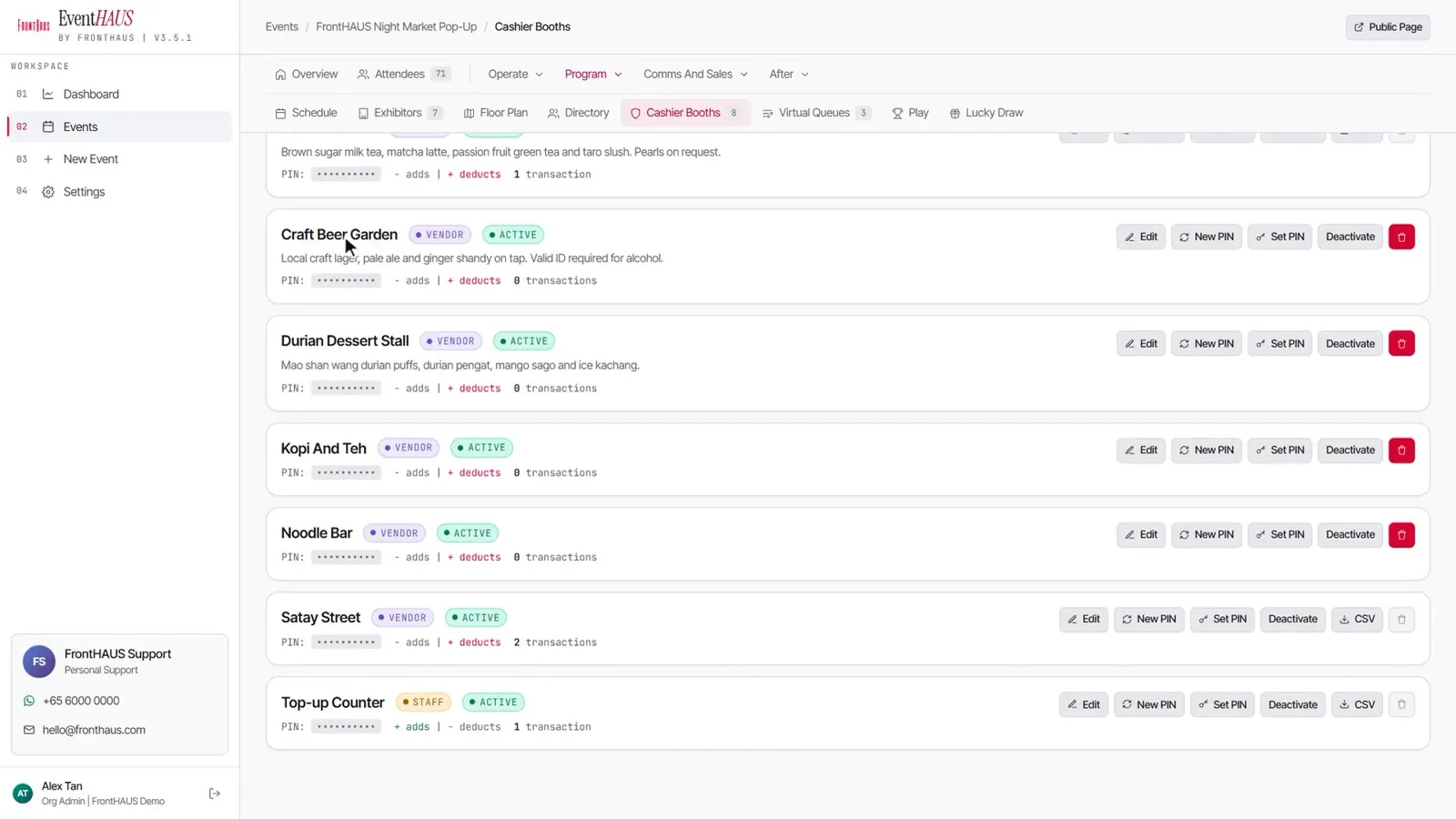
- Staff booths can add money to a balance. A top-up counter is a staff booth, where guests go to load their balance.
Booth PINs stay hidden as dots on the list.
Add A Booth
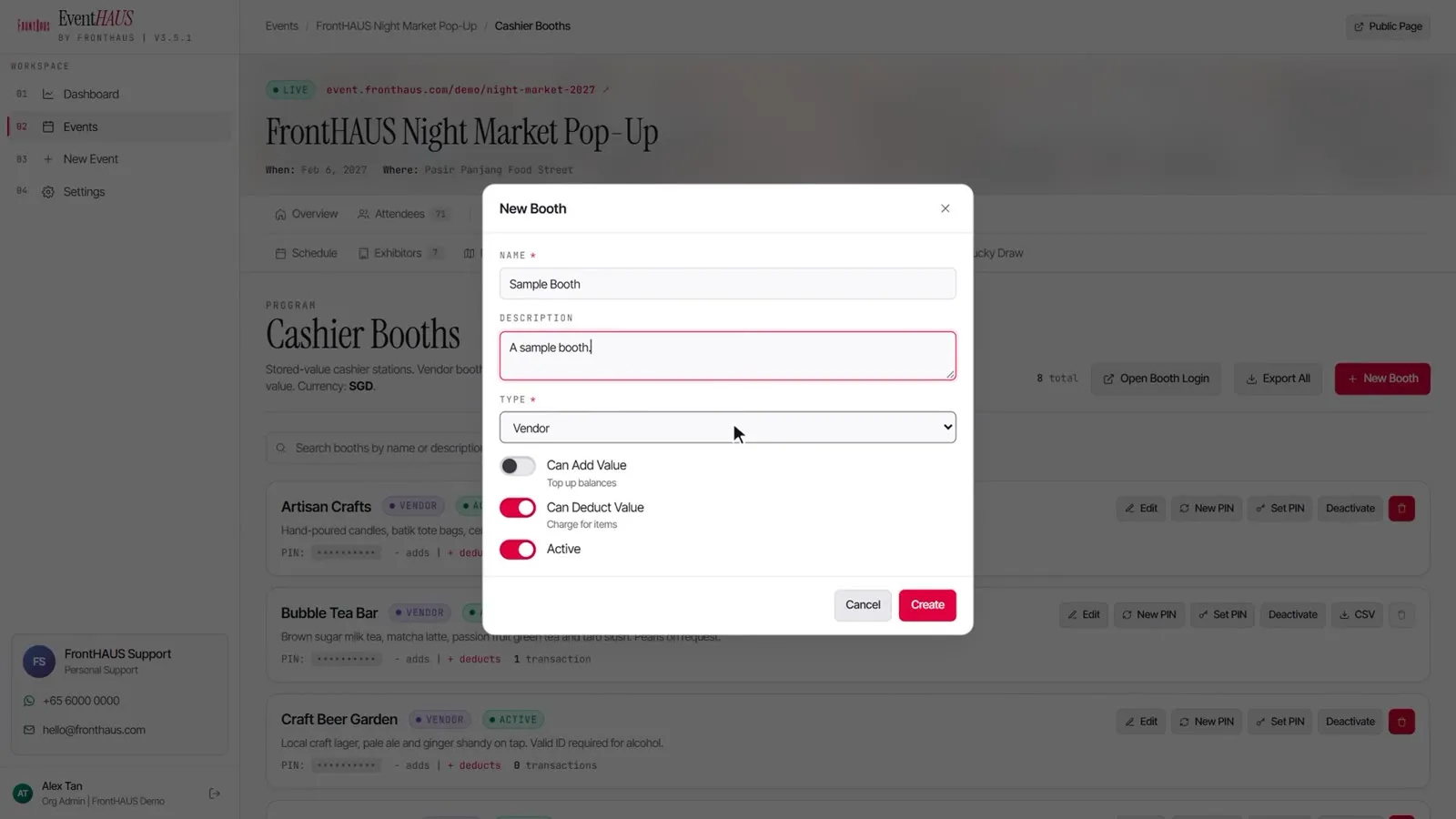
Section titled “Add A Booth”- Select New Booth and type a name.
- Add a short description.
- Choose the type, Vendor or Staff.
- Set the switches. Can Add Value is for topping up balances, Can Deduct Value is for charging items, and Active means the booth is open.
- Select Create to save the booth, or Cancel to close the form without saving.
Menus, Closing And Exports
Section titled “Menus, Closing And Exports”- Each vendor booth keeps a menu of items and prices. Staff pick from it at the till, and the guest’s balance is charged.
- To close a booth, select Deactivate. Nothing is lost, and you can switch it back on whenever you like.
- Every card counts its transactions. Once a booth has sales, a CSV button appears so you can download them.
- Export All at the top gives you every booth in one file, which comes in handy when you settle up with vendors after the event.
At The Booth
Section titled “At The Booth”Select Open Booth Login to reach the booth sign-in page. Staff enter the Event ID and their Booth PIN, then scan a guest’s pass and pick the items. The guest’s balance is charged. Keep PINs private.
What Guests See
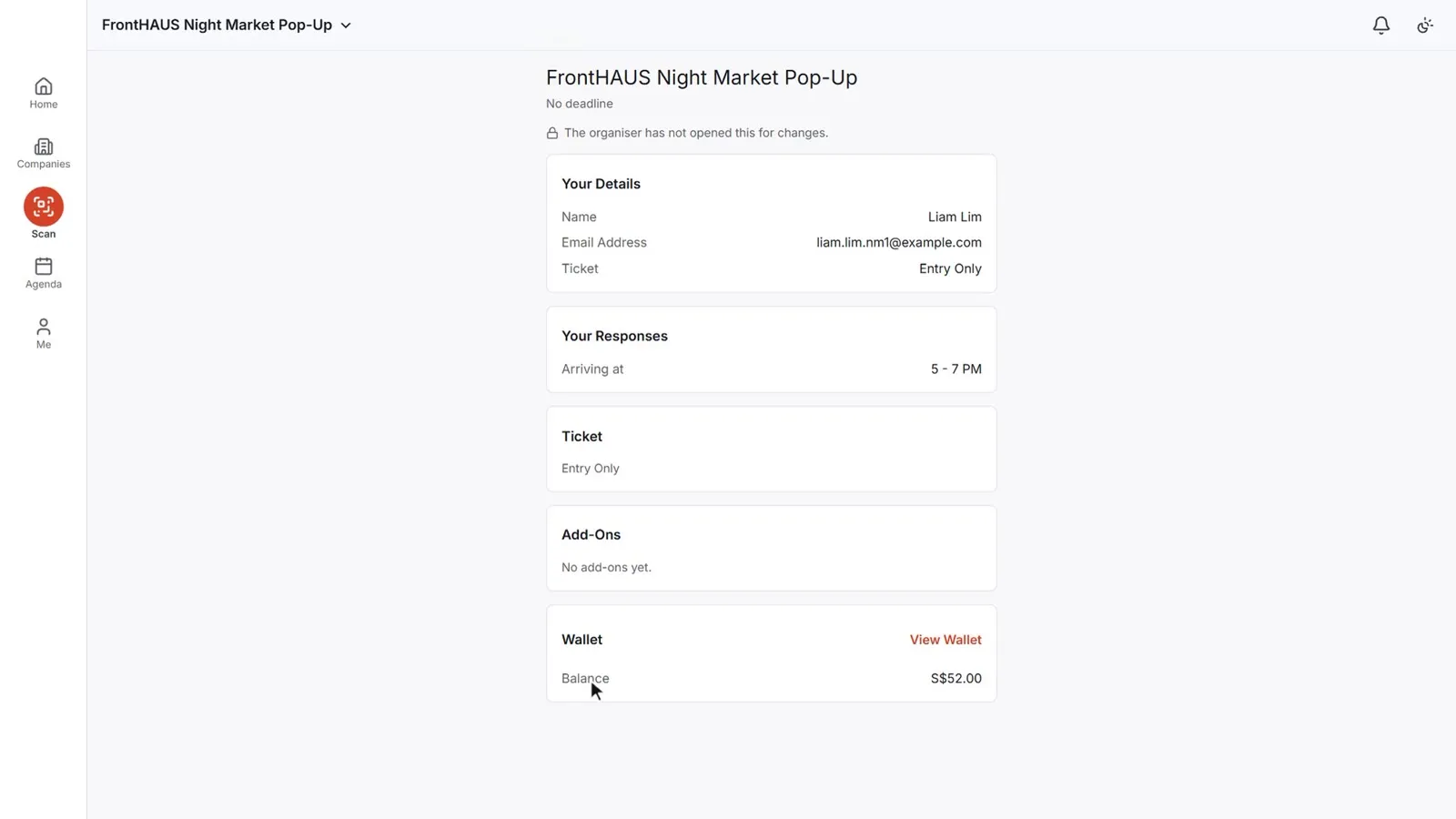
Section titled “What Guests See”In the attendee app, a guest opens the Me tab and finds their booking under More In This Event.
- On the booking page, a Wallet card shows the current balance.
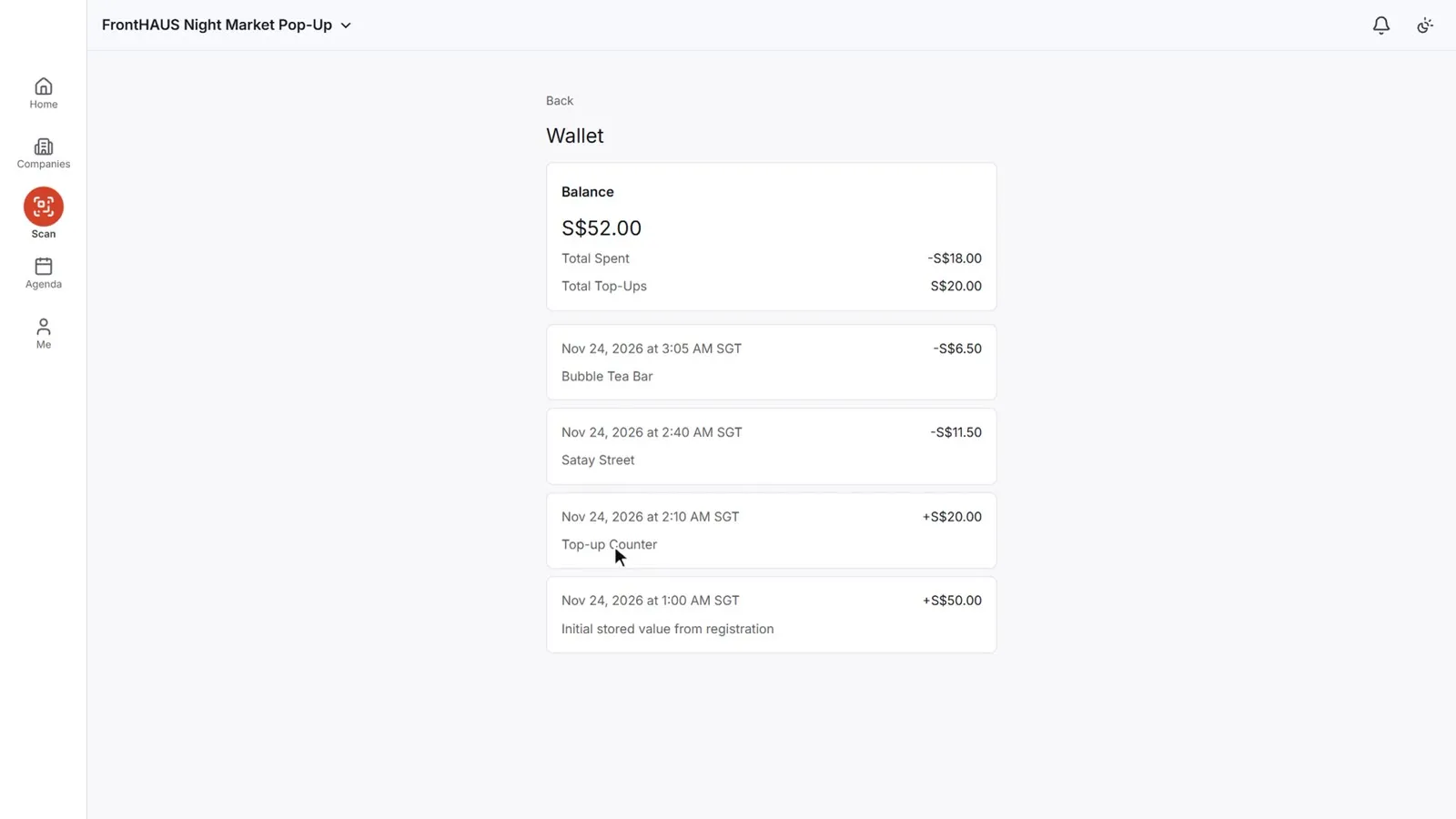
- Select View Wallet to open the wallet.
- The wallet shows the Balance, Total Top-Ups and Total Spent.
- Below that, every top-up and every purchase is listed with the booth where it happened, so guests always know where their money went.
- Virtual Queues: let guests join a line from their phone.
- Hosted Buyers: arrange meeting diaries for invited buyers.