
Run A Trade Show
A multi-day show has a lot of moving parts: exhibitors, sponsors, and visitors who want to book meetings. This guide follows the order you’ll work in: modules, registration, exhibitors, floor, sponsors, matchmaking, door and report.
Before You Start
Section titled “Before You Start”You’ll need a published event. If you haven’t made one yet, see Create Your First Event.
Switch On The Show Modules
Section titled “Switch On The Show Modules”- Open Operate, then Modules, and filter to On.
- EventHAUS Match, EventHAUS Expo and EventHAUS LeadScan do the main work. EventHAUS App, EventHAUS Play, EventHAUS Sponsor and EventHAUS Queue back them up.
Set Up Registration
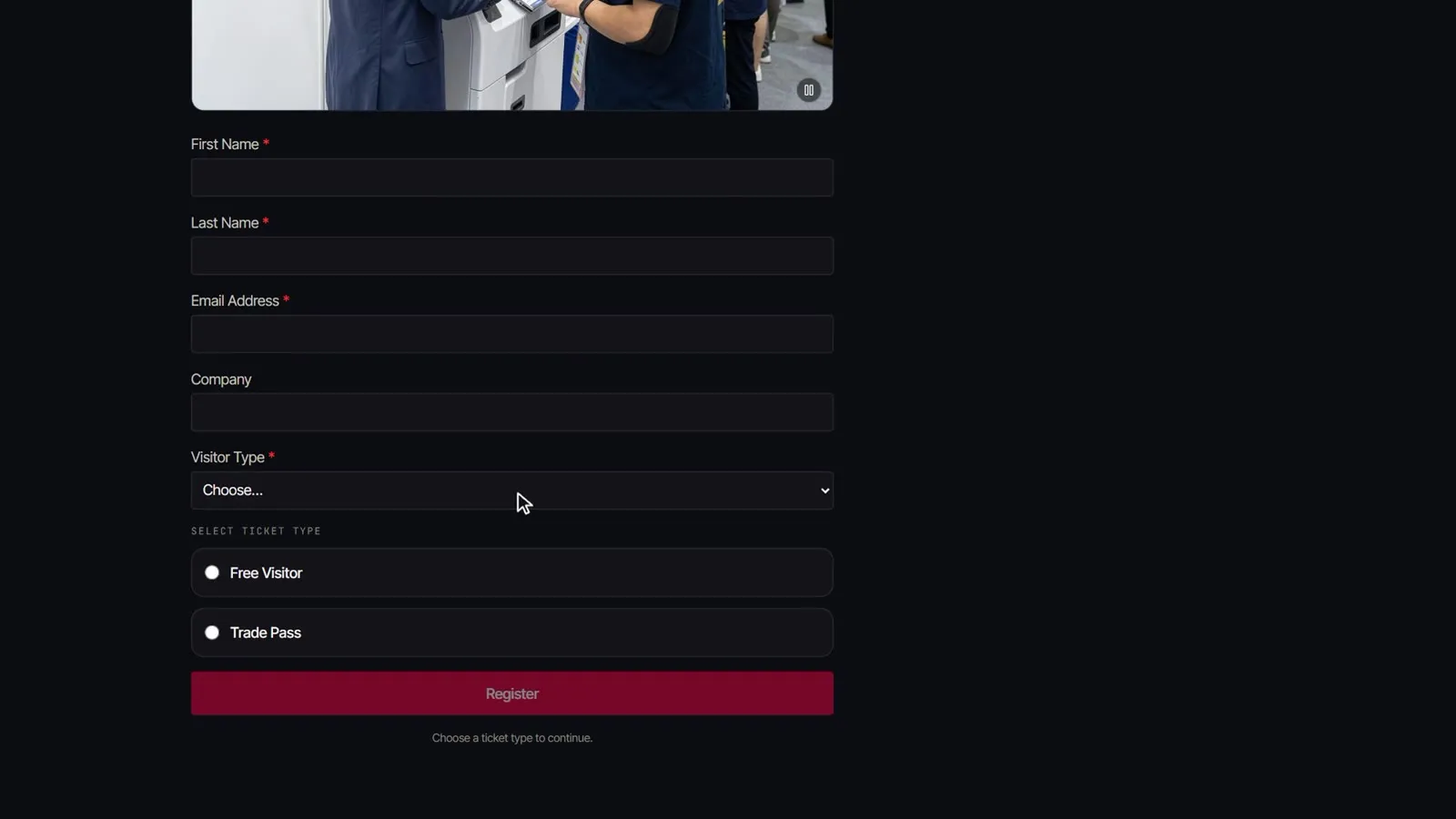
Section titled “Set Up Registration”Visitors register on the event page. If you want different allowances, offer more than one ticket: a free visitor ticket and a paid trade pass with a bigger meeting allowance, say. The form asks for a Visitor Type, such as Buyer, Trade, Media or Public, and guests choose a ticket under Select Ticket Type. That answer feeds matchmaking, which is how buyers get their own rules. Tickets And The Registration Form goes into the detail.
Manage Exhibitors
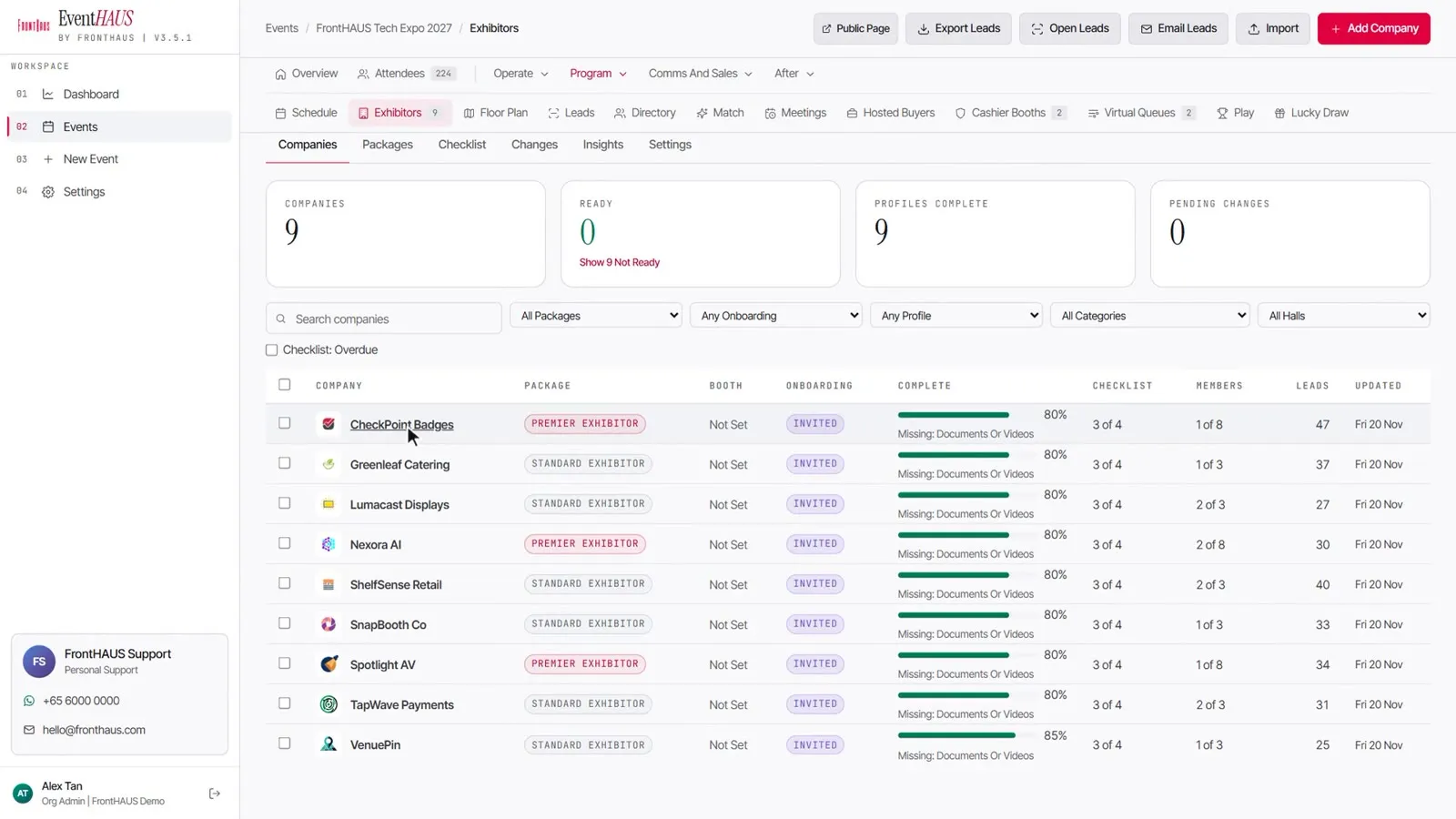
Section titled “Manage Exhibitors”- Open Program, then Exhibitors. The Companies tab lists each company with its package, onboarding status and profile progress.
- Use Packages to set limits, such as seats, scanners and meetings per company.
- Use Checklist for what every company has to finish. Send Reminder Now gives a nudge to anyone who’s behind.
There’s more in Exhibitors And The Floor Plan.
Lay Out The Floor
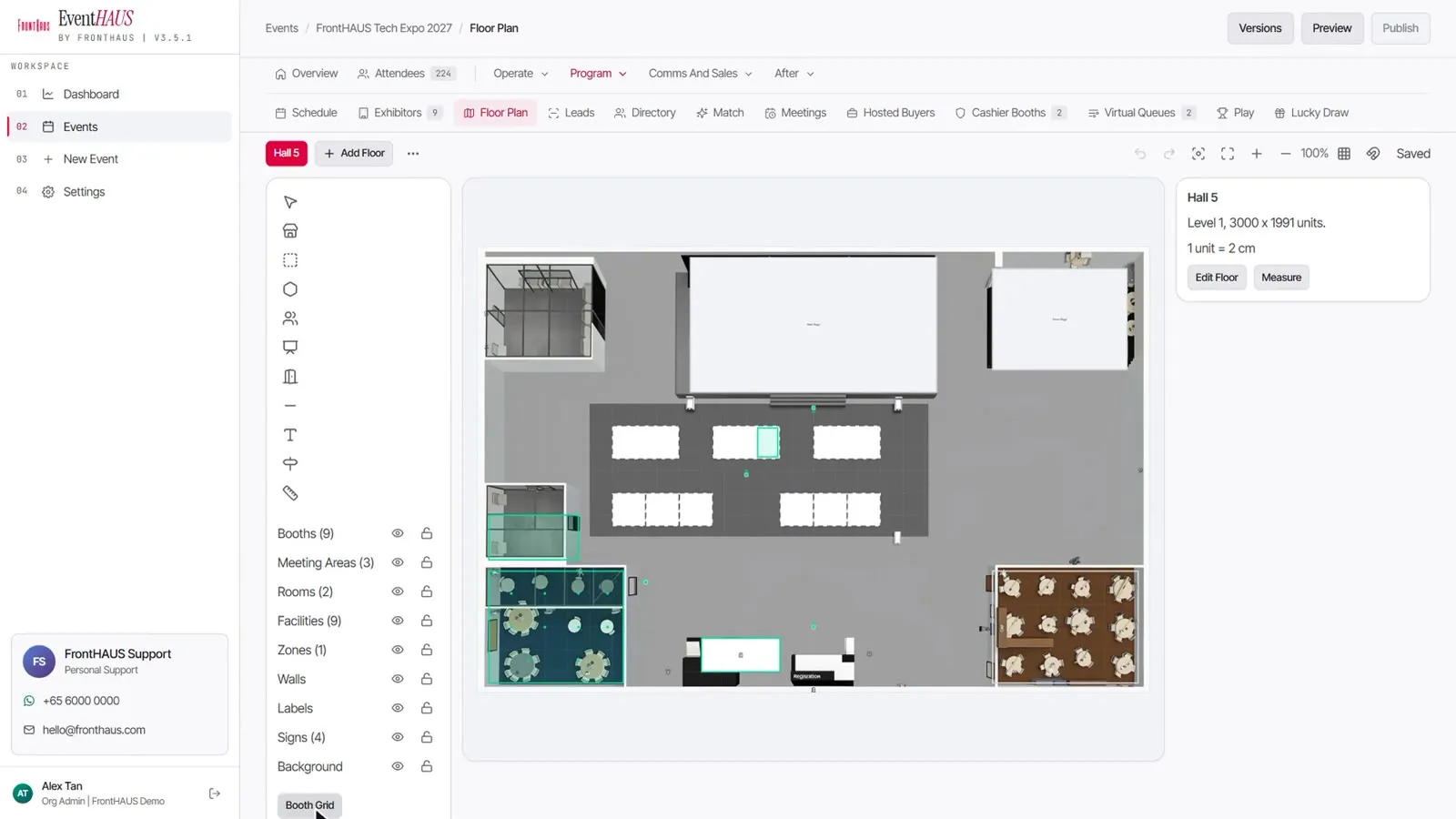
Section titled “Lay Out The Floor”- Open Program, then Floor Plan.
- The plan lists Booths, Meeting Areas, Rooms, Facilities and more. Booth Grid lays out a lot of booths in one go.
- On Booths, select Assign to give each company its place.
- Use Preview to check the plan, then select Publish to show it to visitors.
Add Sponsors
Section titled “Add Sponsors”Open Comms And Sales, then Sponsors. Sponsors are grouped by tier, and their logos run as live placements. Sponsors has the details.
Set Up Matchmaking And Meetings
Section titled “Set Up Matchmaking And Meetings”- Open Program, then Match. The overview shows how many visitors can be matched and how well they’re being served.
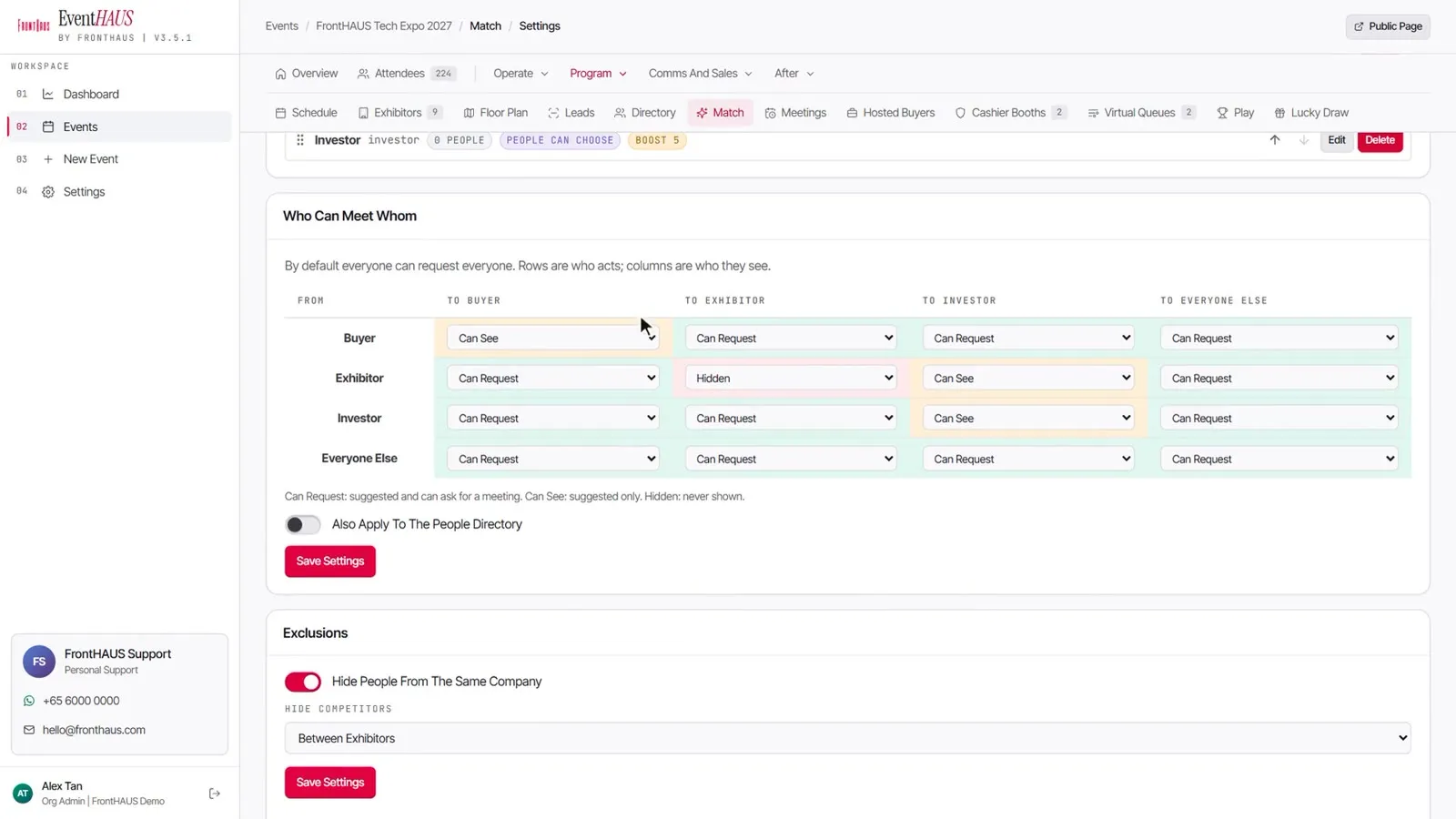
- In Settings, give one visitor type a boost, such as buyers, and set Who Can Meet Whom. Can Request suggests people and lets them ask for a meeting, Can See only suggests them, and Hidden never shows them.
- Open Program, then Meetings. The Overview tab shows how many meetings are confirmed and held, and the average rating.
- Table Grid shows every table by time slot, with counts for Booked, Drafts and Free slots.
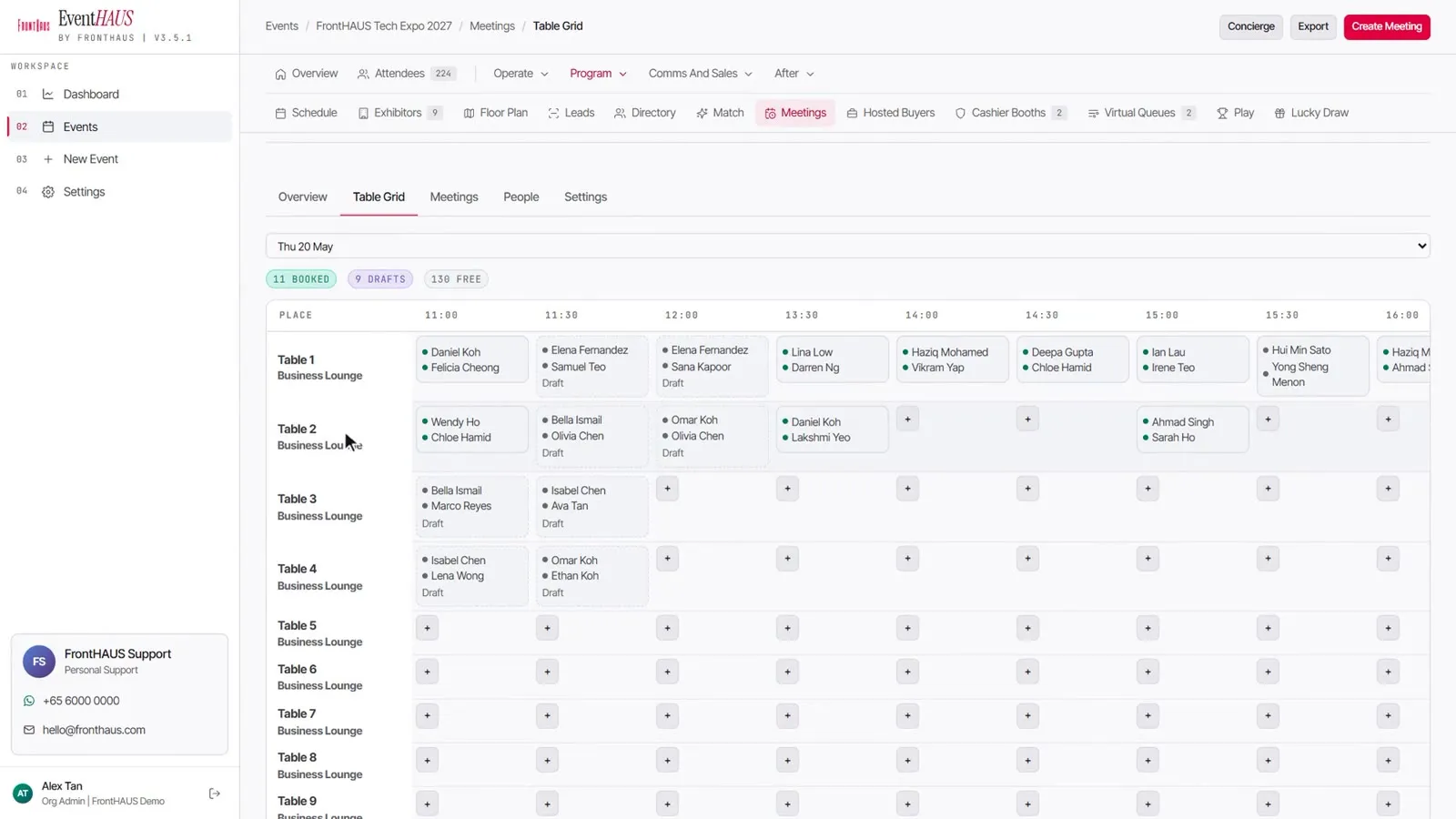
Matchmaking And Meetings covers both in full.
Run The Days
Section titled “Run The Days”- Before doors open, open Comms And Sales, then Communications. A draft reminder goes to every visitor once you publish it, and announcements reach people during the show.
- On the day, open Operate, then Scan. The Mobile Scanner checks people in, and the door log shows the latest arrivals.
- On Overview, watch Checked In and Still to Arrive.
- Open Program, then Leads. The Overview tab shows one row per company with its scanners, leads and Export All Leads. Leads explains the rest.
- Program, then Play can show how many visitors each company drew.
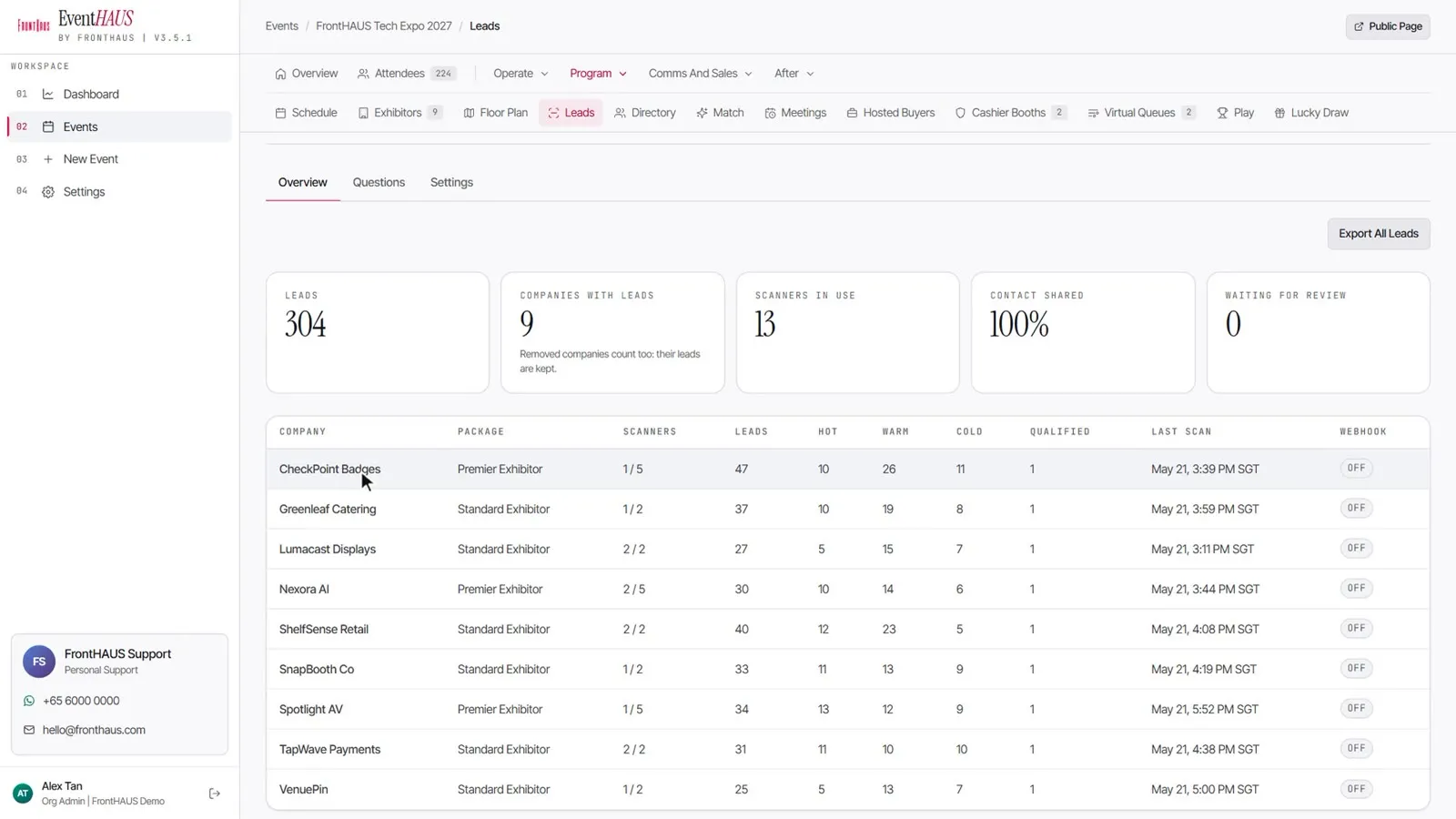
What Guests See
Section titled “What Guests See”In the attendee app, visitors see:
- Companies: every exhibitor, with search, filters and Favourites.
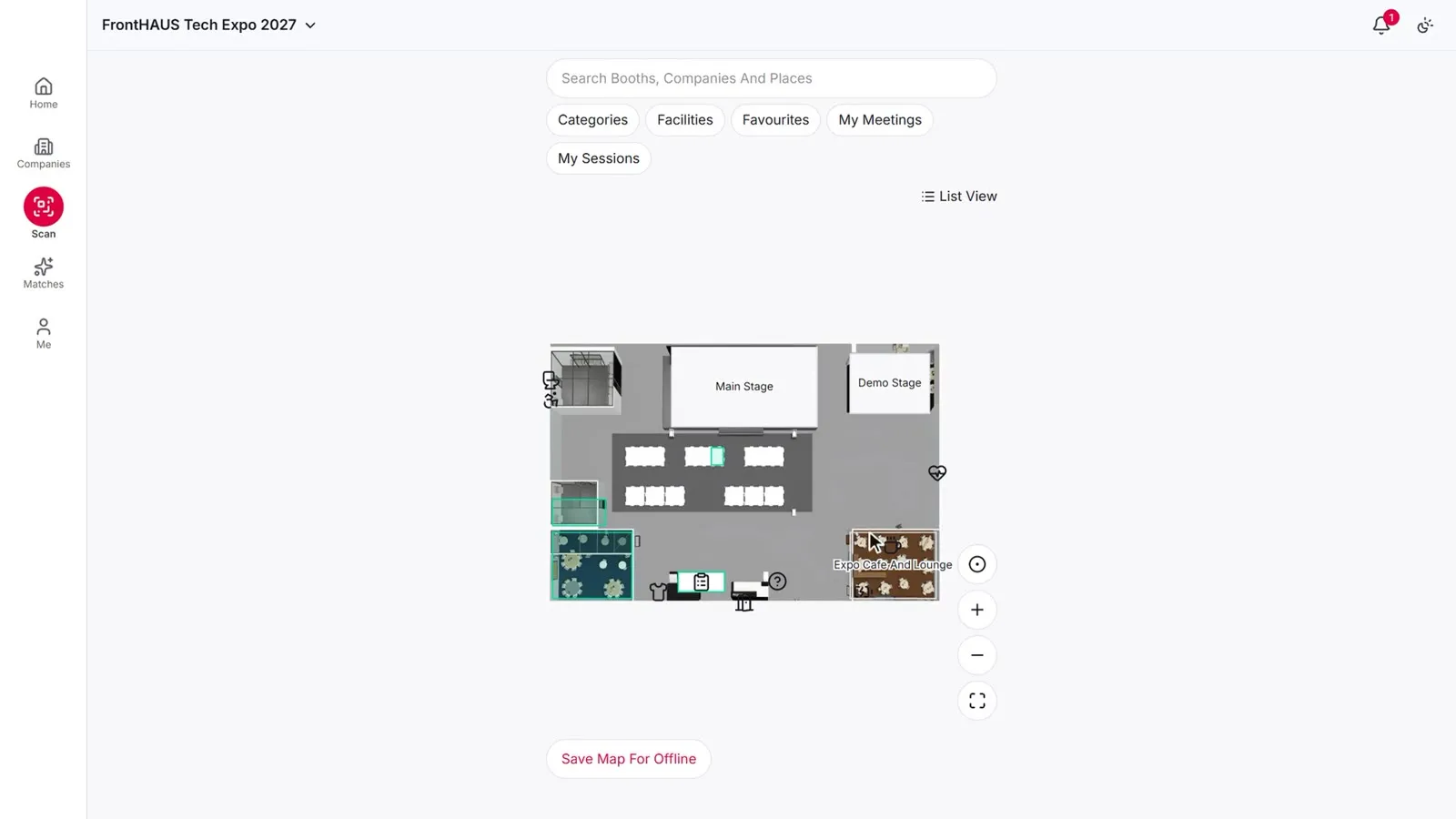
- The venue map, which is your floor plan, with the stages and lounge labelled.
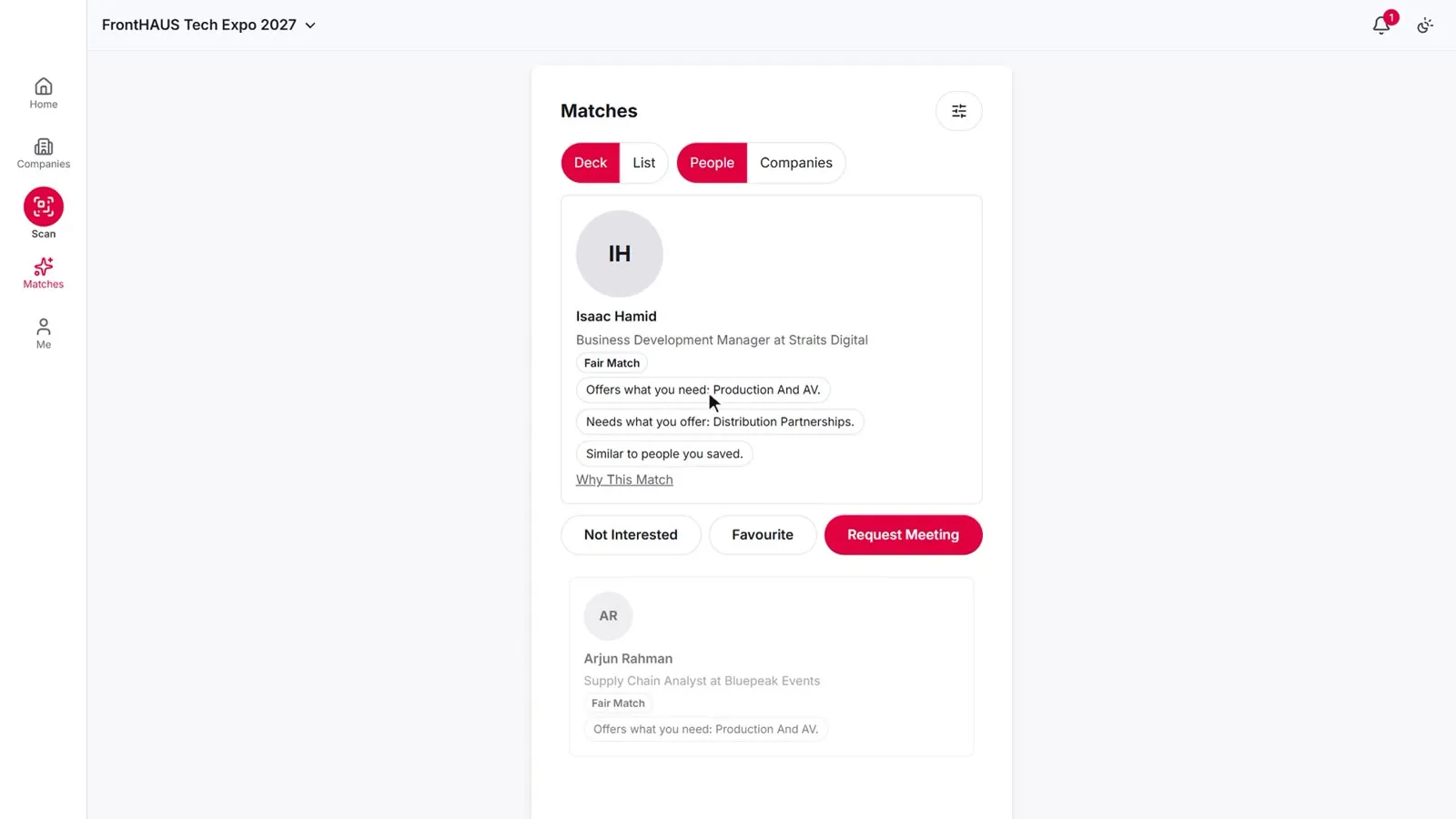
- Matches: people worth meeting, with the reasons each was suggested and Request Meeting.
- My Meetings: everything they’ve booked, with the time and table.
Afterwards
Section titled “Afterwards”Open After, then Report to see how arrivals went and when the busiest period was. After The Event has more.